Draft — being checked against the app
Credits, refunds and write-offs
Take money off an invoice, refund a patient or keep a credit, and approve write-off requests.
Use Credit / refund when a patient shouldn't pay all of an invoice: a service wasn't performed, the price was wrong, or the invoice was a duplicate. Clarirad records a credit note against the invoice either way.
Crediting or refunding services
Credit / refund appears on invoices that are Issued, Sent, Partially paid, Overdue or Paid.
- Open the invoice and press Credit / refund. The Credit or refund services dialog opens.
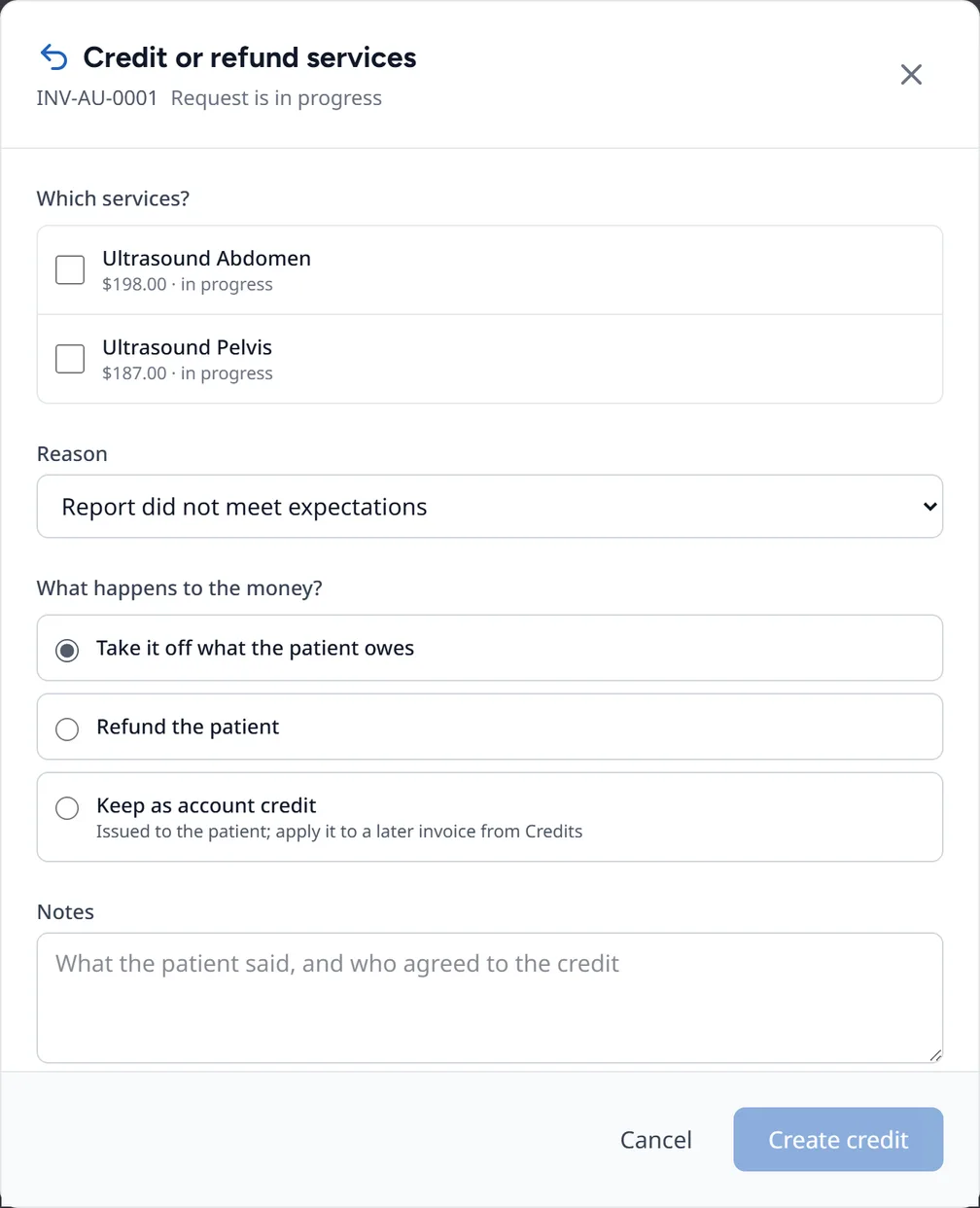
- Under Which services?, tick the lines and set the amount to credit on each.
- Pick a reason: Report did not meet expectations, Patient left during the exam, Patient complaint, Service not performed, Pricing error, Duplicate billing, or Other.
- Under What happens to the money?, choose what to do (below).
- Press Create credit.
The three choices for the money are:
- Take it off what the patient owes: reduces the balance still to pay.
- Refund the patient: pays the money back against the original payment.
- Keep as account credit: holds the money as credit for the patient.
You see Credit recorded, and the invoice shows a Credits and refunds section listing the credit note.
Who can do this
Admins and finance staff. You may be asked for your authentication code first. There is no separate approval step.
Why a credit can be refused
- A paid invoice has no balance to reduce: choose Refund the patient or Keep as account credit instead.
- The credits would add up to more than the invoice.
- Money taken through the online payment gateway has to be refunded through the gateway.
Approving write-offs
A write-off clears a balance you don't expect to collect. Write-off requests are reviewed in Finance, Write-offs (the Write-off management page).
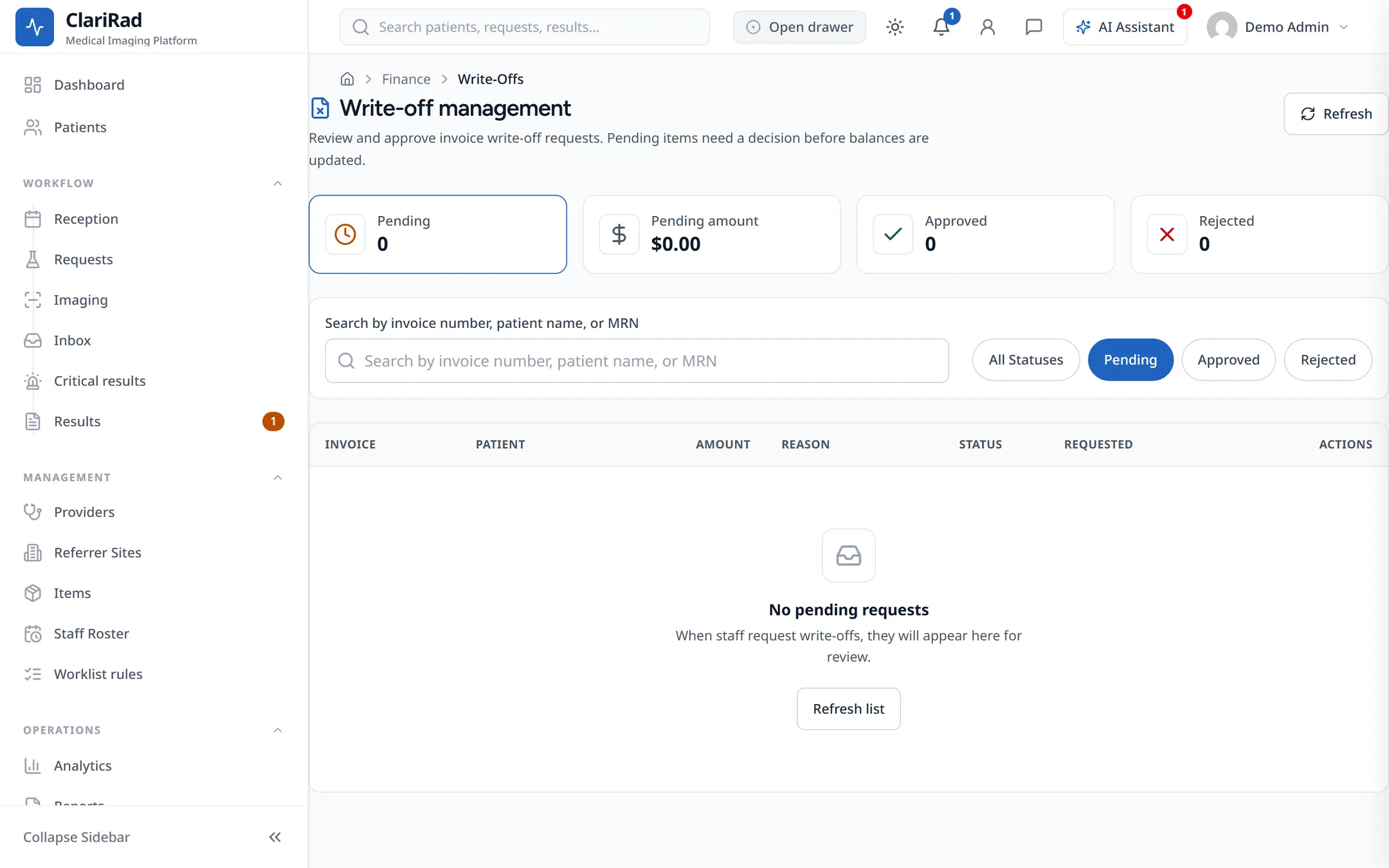
- Press Approve write-off (or Quick approve from the list), or press Reject and enter a rejection reason.
You can't approve a write-off you raised yourself, and approving asks for your authentication code. A full write-off sets the invoice to Written off. Small write-offs below your practice's threshold can be approved automatically.