Draft — being checked against the app
Inviting patients to the portal
Send a portal invitation, choose what the patient can use, and help with sign-in problems.
Patients get a portal account when your staff invite them. You manage each patient's account from the Portal Access tab on their patient record.
Sending an invitation
- Open the patient and go to the Portal Access tab. It shows No portal account.
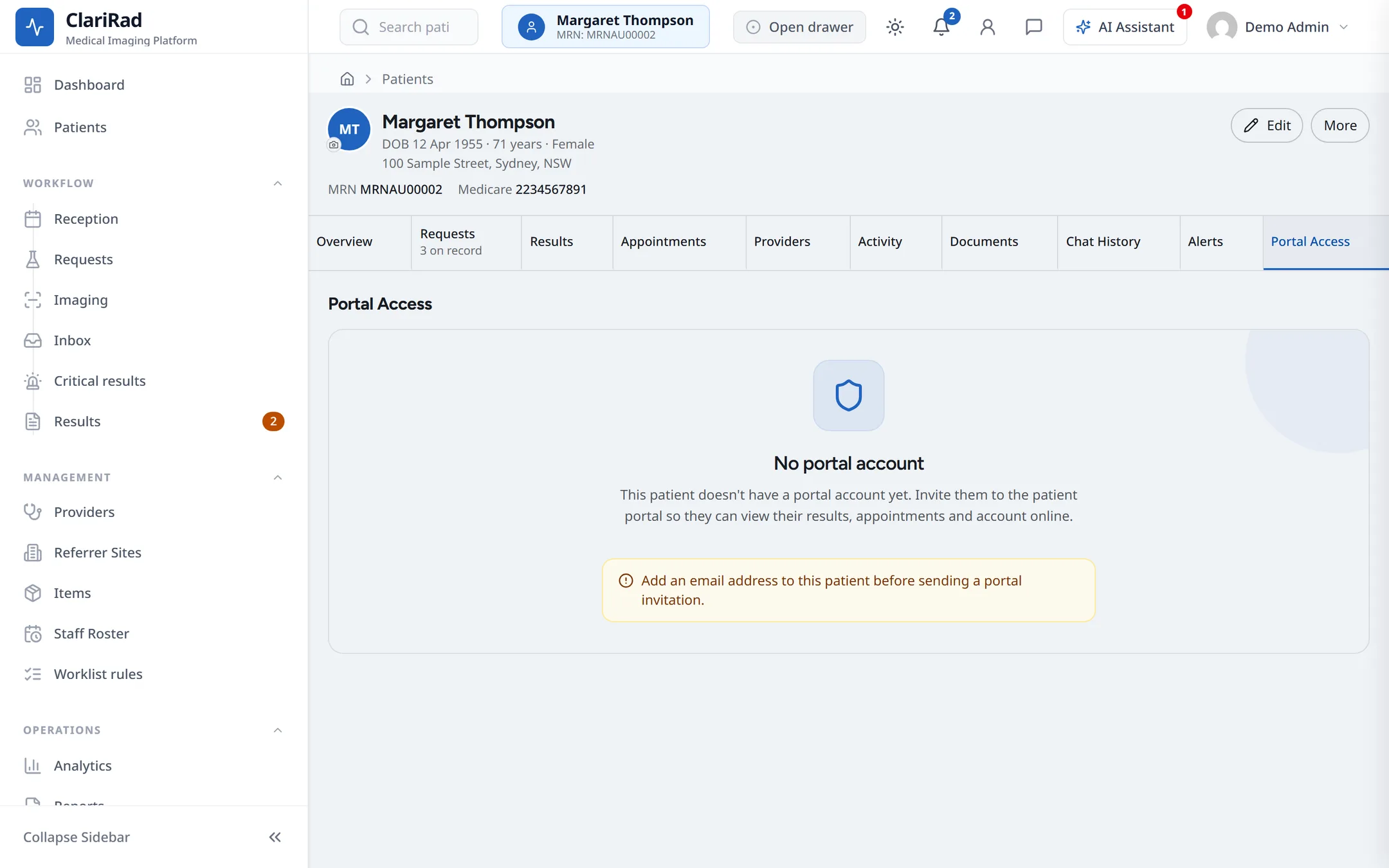
- Check the patient has an email address on their record.
- Press Send invitation.
The patient receives an email with a link to set their password. The link can be used once and works for seven days. If it expires or goes astray, press Resend invitation.
Choosing what the patient can use
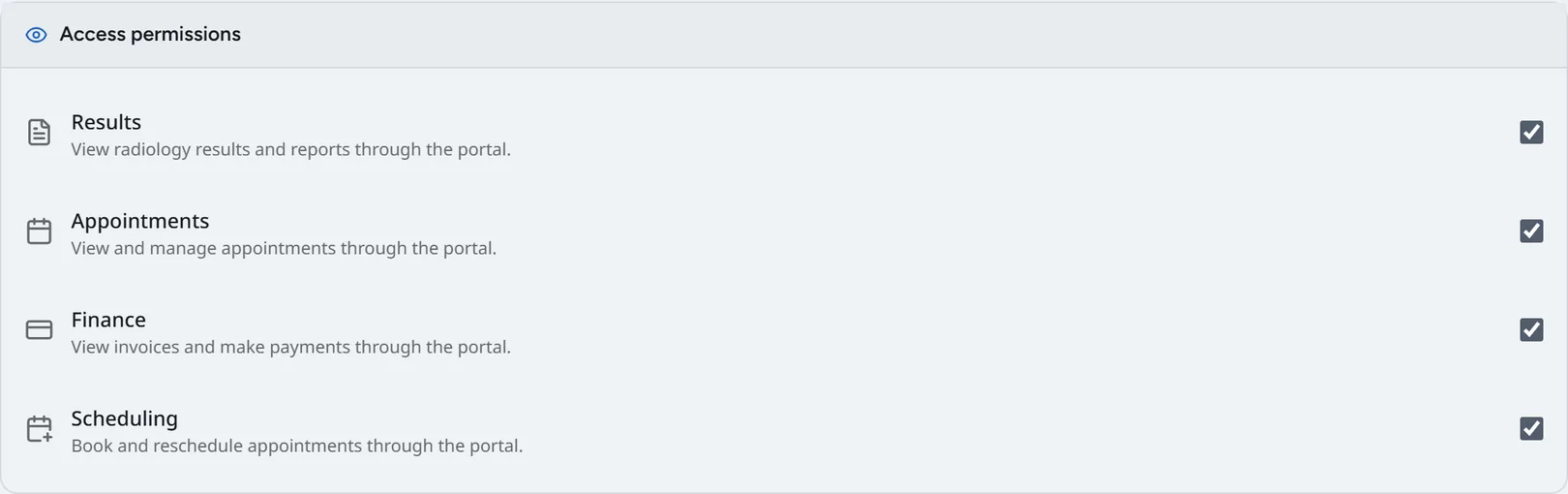
Under Access permissions, turn each part of the portal on or off:
- Results: see released reports.
- Appointments: see and cancel appointments.
- Finance: see and pay invoices.
- Scheduling: book appointments online.
Helping with sign-in problems
Admins have these extra actions on the tab:
- Reset password: emails the patient a new link.
- Reset MFA: clears two-factor authentication so they can set it up again.
- Unlock account: after too many wrong passwords.
- Revoke all sessions: signs them out everywhere.
- Deactivate account: stops them signing in.

View as patient
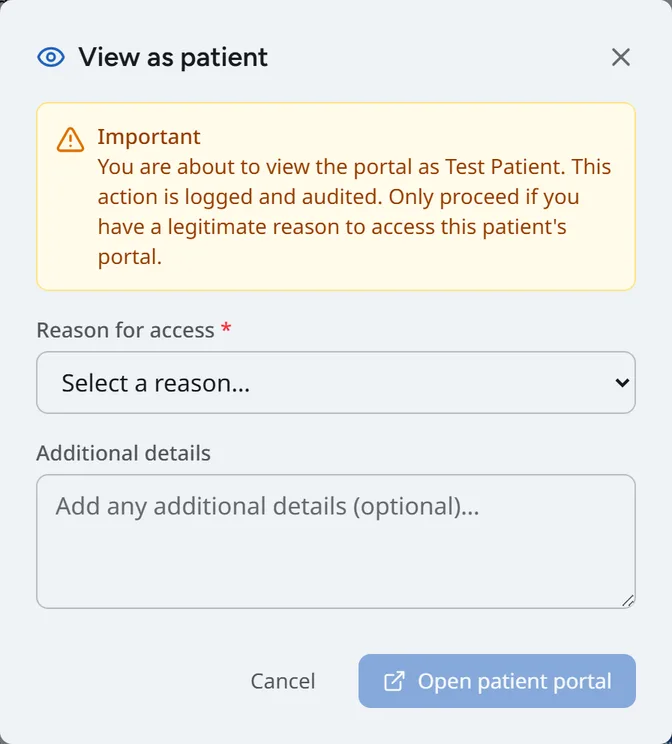
View as patient opens the portal as the patient sees it, for example to talk them through a screen. Choose a reason for access (such as Phone support, Result access issue or Billing question; Other needs at least 10 characters of detail). The session lasts 15 minutes and is recorded in the audit log.
Admins can review these sessions under Settings, Patient Portal Impersonation.
Parents and guardians
Under Guardian access, staff can add a child to a guardian's account. A guardian can also ask for access to a child from their own portal. Either way, access starts only after staff have verified consent.