Draft — being checked against the app
Merging duplicate patients
Combine two records for the same person, with a second administrator confirming, and roll back within 7 days.
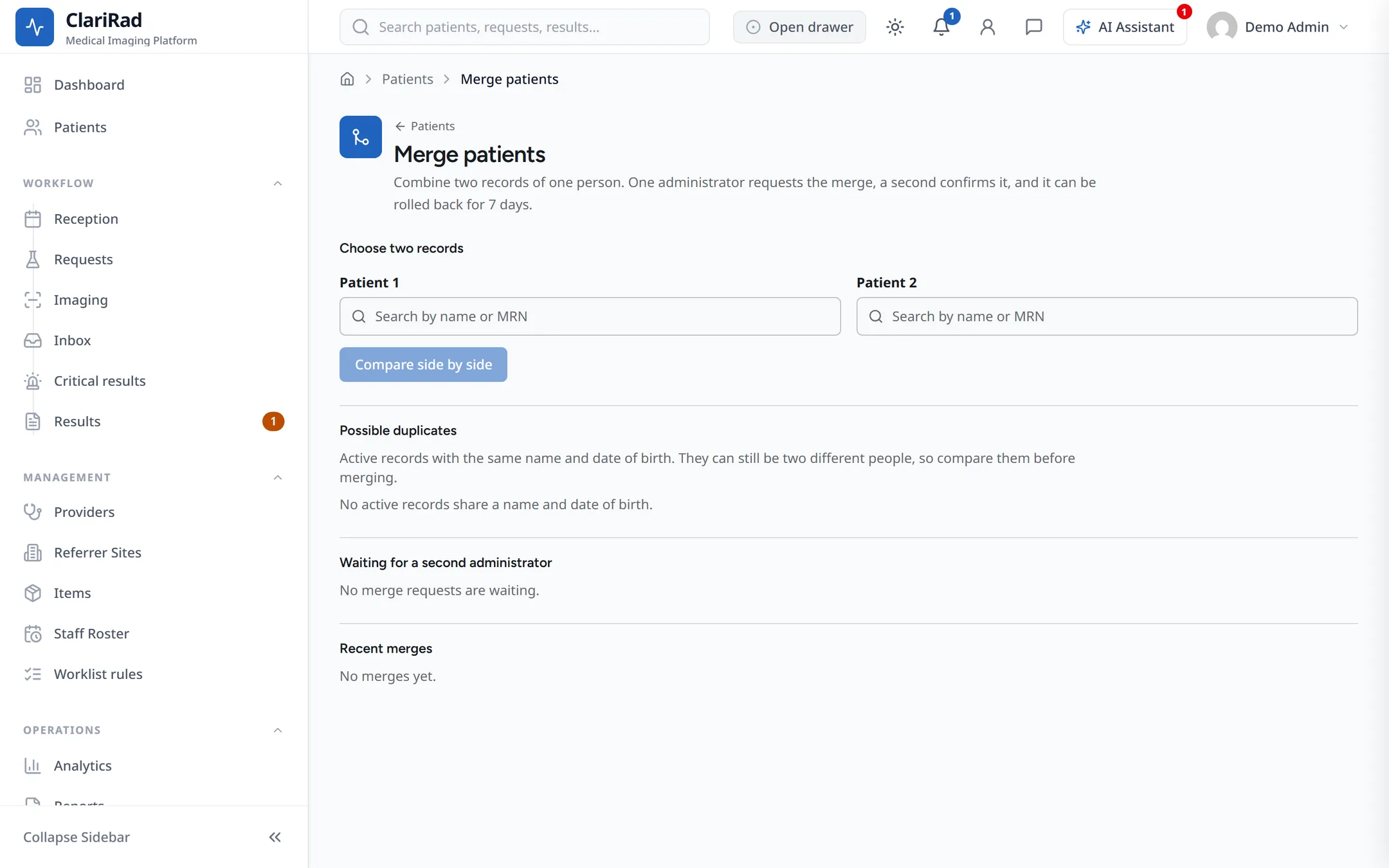
When the same person has two records, merge them so their history is in one place. Merging needs two administrators: one asks for the merge and a different one confirms it. Anyone who is not an administrator can still report a duplicate to one.
Finding duplicates
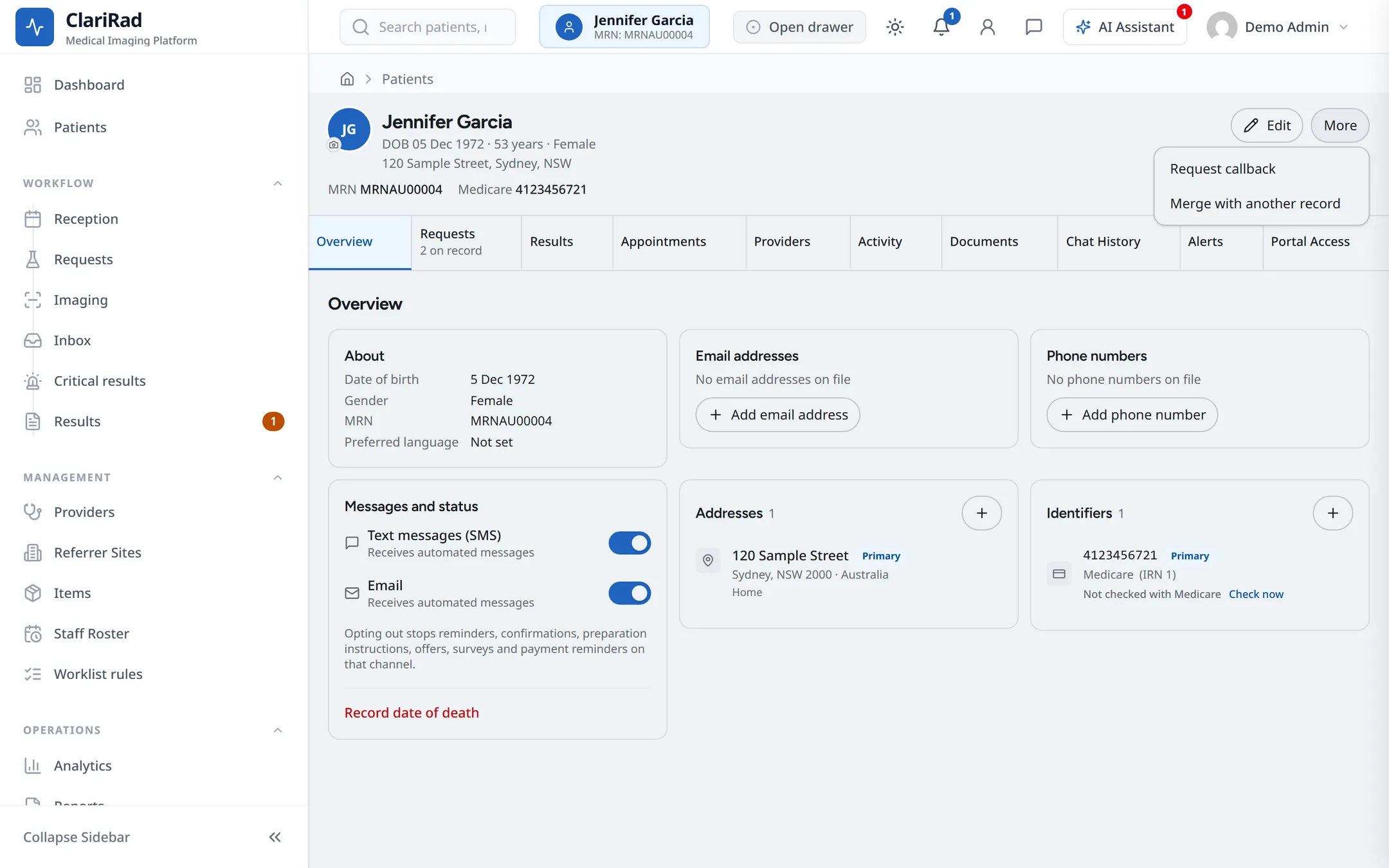
Open 'Merge patients' from the Patients screen (administrators only), or from a patient's 'More' menu choose 'Merge with another record'. The 'Possible duplicates' list shows active records that share a name and date of birth.
Asking for a merge
- Under 'Choose two records', search by name or MRN and pick both records, or pick a pair from 'Possible duplicates'.
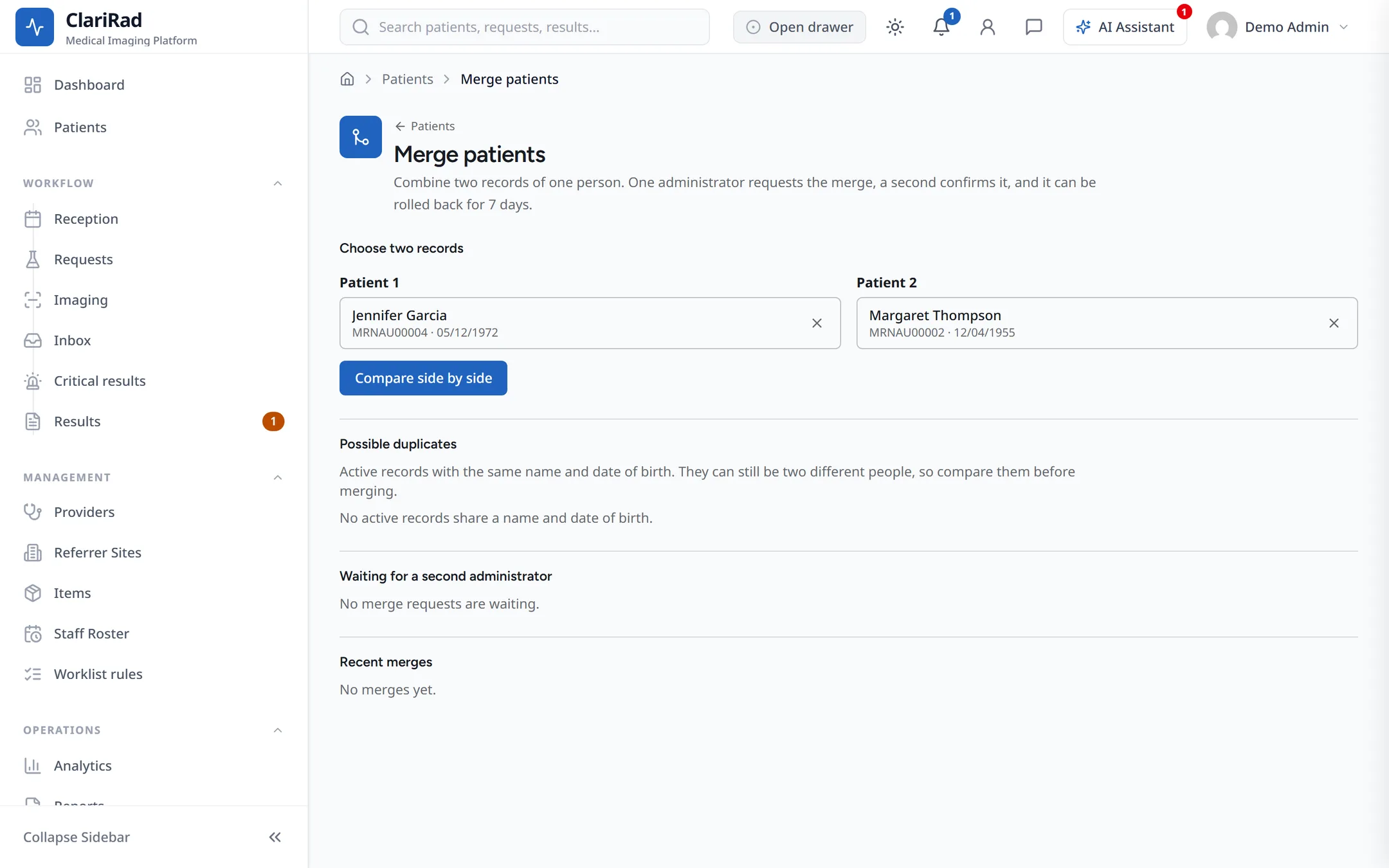
- Choose 'Compare side by side'.
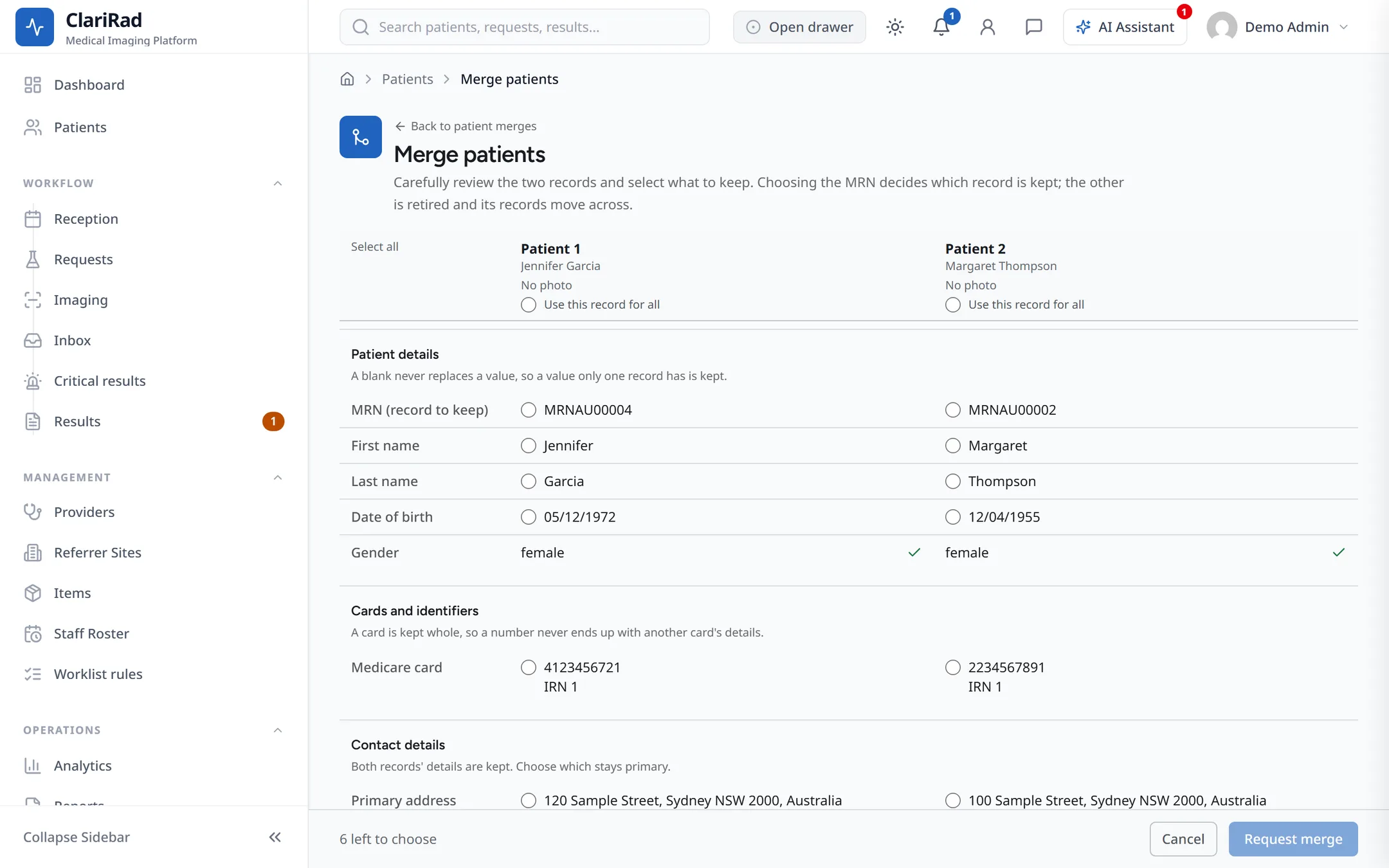
- Go through the fields and choose which value to keep for each. 'Choose which MRN to keep' decides which record survives.
- Choose 'Request merge'.
Confirming a merge
- A different administrator opens the request and chooses 'Review'.
- They check the comparison and choose 'Confirm merge', then confirm again in 'Confirm this merge?'.
The request must be confirmed within 24 hours or it expires. Until then, the person who asked can choose 'Withdraw request'.
What happens
- The kept record gets everything from the other one: requests, results, appointments, invoices, documents, alerts and referrals.
- The other record is retired. It no longer appears in searches.
- Opening the retired record shows a banner saying it was merged into another patient, with 'Open the patient it was merged into'.
- Booking or saving anything on the retired record is refused, with a button to the kept record.
Undoing a merge
For 7 days after a merge, an administrator can choose 'Roll back'. 'Roll back this merge?' asks why it is being rolled back; the reason is recorded. After 7 days a merge cannot be undone in Clarirad.