Draft — being checked against the app
Finance reports
The finance dashboard, debtor ageing, revenue, outstanding balances and patient statements.
Finance in the side menu opens the finance dashboard. From there you can reach the reports below. Admins, finance staff and practice managers can see them.
The finance dashboard
The dashboard shows Outstanding AR, Revenue Today, Revenue This Month, Overdue Amount, Collection Rate and Avg Days to Payment, with shortcuts to the common finance tasks.
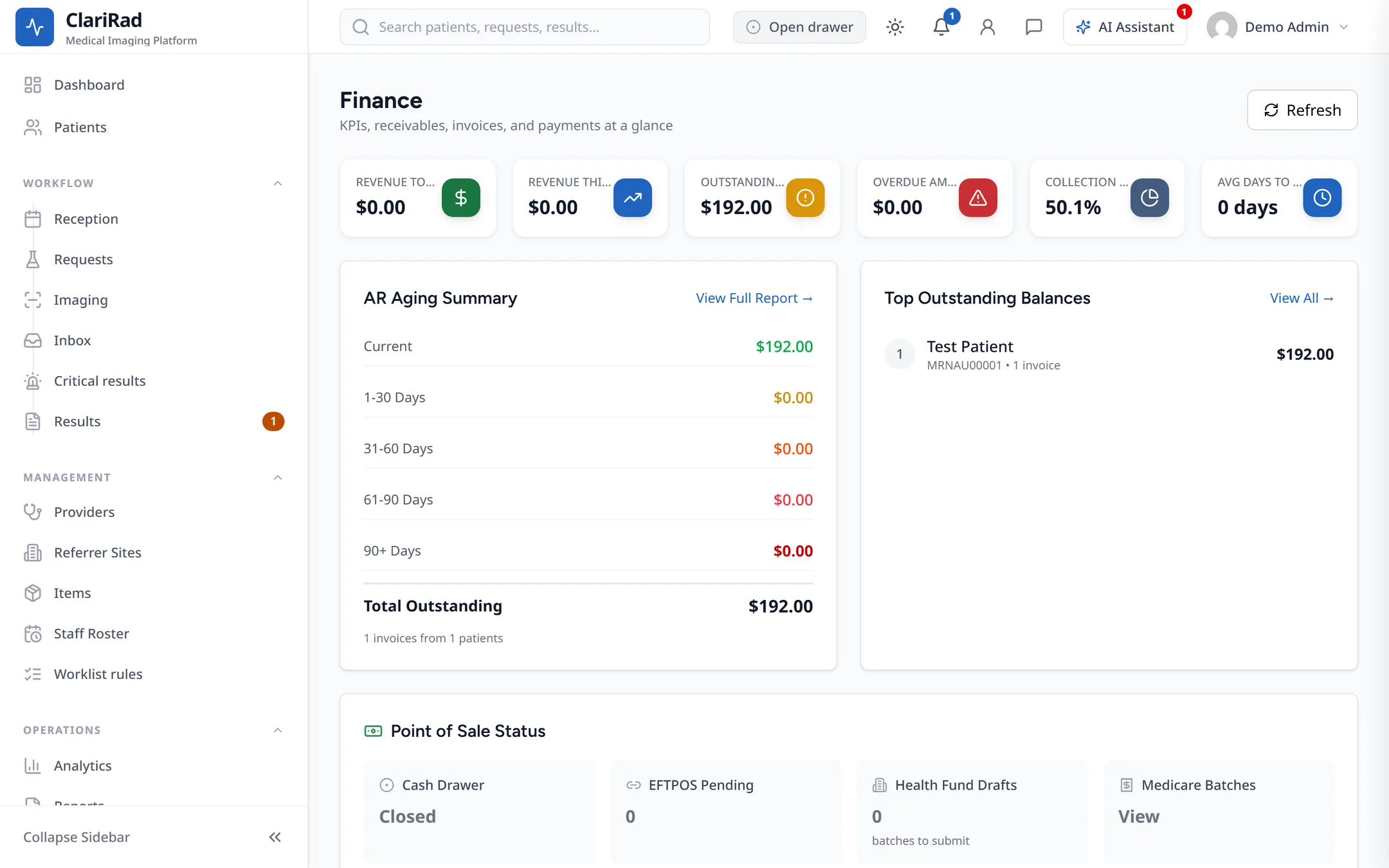
Reports
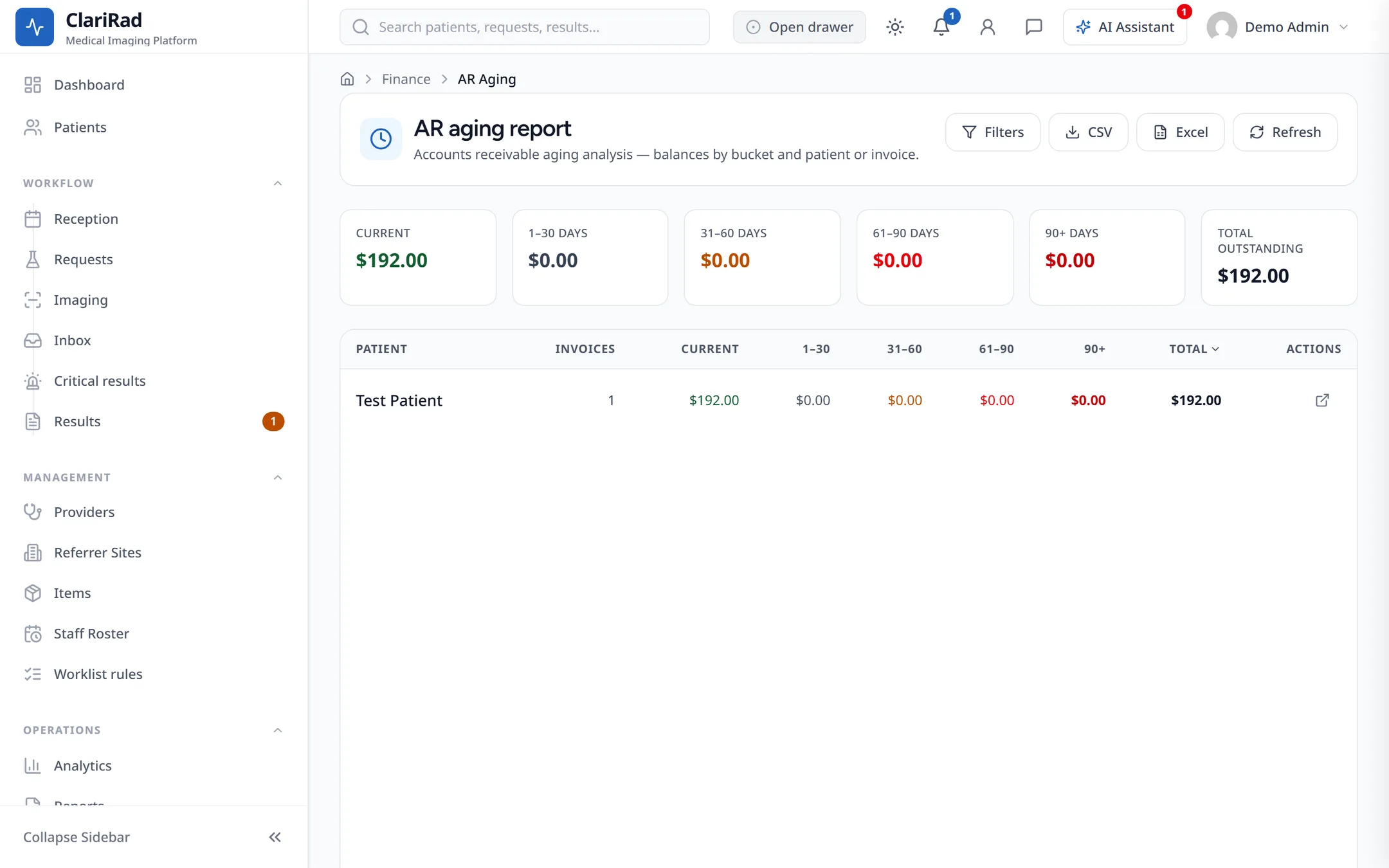
AR ageing
How much patients and payers owe, grouped by how long it has been owing. Export it as CSV or Excel to work on it elsewhere.
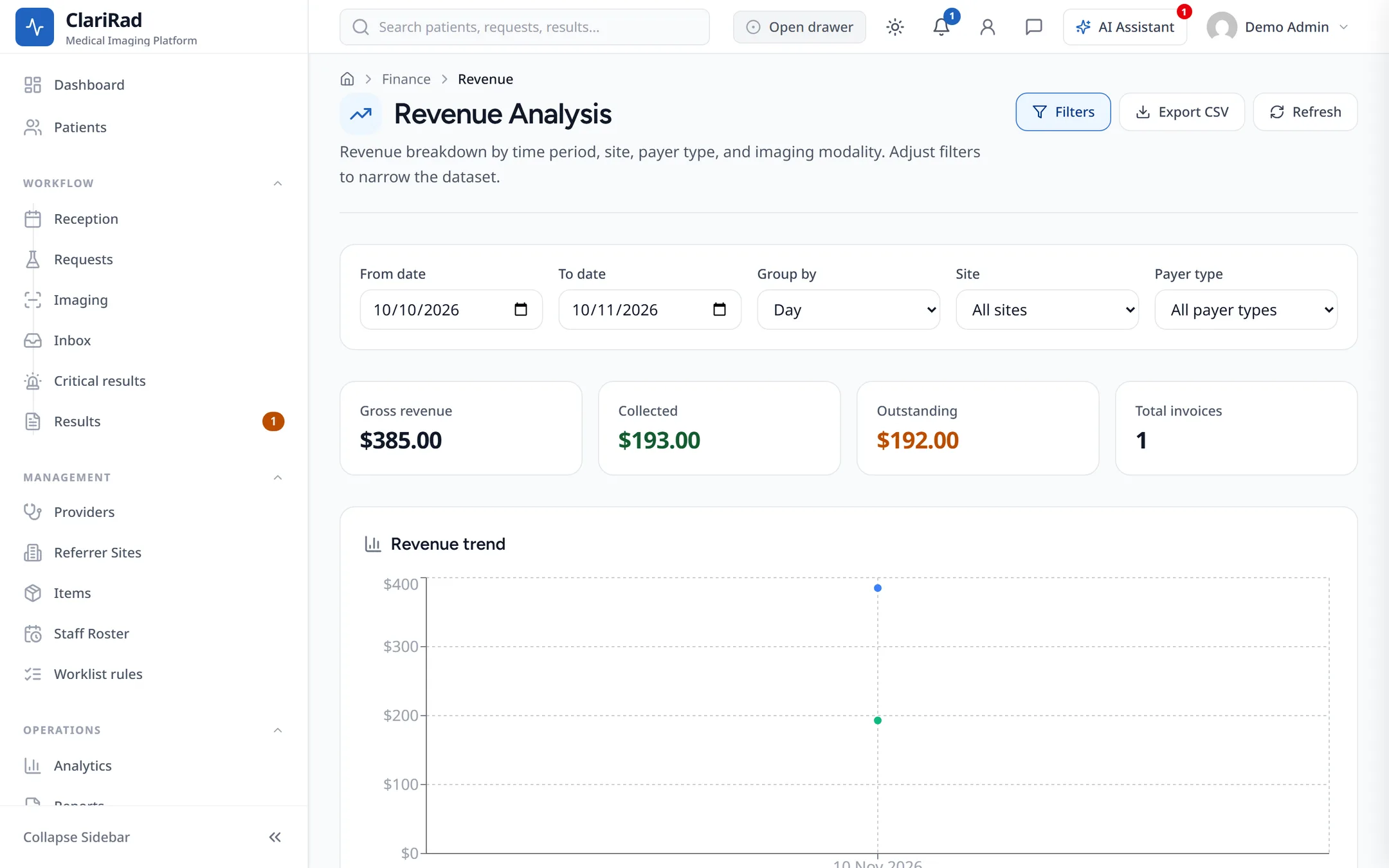
Revenue
Revenue for the period you choose.
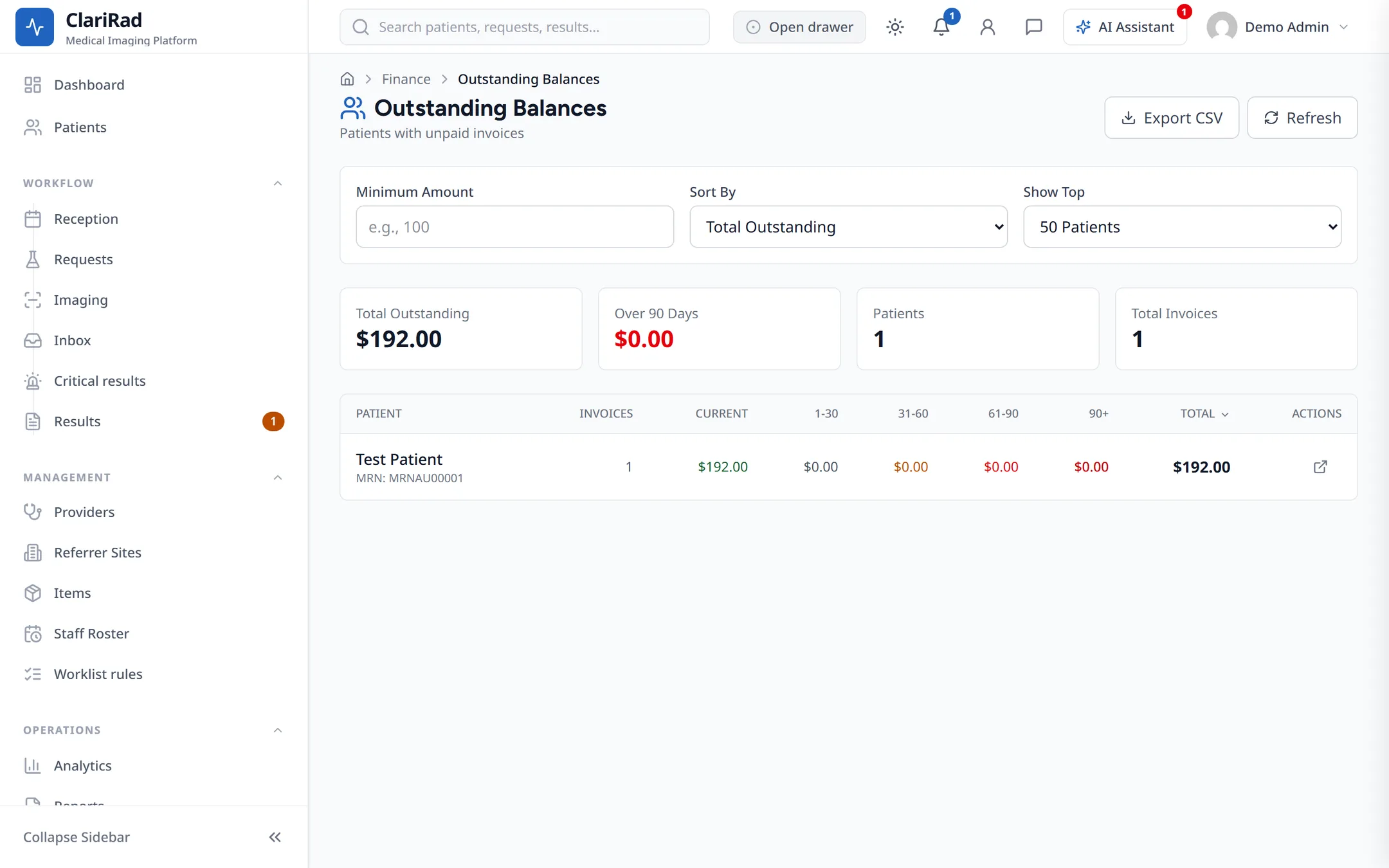
Outstanding balances
Invoices that still have money owing, to follow up.
Profitability and forecast
The Profitability and Forecast reports are also reached from the dashboard.
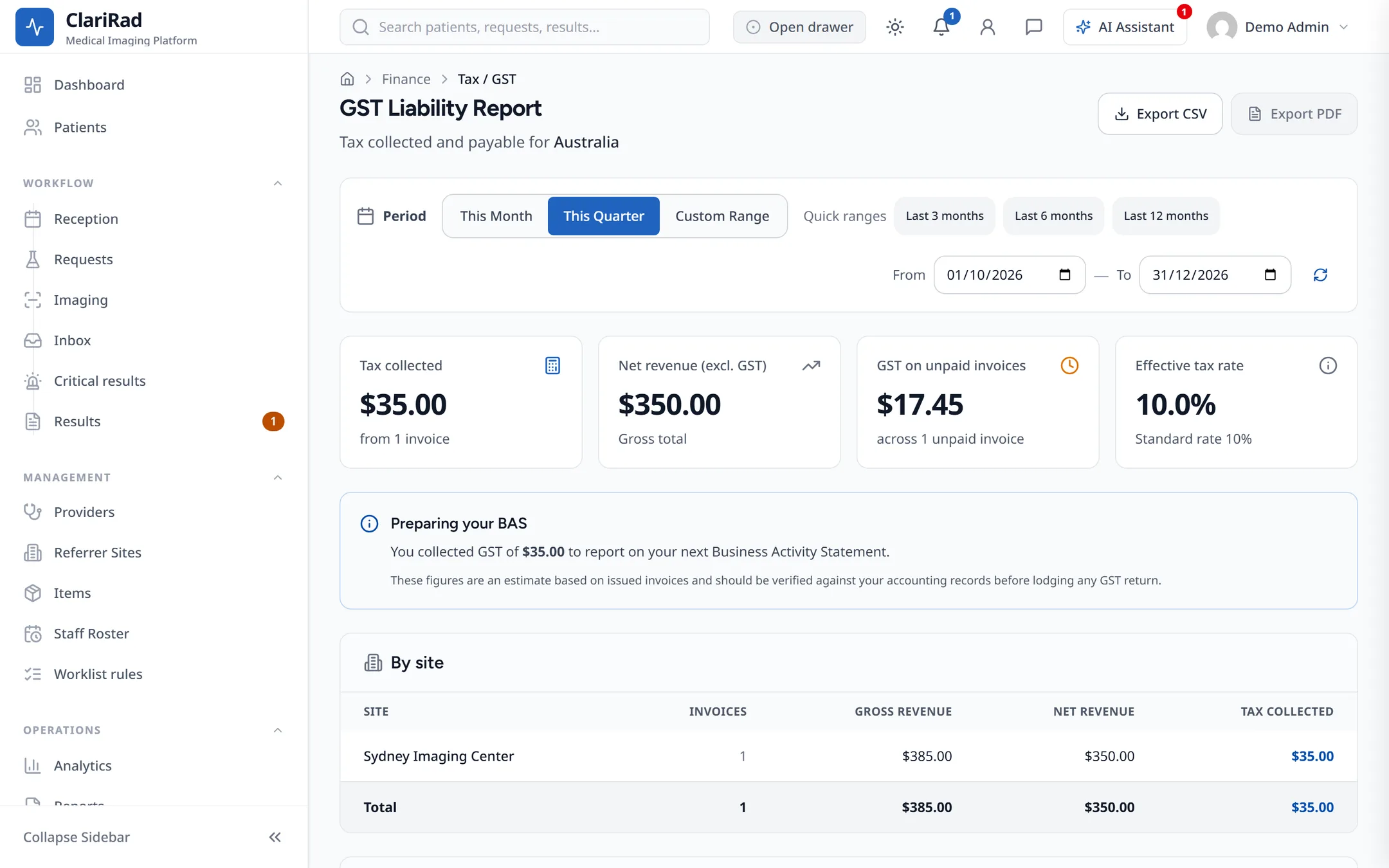
Tax liability
The tax collected over a period. This report can't be exported as a PDF.
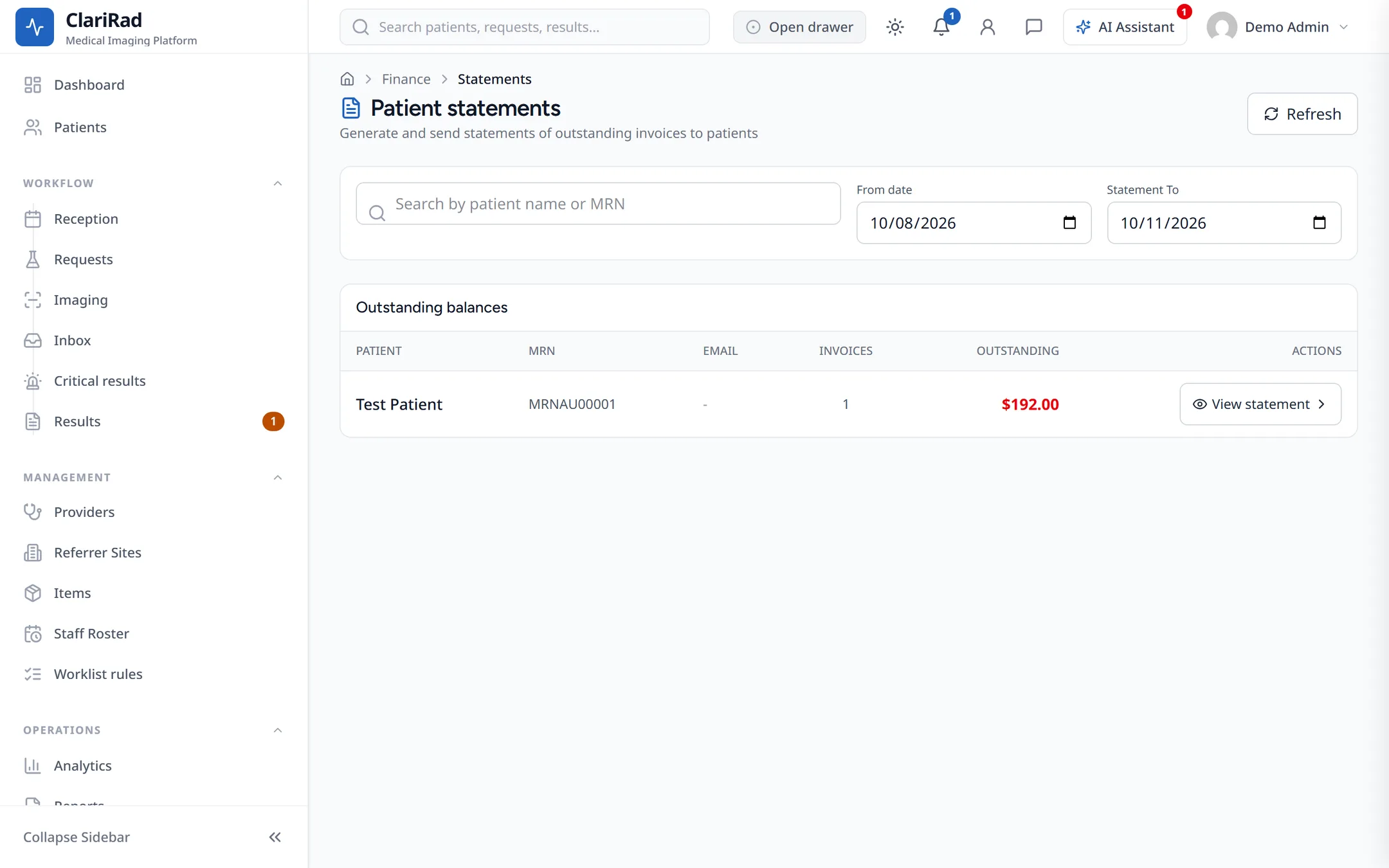
Patient statements
Finance, Statements (Patient statements) lists patient statements. Press View statement to see one, or Email statement to send it. Emailing needs an email address on the patient's record.
Following up money owing
A simple routine for chasing unpaid accounts with these reports:
- Open AR ageing to see which balances have been owing longest.
- Open Outstanding balances and work through the oldest invoices first.
- For each one, open the invoice and press Send payment link, or send the patient their statement with Email statement (see Invoices and payments).
- If part of the bill shouldn't be charged at all, take it off with Credit / refund (see Credits, refunds and write-offs).
Both the payment link and the statement need an email address on the patient's record, so check that first when a patient says they haven't received anything.