Draft — being checked against the app
Finding your way around
The sidebar, the search box at the top of every page, and the buttons in the header.
Clarirad shows each person only the screens their role can open, so your sidebar may be shorter than a colleague's. This page describes the full set.
The sidebar
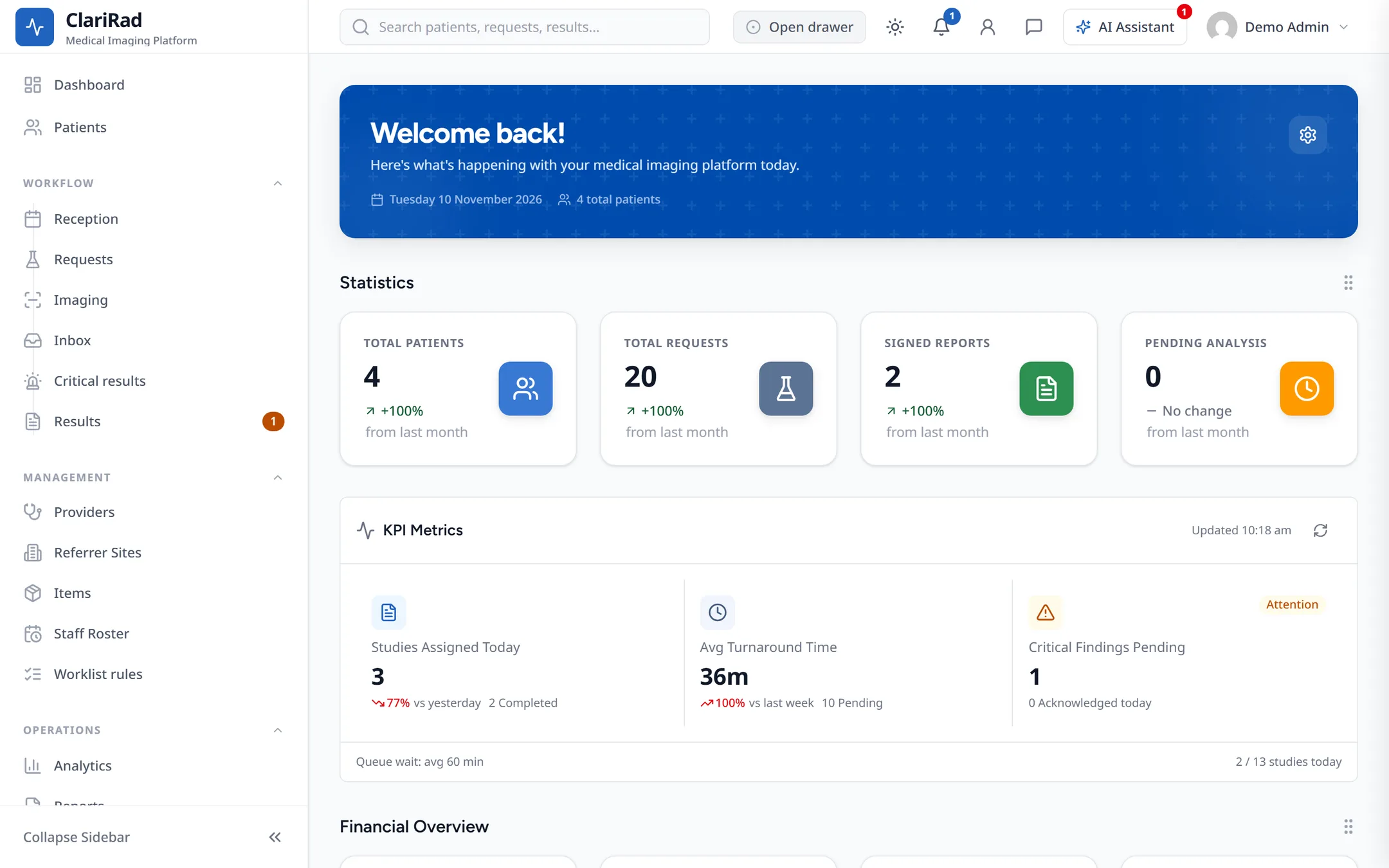
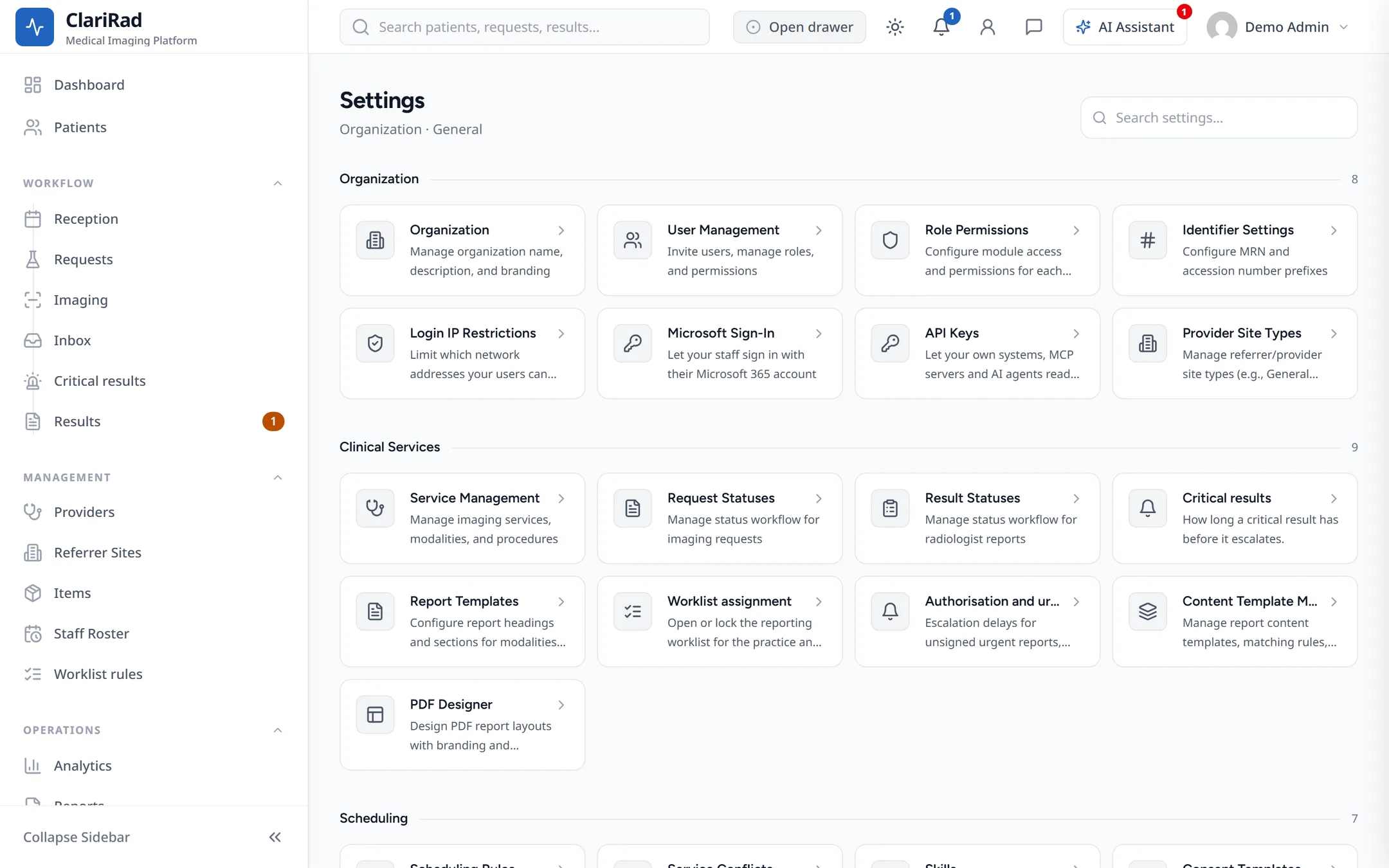
The sidebar on the left holds the main screens, grouped by the kind of work:
- 'Dashboard' and 'Patients'.
- 'Reception': the appointment book, waiting queue and callbacks. It only appears once your practice has at least one site with rooms to book.
- Clinical work: 'Requests', 'Imaging', 'Reporting', 'Approval Queue', 'Transcription', 'Inbox', 'Critical results' and 'Results'.
- Management: 'Providers', 'Referrer Sites', 'Items', 'Staff Roster' and 'Worklist rules'.
- Operations and money: 'Analytics', 'Reports', 'Queue' and 'Finance'.
A number beside 'Approval Queue' or 'Inbox' is how many items are waiting. On a narrow screen, open the sidebar with the menu button at the top left.
Searching
The search box at the top of every page searches patients, requests, referrers and sites at once. Type at least two characters. You can search a patient by name, MRN, phone number, date of birth, email or address, and a request by its number, accession number or patient.
- Click the search box and type what you know.
- Results appear grouped as patients first, then requests, referrers and sites. Patients show their MRN and date of birth so you can tell apart people with the same name.
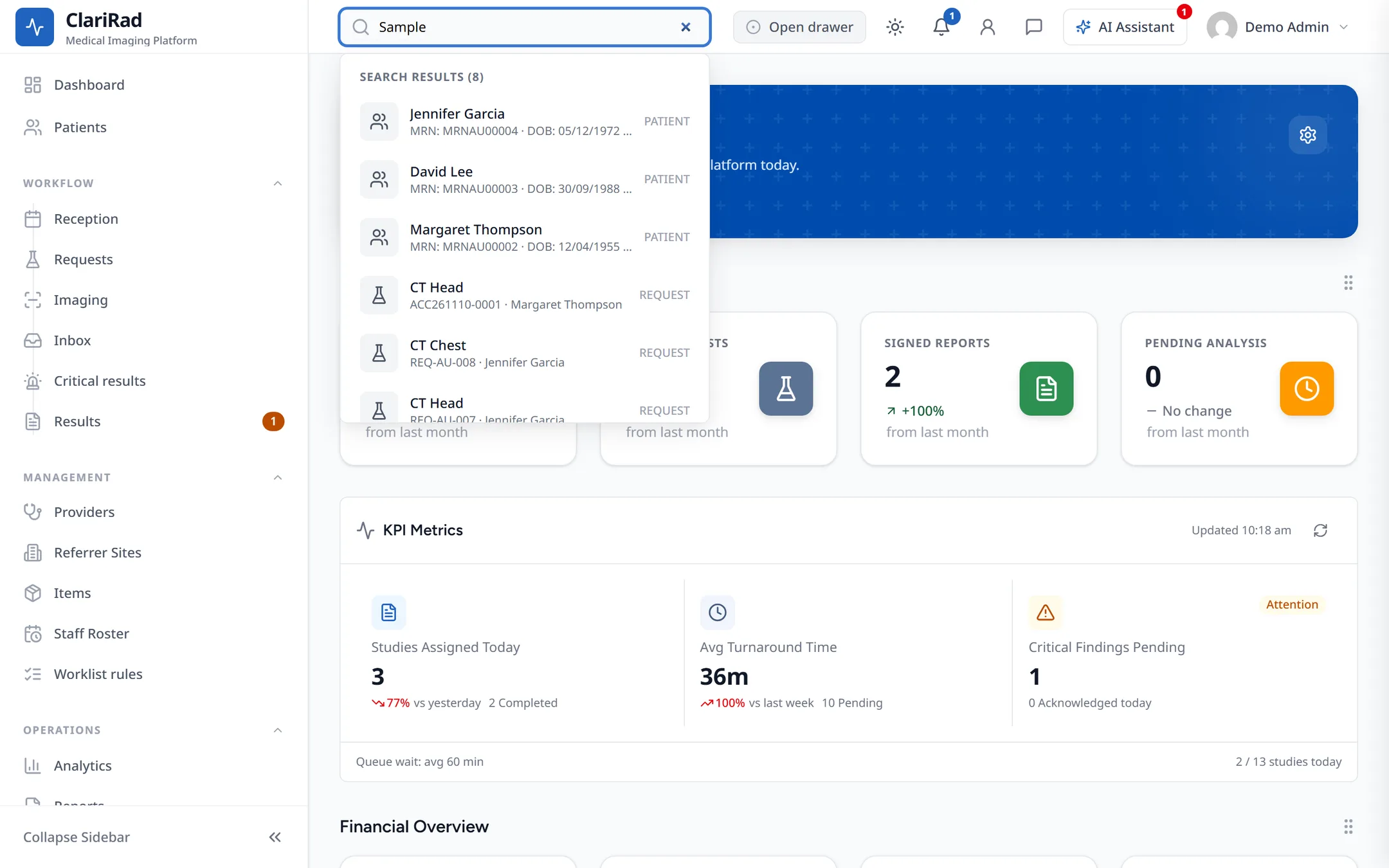
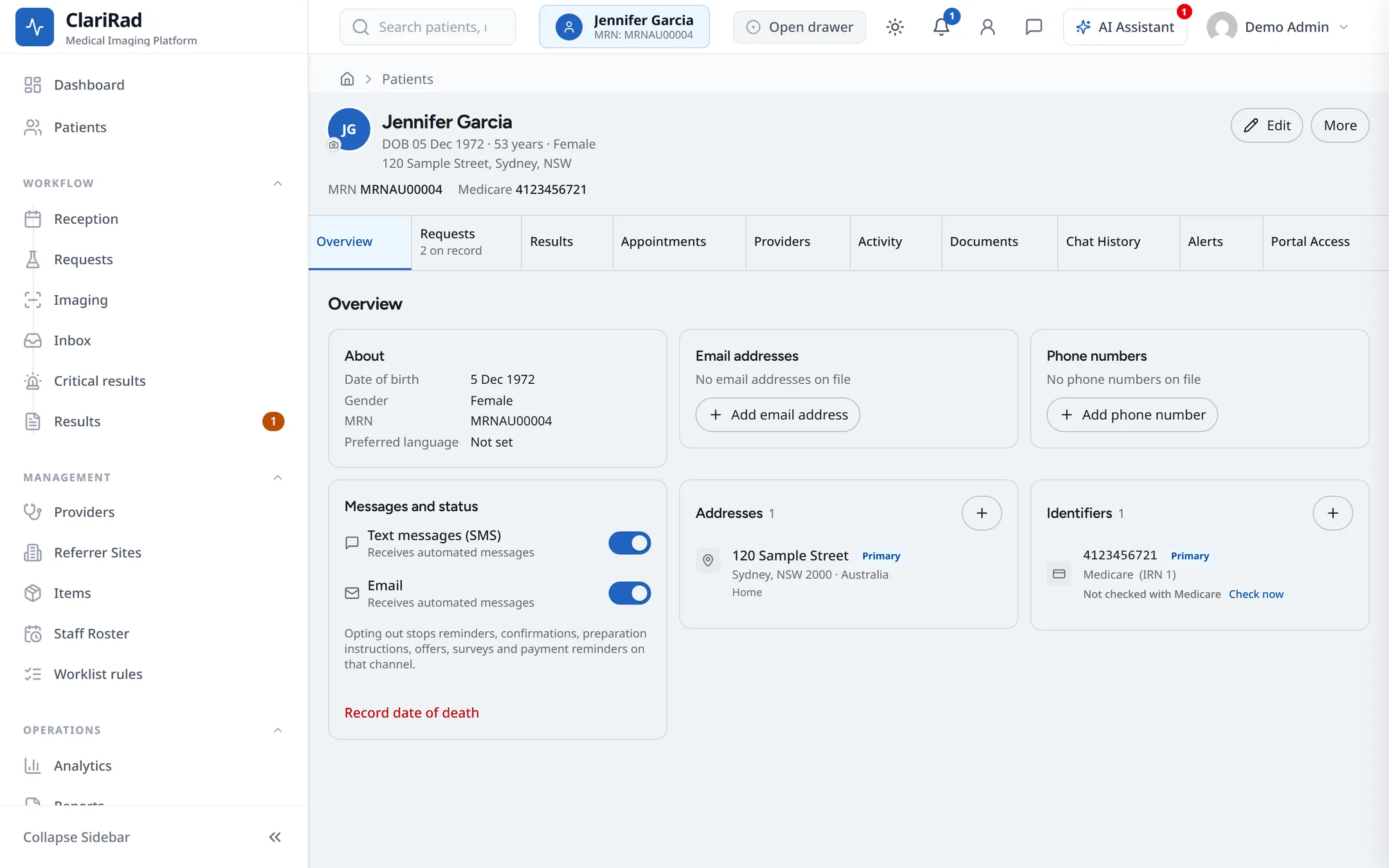
- Use the arrow keys and Enter, or click a result, to open it.
The header

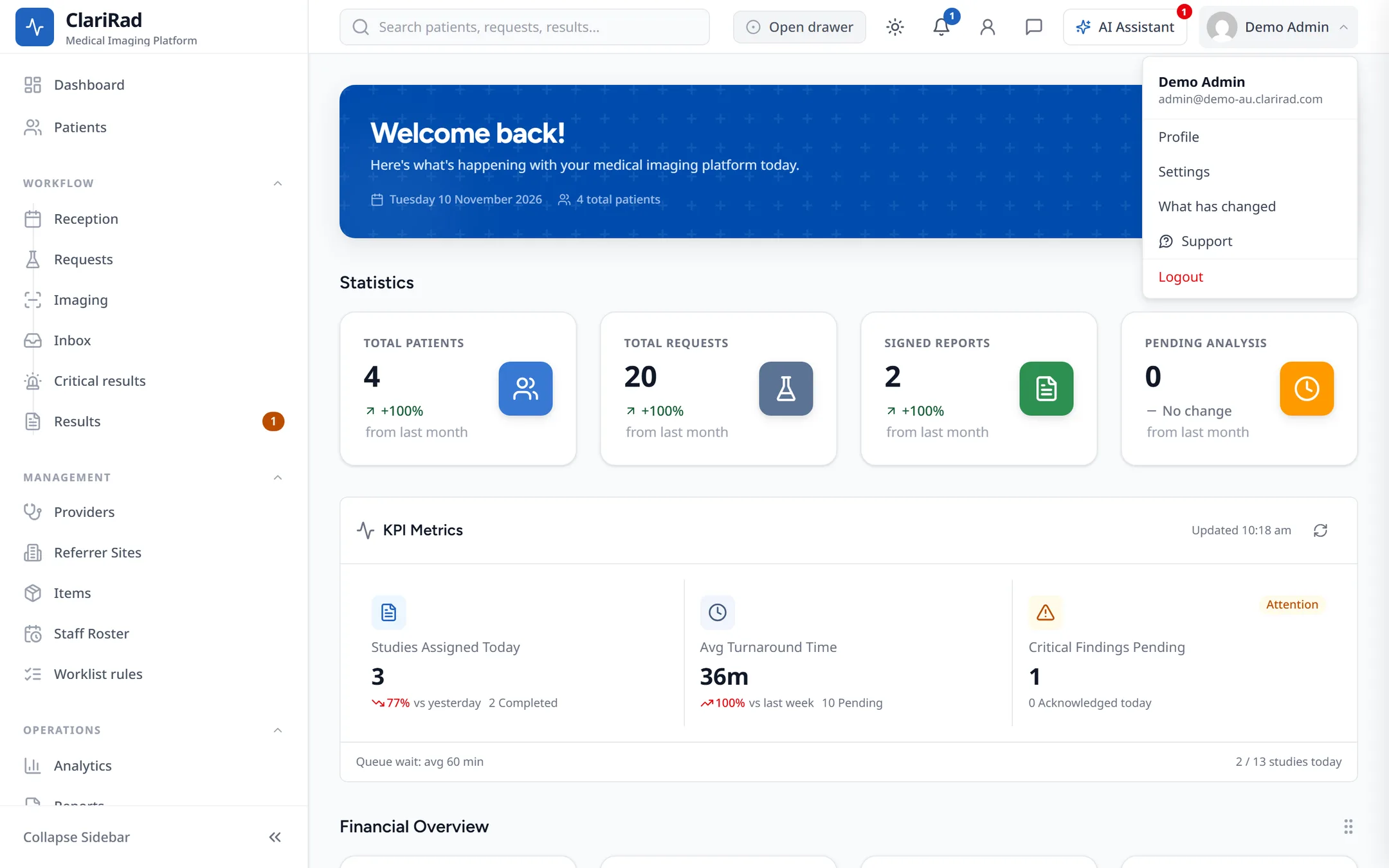
- 'AI Assistant', the button with the sparkle, opens the AI Agent. A coloured dot on it counts things that need your attention. See The AI Agent.
- The bell opens your notifications. See Notifications and the inbox.
- Your name opens the user menu: 'Profile', 'Settings' (if your role can change settings), 'What has changed', 'Support' and 'Logout'.
Settings
'Settings' opens a page of cards grouped by area, such as 'Organization', 'Integrations' and security. Each card opens one panel. You only see the cards your role is allowed to change, and some cards appear only when your practice has that feature turned on.
Related pages
- Roles and permissionsWhat each staff role is for, and how an administrator changes what a role can see and do.
- Notifications and the inboxThe bell in the header for arrivals and alerts, and the Inbox for orders and pathology results.
- The AI AgentAsk the built-in assistant to look things up, and how it checks with you before changing anything.