Draft — being checked against the app
Finding a patient
Search for a patient by name, MRN, Medicare number or RUT, date of birth, phone or email.
ReceptionRadiographersRadiologistsBillingLast updated
Always search before you register someone. Clarirad does not stop you creating a second record for a patient who is already on file, so a quick search is what keeps duplicates out.
Searching from the Patients screen
- Choose 'Patients' in the sidebar.
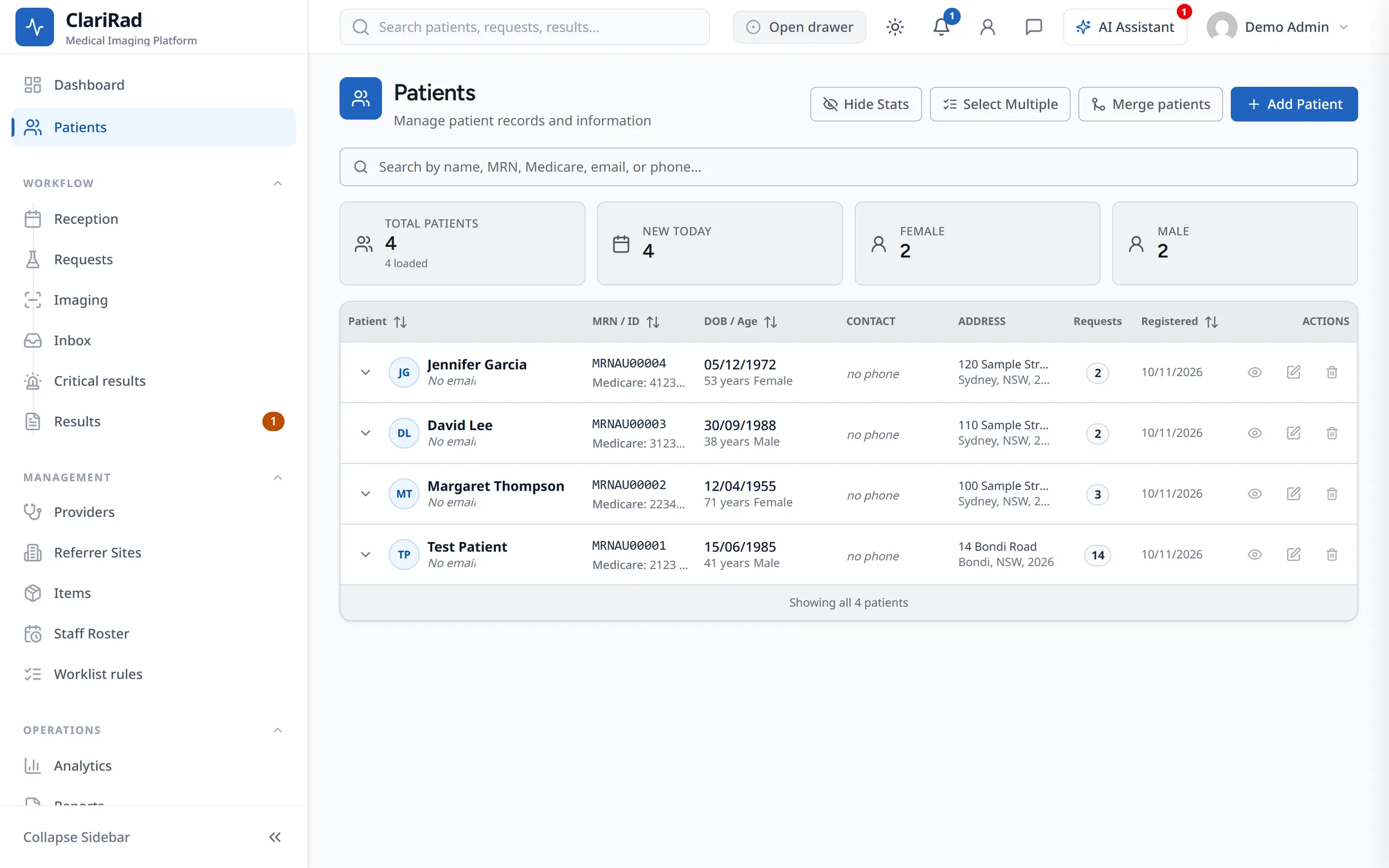
- Type into the search box. It reads 'Search by name, MRN, Medicare, email, or phone…' in Australia, and shows RUT instead of Medicare in Chile.
- Type at least two characters. The list updates as you type.
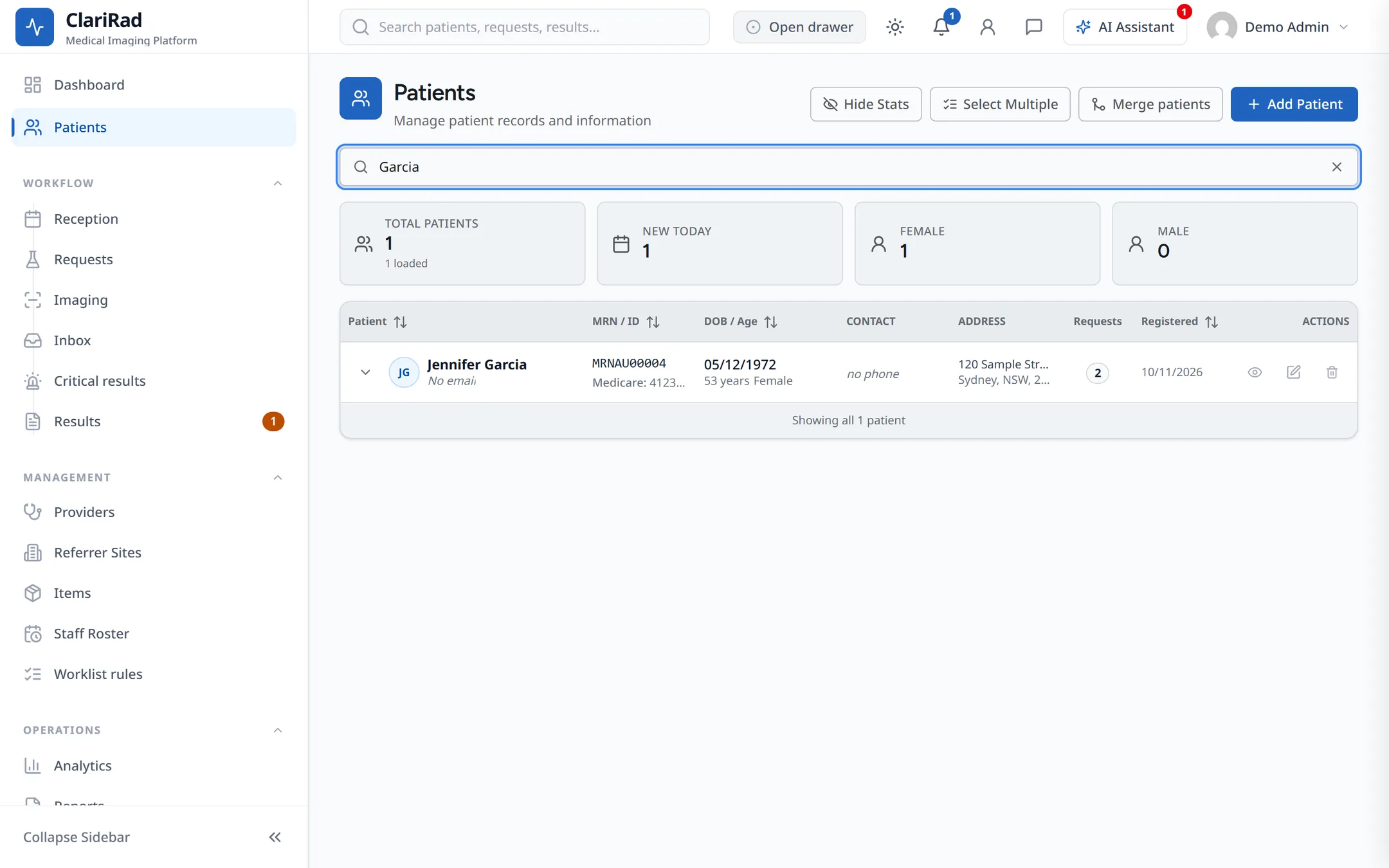
- Click the patient to open their record.
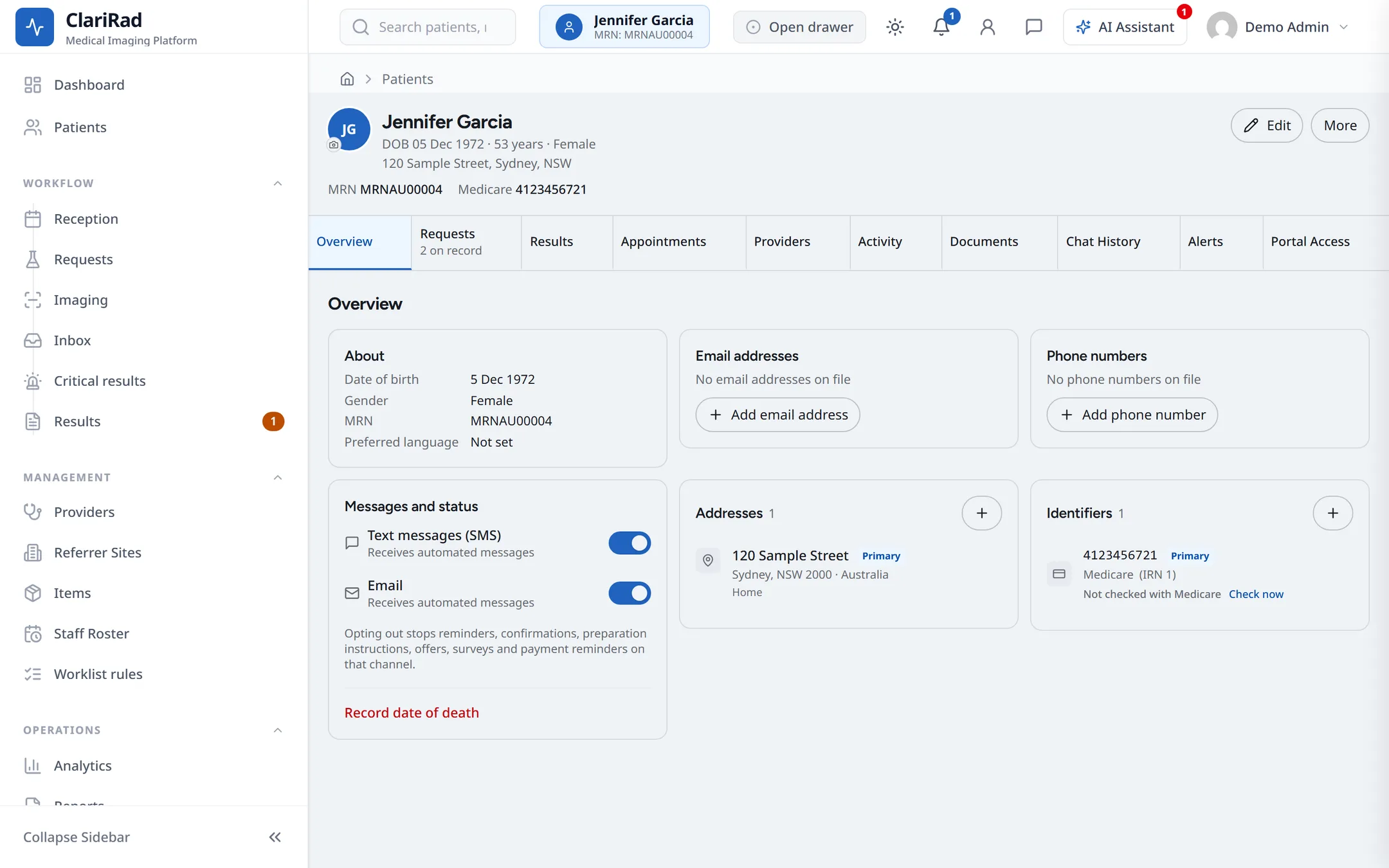
The search matches:
- the MRN, in full or in part
- the Medicare number (Australia) or RUT (Chile)
- date of birth
- phone number (at least four digits)
- words from the name, email or current address
- a legacy RIS ID, if your practice brought patients across from an older system
Other places to search
- The search box at the top of every page finds patients, requests, referrers and sites at once.
- On the Reception screen, the quick actions bar has 'Search patient by name or MRN...'.
- Wherever you pick a patient, for example when starting a request, the picker searches by name or MRN.
Why can't I find them?
- Only active patients are listed. A record that was merged into another one is retired and no longer appears; search for the patient it was merged into.
- Check spelling, and try the date of birth or phone number instead of the name.
- If they are genuinely new, register them. See Registering a new patient.