Draft — being checked against the app
The referrer portal
How referring doctors sign in, send orders, read results and acknowledge critical findings.
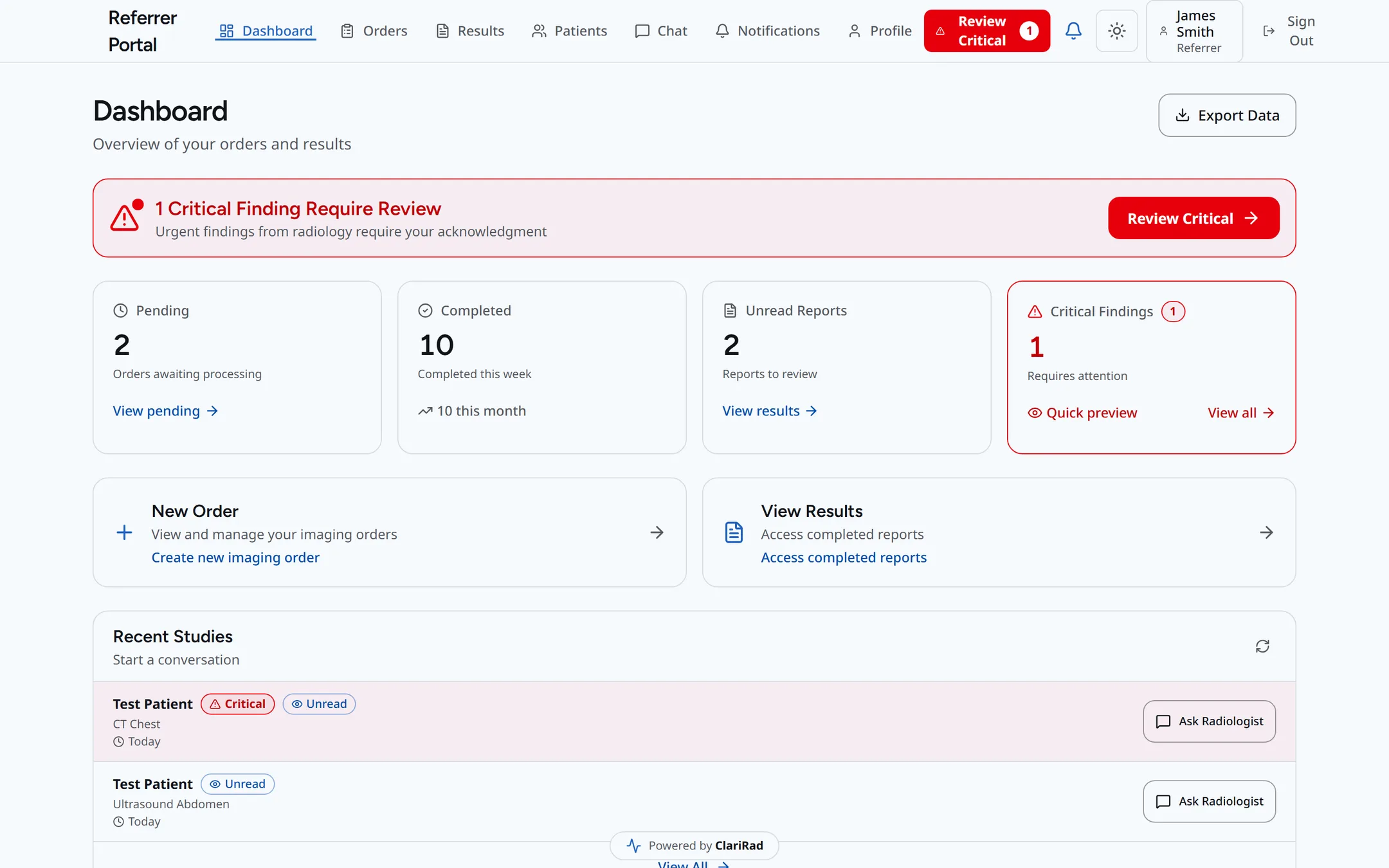
The referrer portal gives referring doctors and their practices a place to send imaging orders, read results and acknowledge critical findings. Its menu has Dashboard, Orders, Results, Patients, Chat, Notifications and Profile.
Giving a referrer access
- Open the provider in Providers and go to the Portal access tab.
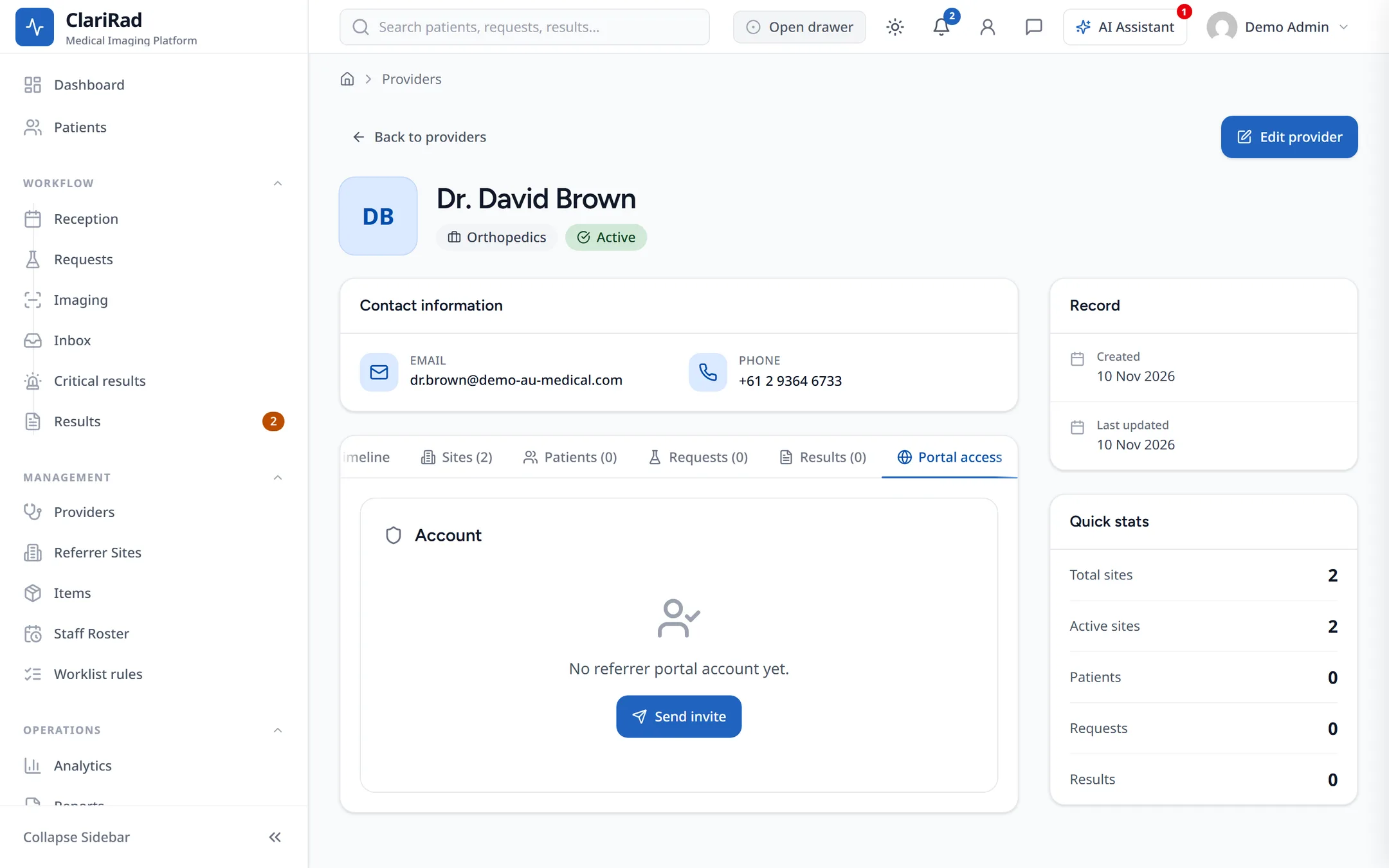
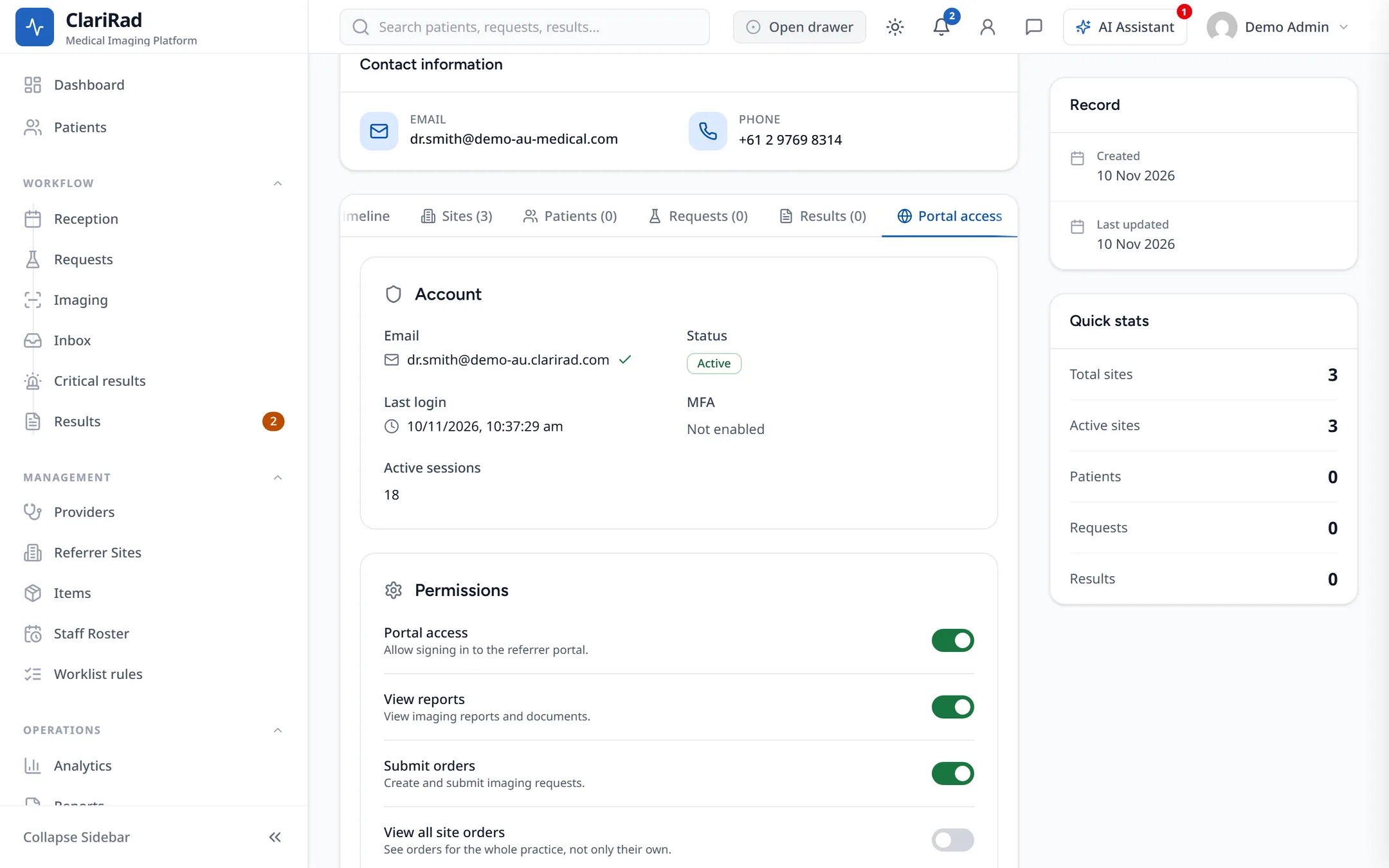
- Choose their permissions: Portal access, Submit orders and View reports.
- Press Send invite. This creates their account.
- Press Reset password to email them a link to set their password, or ask them to use Forgot Password? on the sign-in page.
The same tab has Reset MFA, Revoke sessions and View as provider.
Signing in
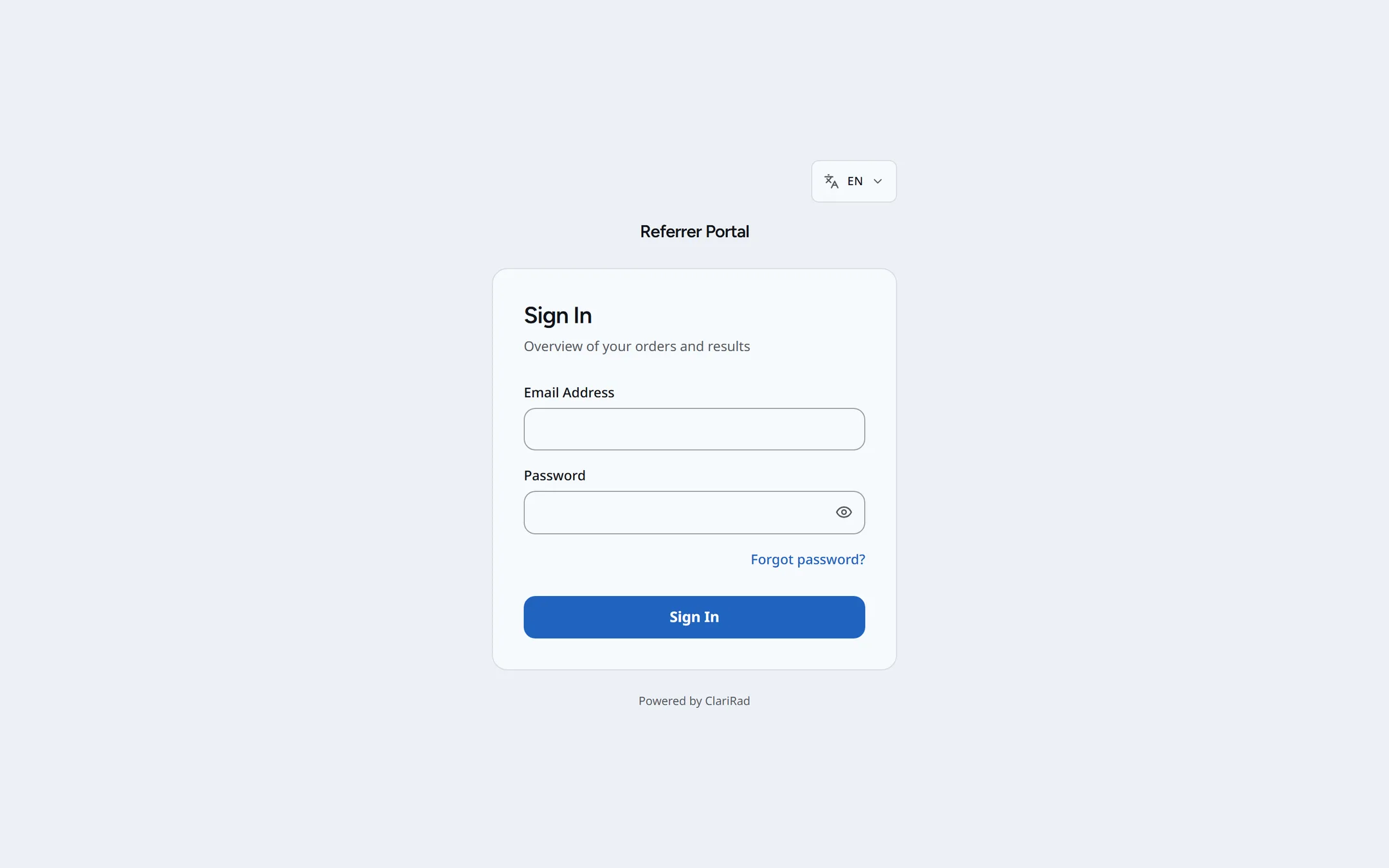
Referrers sign in with email and password. Two-factor authentication is required: the first time, they must set up an authenticator app before they can continue. After that, each sign-in asks for the code.
Sending an order
- Press New Order.
- Patient: use Search Existing Patient (patients they have referred before) or create a new patient.
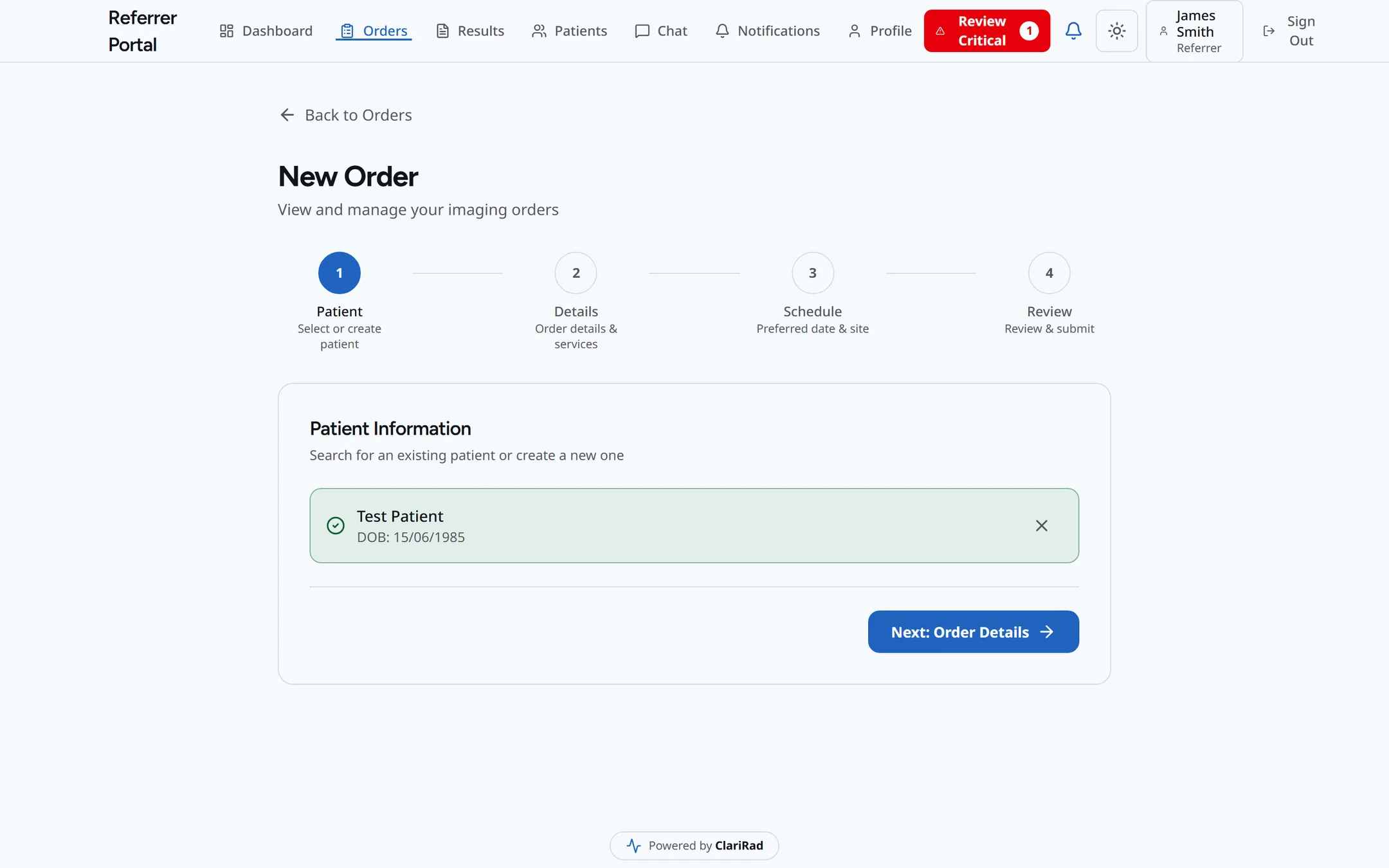
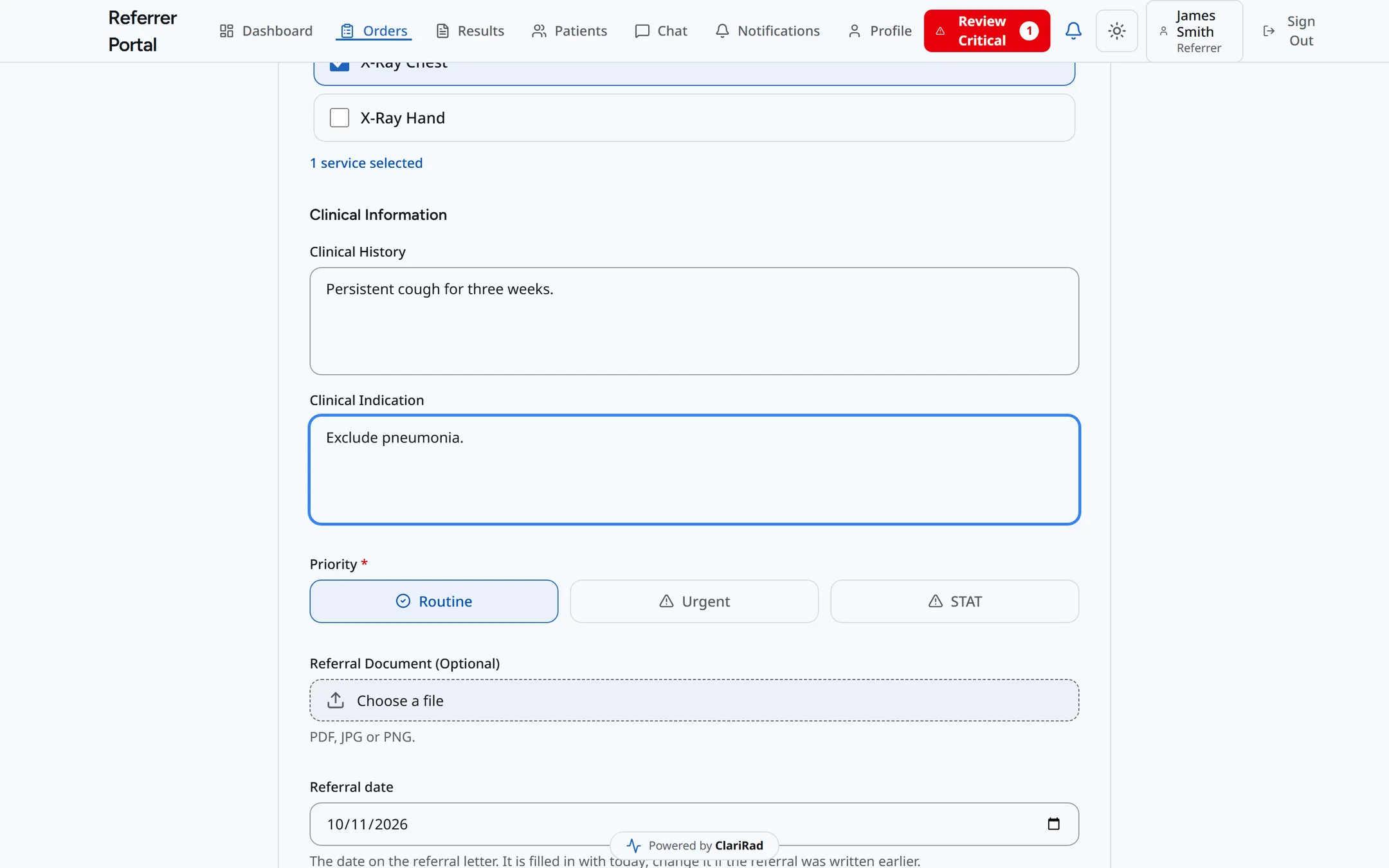
- Details: choose the services and priority, and enter the clinical indication, clinical history and referral date, with a referral document if they have one. Then Schedule: a preferred imaging site and date.
- Review, then Submit Order.
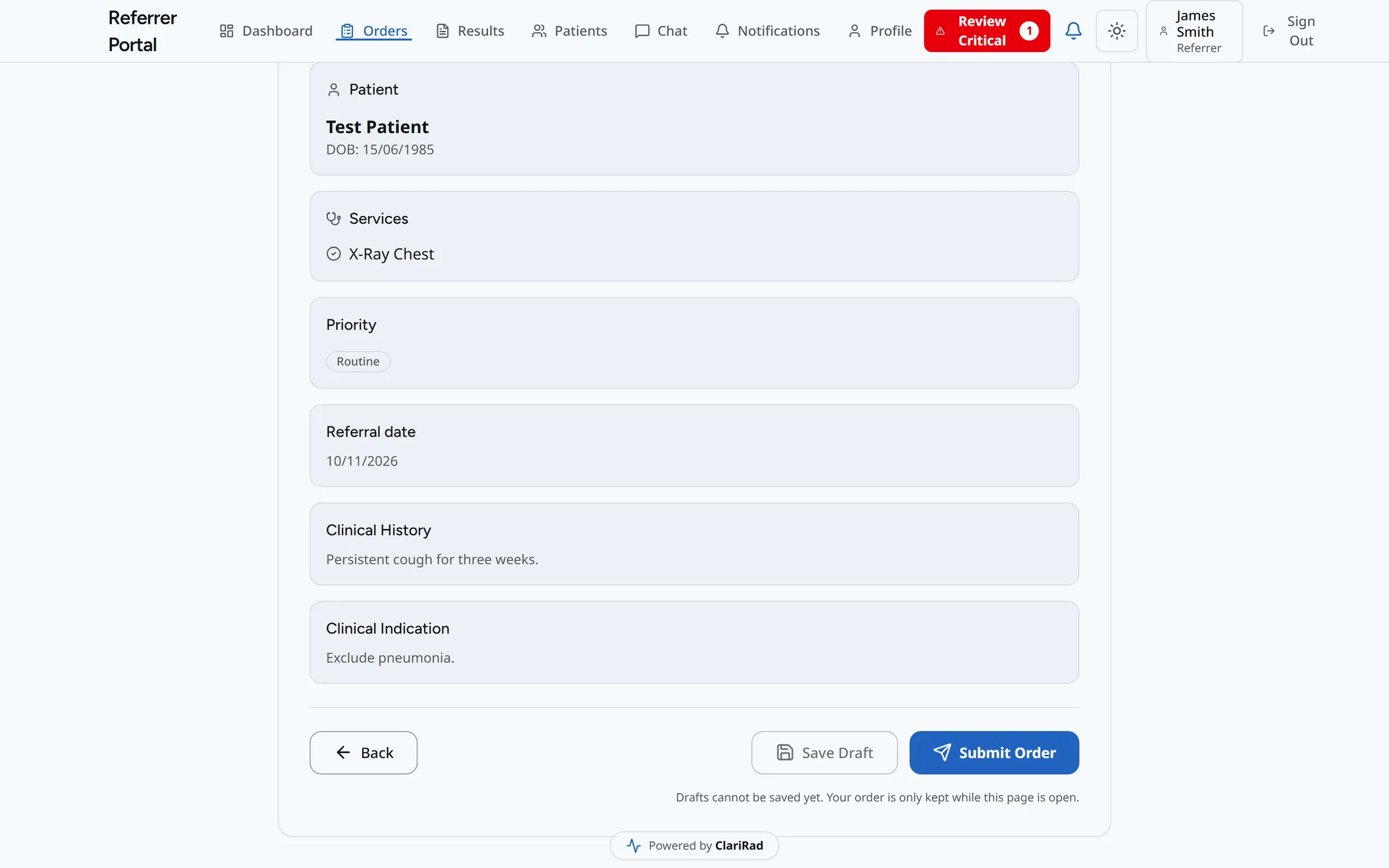
The order arrives in your practice's order queue and reception arranges the appointment. If the new patient's name and date of birth match an existing patient, the order is linked to that patient.
Results
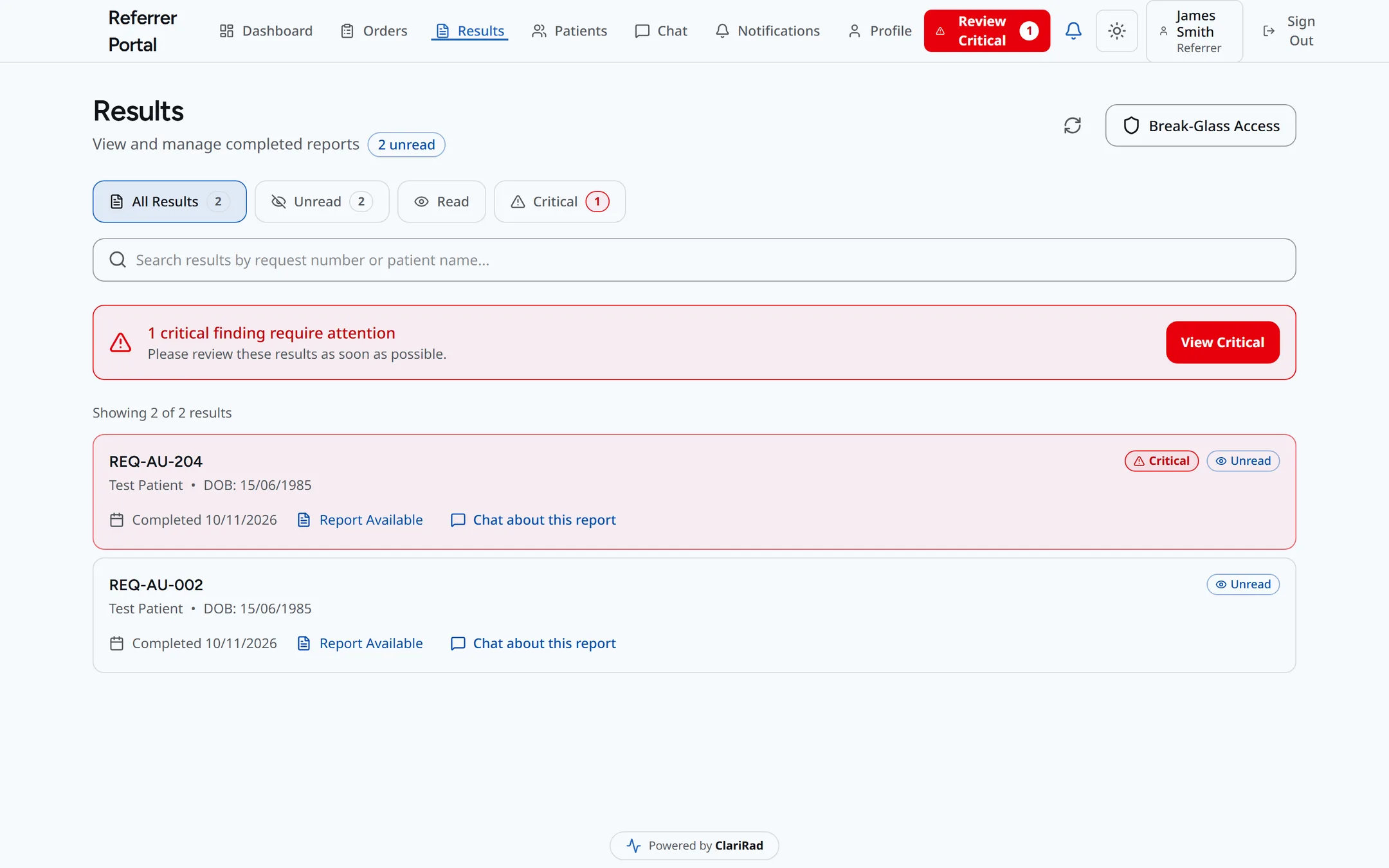
Results lists signed reports for patients the referrer sent. Each report can be downloaded as a PDF, and Acknowledge Report records that they have read it. Several can be acknowledged at once. Images aren't shown in the referrer portal.
Critical findings
A critical finding shows as a Critical Finding banner with Confirm Receipt. The referrer can read and confirm it even before the full report is available.
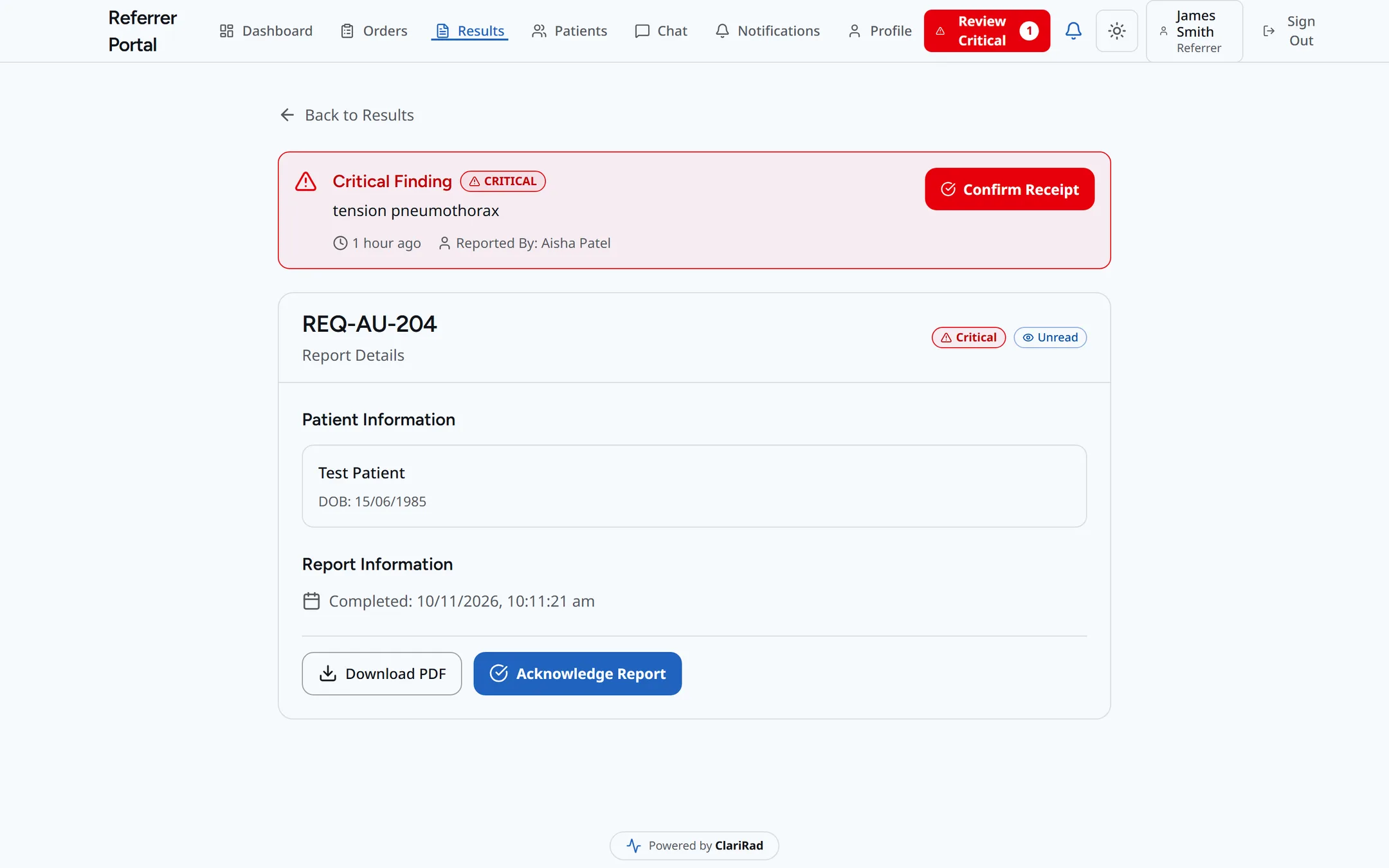
- Press Confirm Receipt. The Acknowledge Critical Finding dialog opens.
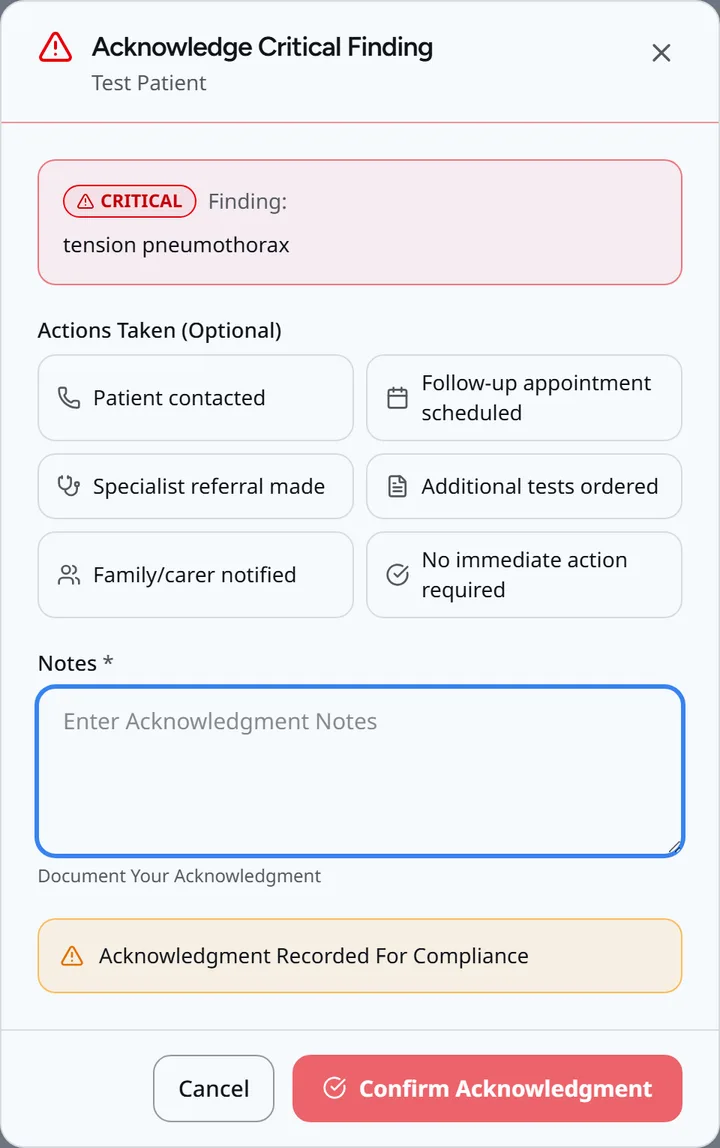
- Enter notes (required) and tick any actions taken, such as Patient contacted or Follow-up appointment scheduled.
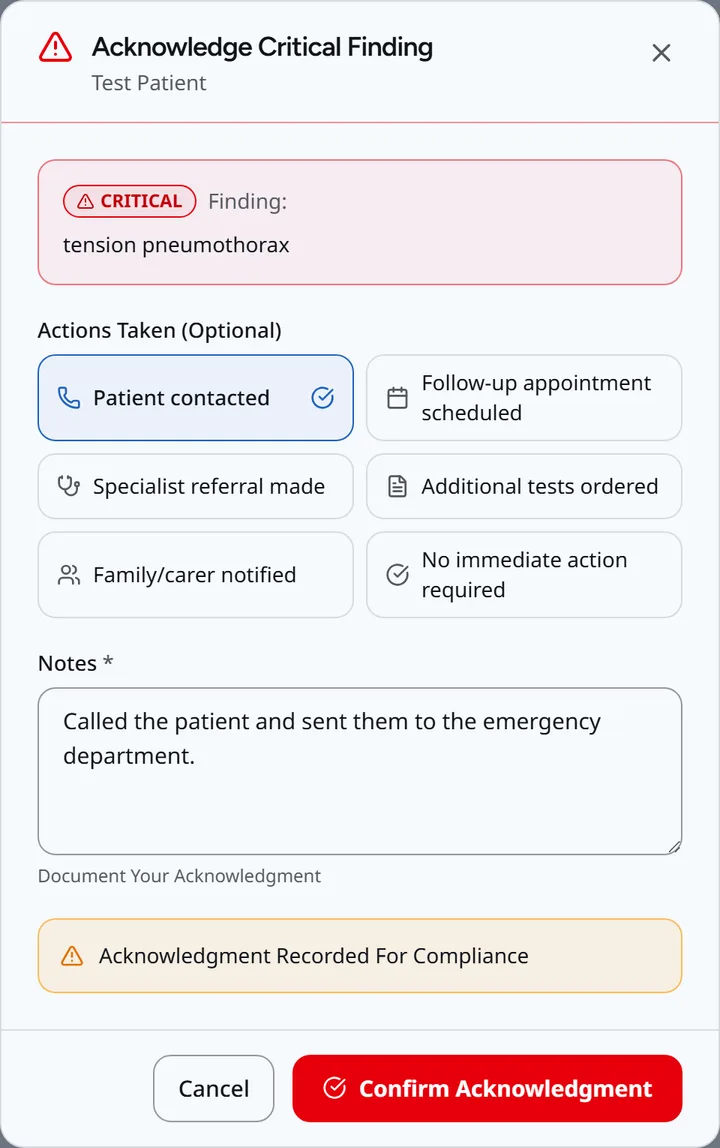
- Press Confirm Acknowledgment.
This also acknowledges the report. Your staff see Referrer confirmed on the Critical results worklist (see Critical results and escalation).
Notifications
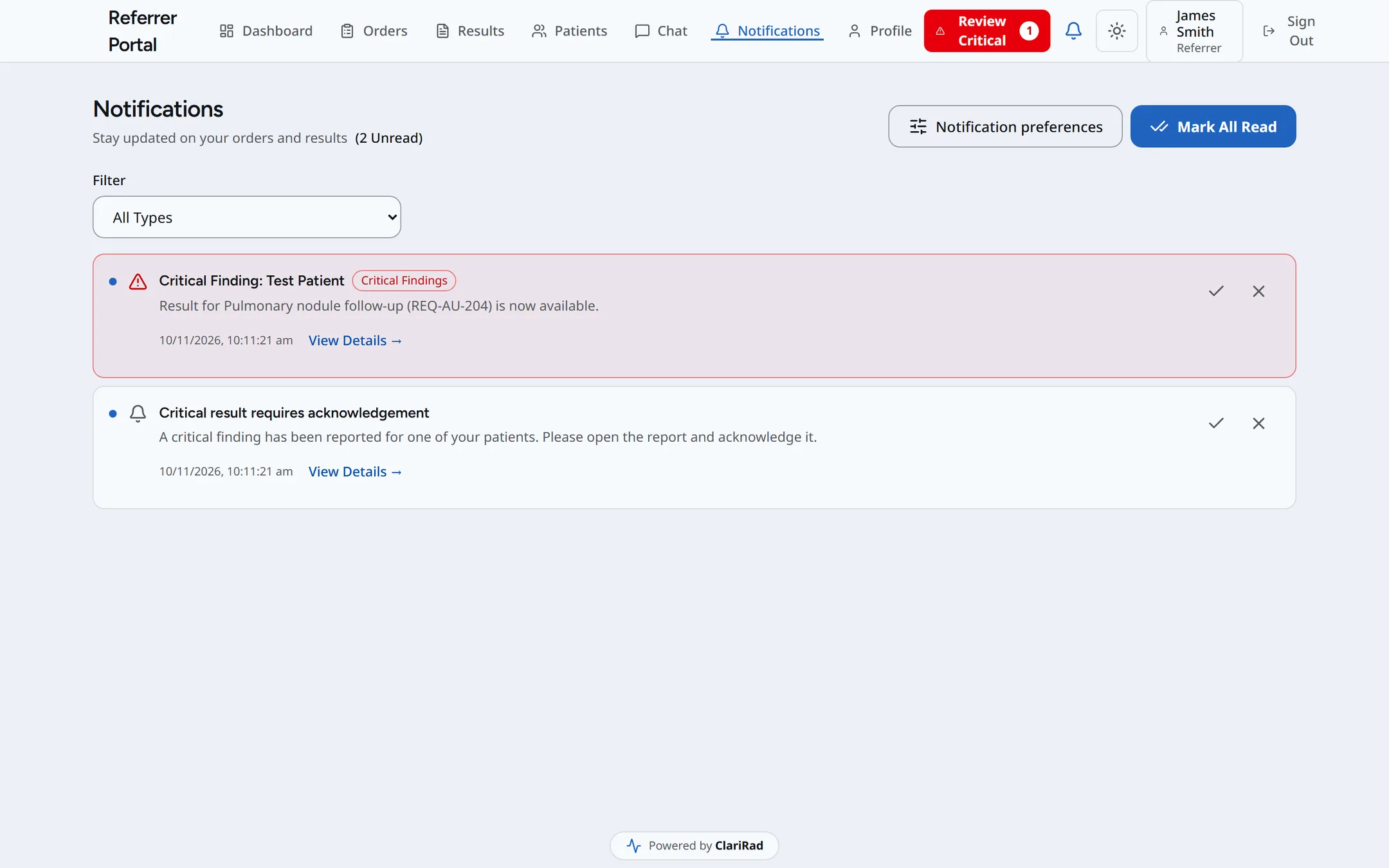
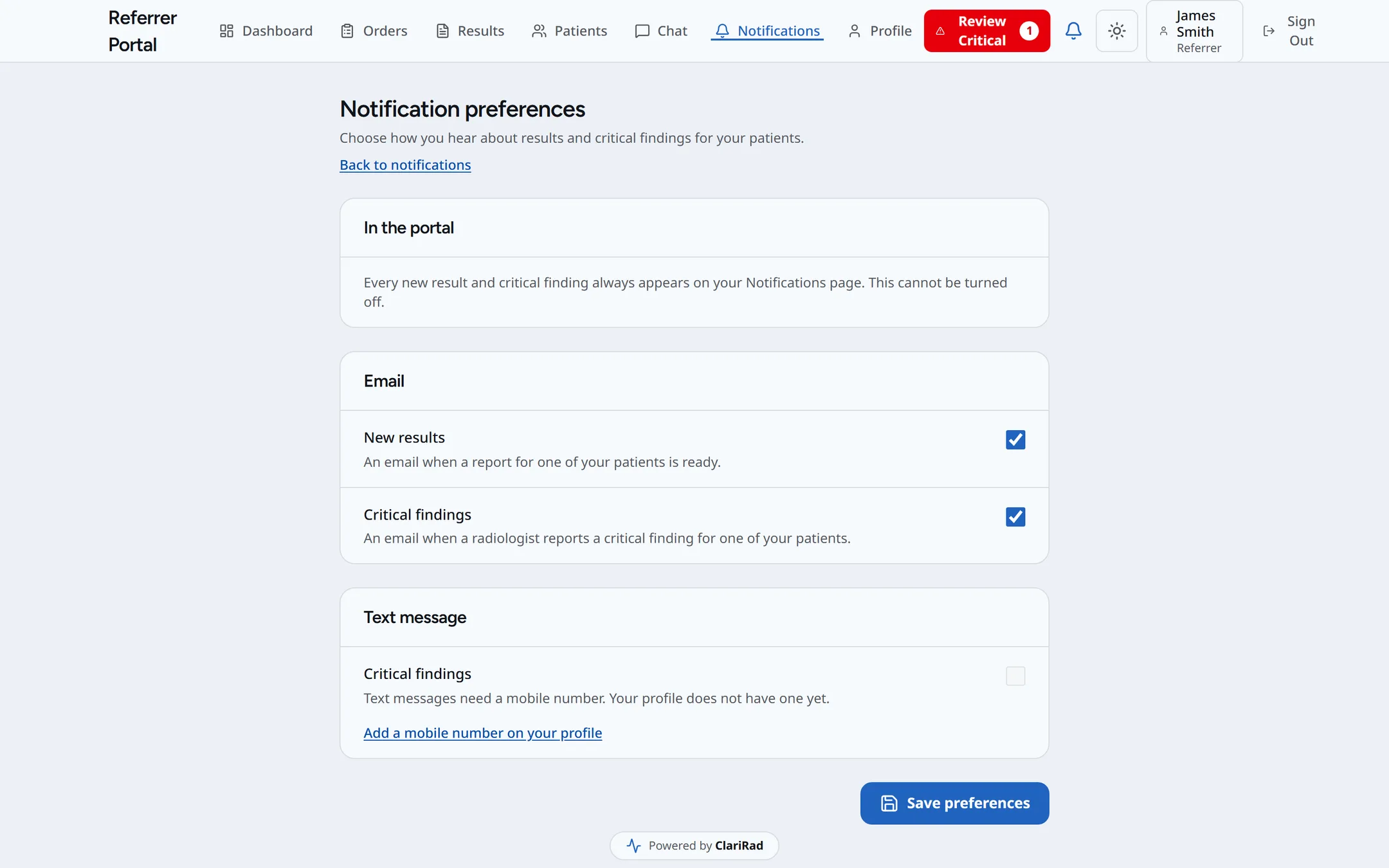
New results and critical findings always appear on the Notifications page. Under Notification preferences, referrers can also get emails for new results and critical findings, and text messages for critical findings if their profile has a mobile number.
Chat
Chat answers questions from your practice's published information, without using patient details. A referrer can ask for the conversation to go to the reporting radiologist, leave a message, or email themselves a transcript.