Draft — being checked against the app
The reporting worklist
Find, filter and open the studies waiting for a report, and choose how you will report them.
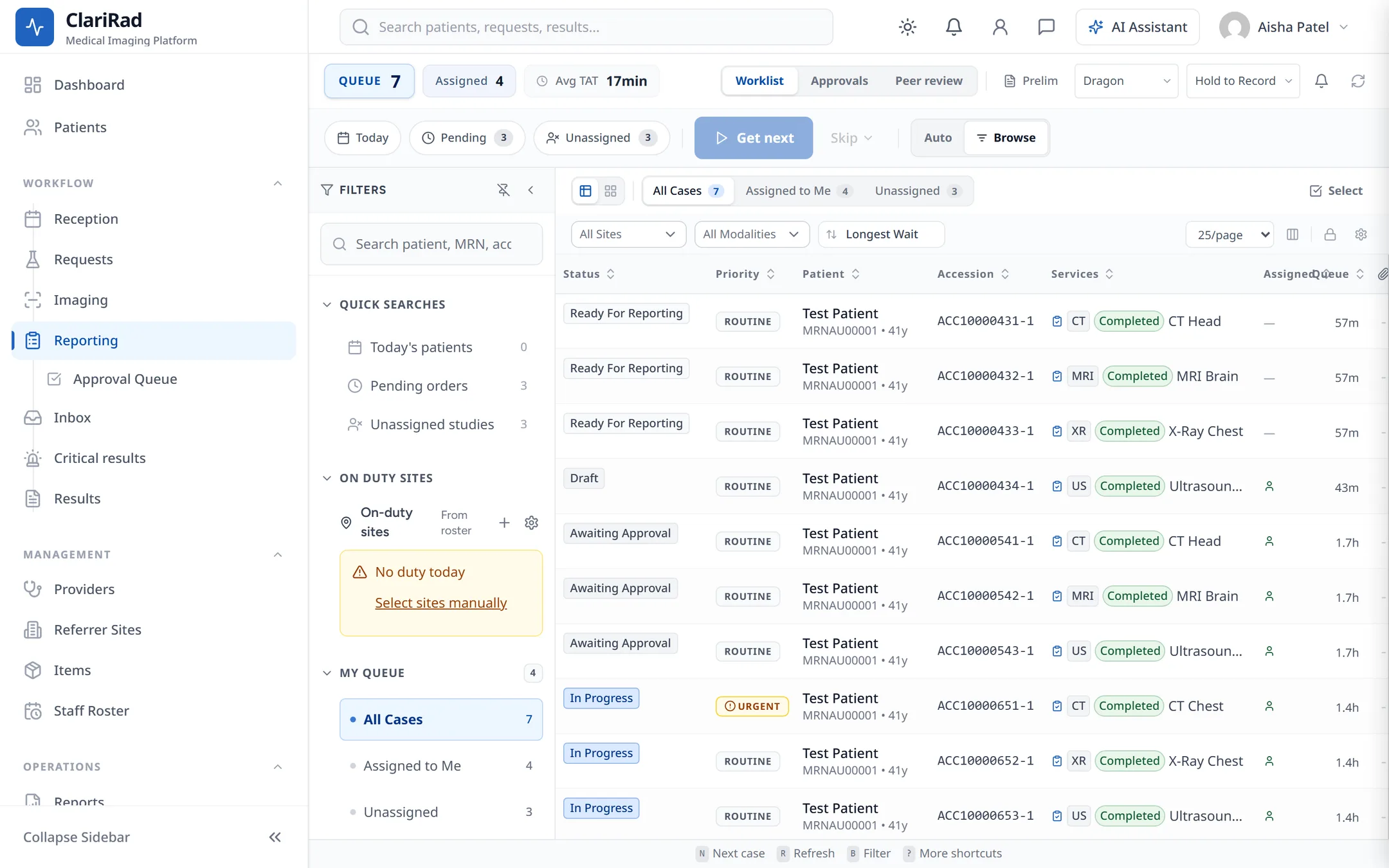
The reporting worklist is where radiologists pick up studies to report. Open it from Reporting in the side menu. The page is called Reporting Worklist and has three views: Worklist, Approvals and Peer review.
Only radiologists and senior radiologists can open the reporting worklist. Typists work from the Transcription queue instead (see Dictating and transcribing reports).
What the worklist shows
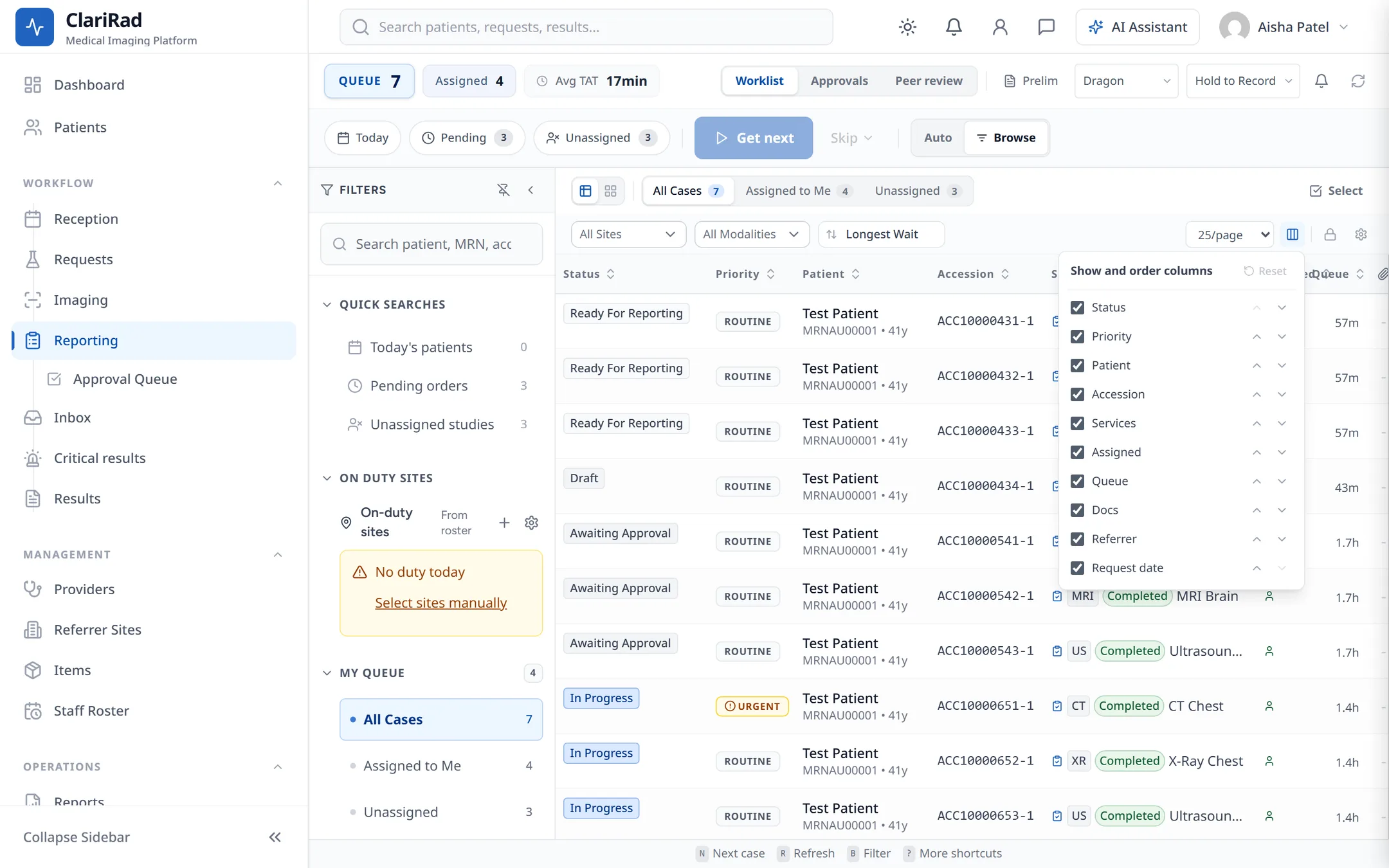
Each row is a study waiting for a report. The standard columns are Status, Priority, Patient, Accession, Services, Assigned, Queue, Docs, Referrer and Request date. You can choose which columns to show and drag them into the order you like.
Filtering the list
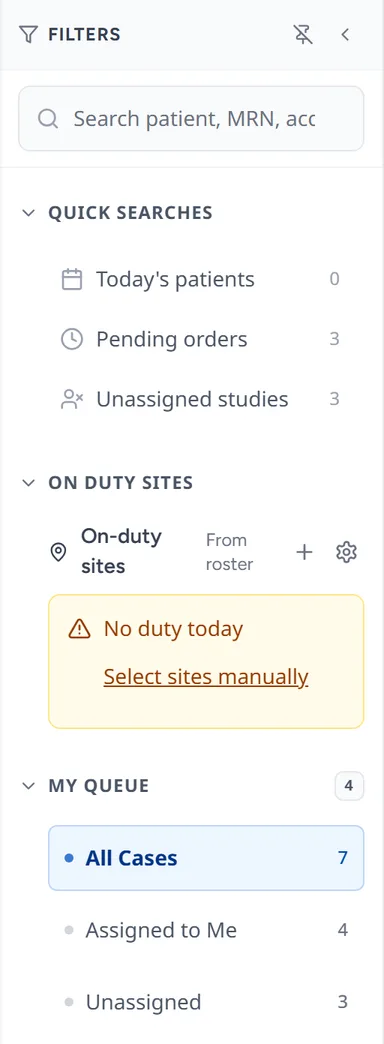
Open Filters in the sidebar to narrow the list:
- My Queue: All Cases, Assigned to Me, or Unassigned.
- Report Required Only, to hide studies that don't need a report.
- On Duty Sites, to show only the sites you are rostered to.
- Modality, Site and Date range.
Sort options such as Urgent first and Longest wait change the order. The Quick Searches buttons (Today's patients, Pending orders, Unassigned studies) apply common filters in one click.
Opening a study
- Click the study in the list, or press Get next (keyboard shortcut N) to take the next study in priority order.

- Clarirad claims the report for you: it locks it so no one else can edit it at the same time and assigns it to you.
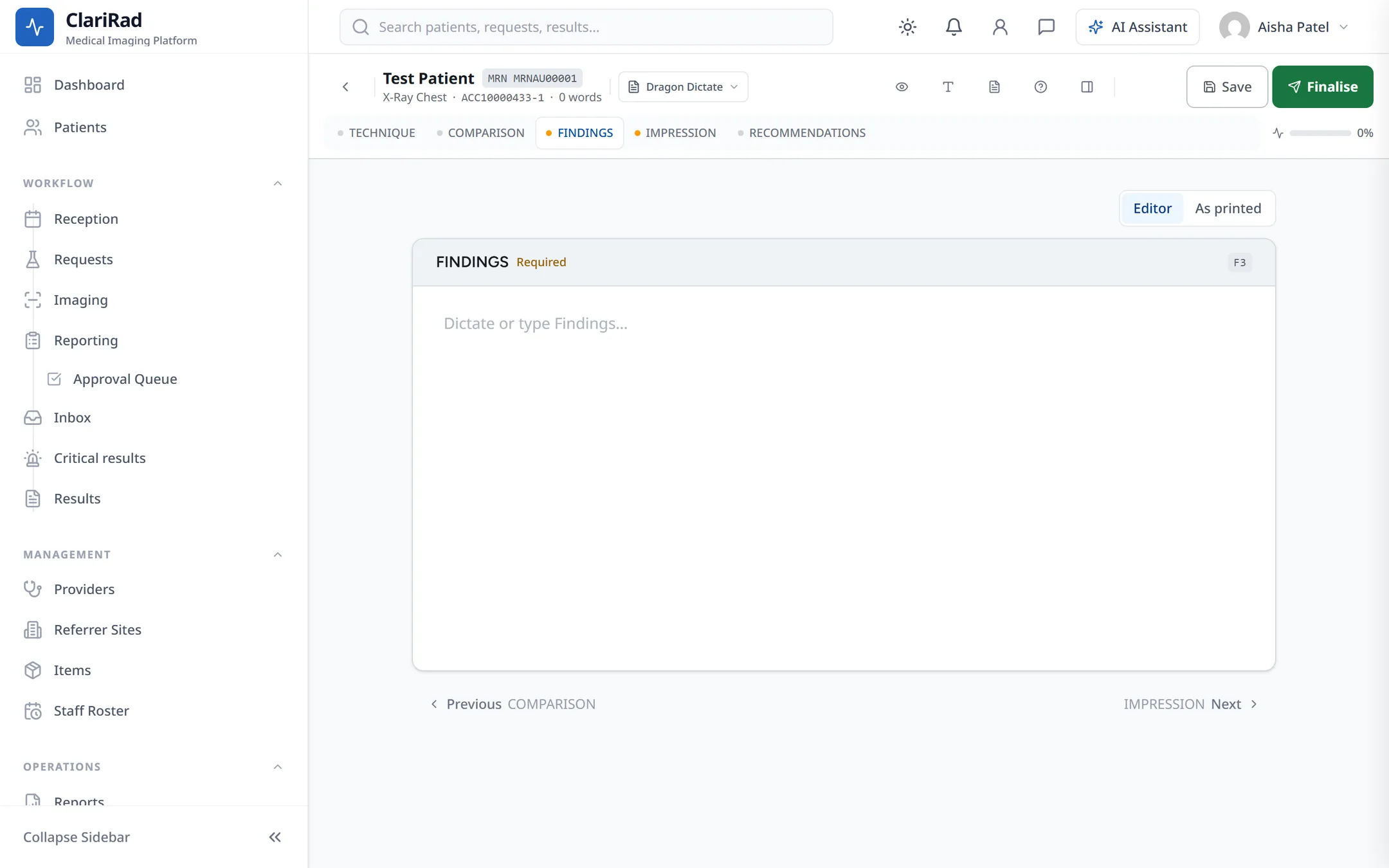
- The images open in your viewer and the report editor opens beside them.
If the study is assigned to someone else, Clarirad asks whether to open it anyway. Choosing Open case makes you the assigned radiologist.
Use Skip to pass over a study when working with Get next. You are asked for a reason for skipping.
Locked worklists
Your practice can lock a worklist so studies are taken in priority order. You still see every study, but rows show Next only and you open them with Get next.
Reports someone else has open
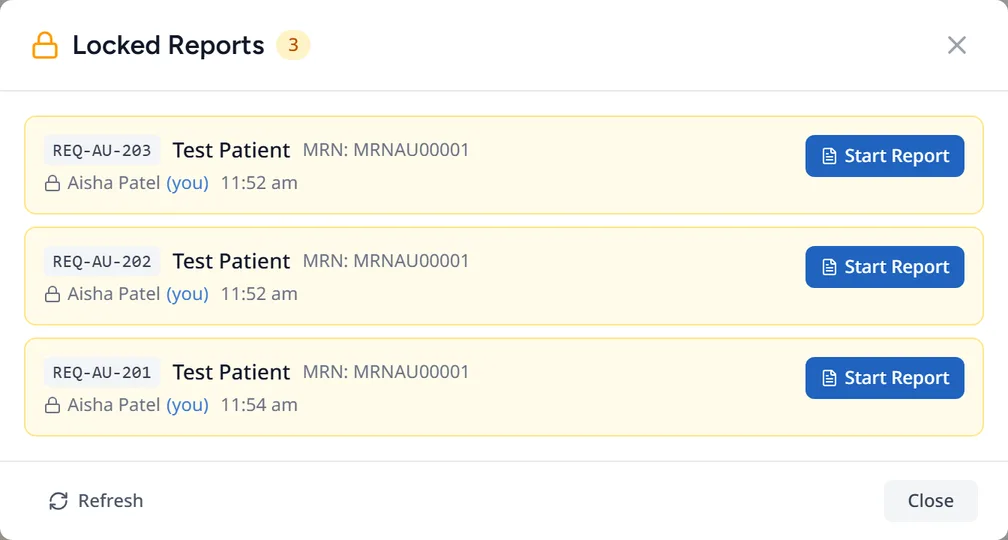
If a report is locked by someone else, you see who has it. View locked reports lists the reports that are locked. A report you left open by mistake can be freed with Release lock.
Choosing how you report
The reporting method menu at the top of the worklist sets how your editor works: Dragon, Transcription, or Whisper VR. Whisper VR only appears if your practice has the Whisper VR reporting assist turned on. You can also switch inside the editor with Change reporting method.

The record mode menu chooses Hold to Record (record while you hold the button or pedal) or Toggle Record (press once to start and once to stop).
Preliminary mode
The Prelim pill turns preliminary mode on or off. While it is on, reports you start are opened as preliminary reports.
Common problems
- This study is on identity hold: the study can't be reported until the hold is released.
- Reporting in PACS: your site reports in its PACS, so Clarirad offers the viewer instead of the editor.
- Report cannot be started: the report is in a status that can't be started, for example it has already been signed.