Draft — being checked against the app
The appointment book and trading hours
How the day view shows rooms, holds and blocks, booking outside trading hours, and blocking time in a room.
Reading the book
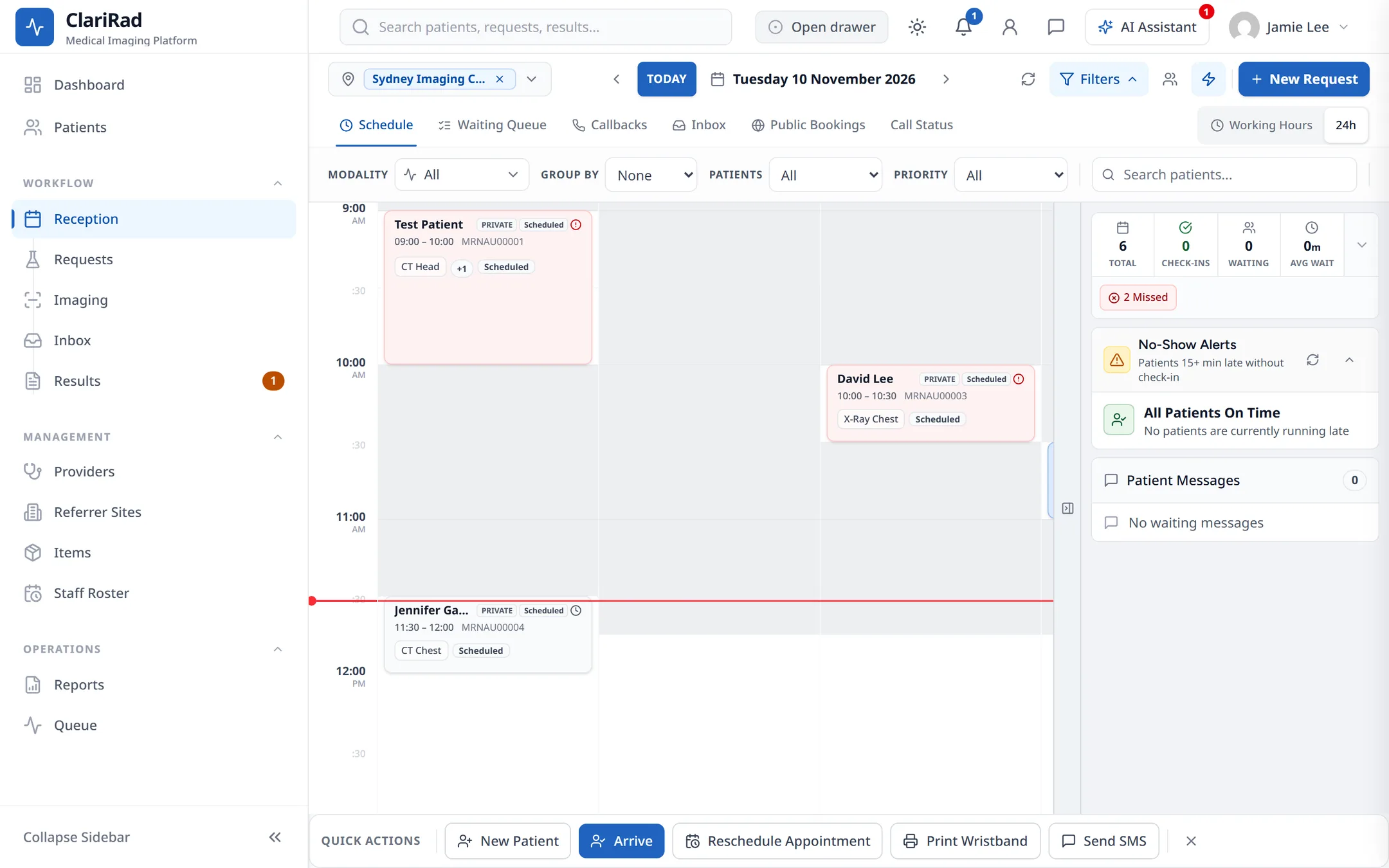
The 'Schedule' tab of the 'Reception' screen shows one day at a time, with a column for each room. Drag a room's heading to change the column order. If you pick more than one site, the rooms are grouped under each site's name.
- 'Working Hours' shows the site's open hours; '24h' shows the whole day.
- 'Filters' narrows the view by 'Modality', groups rooms with 'Group by', and filters by patients (all, children only, adults only) or priority.
- Each card shows the patient and a status, such as 'Scheduled', 'Confirmed', 'Arrived', 'In Progress', 'Completed', 'Cancelled' or 'No Show'.
- Bookings made by patients online are marked 'Online booking'.
- When bookings, holds or blocks overlap, the column splits into side-by-side lanes, with the earlier booking on the left.
Trading hours
Each site has trading hours. Times outside them are shaded and marked 'Outside trading hours'. You can still book there, but you have to say why.
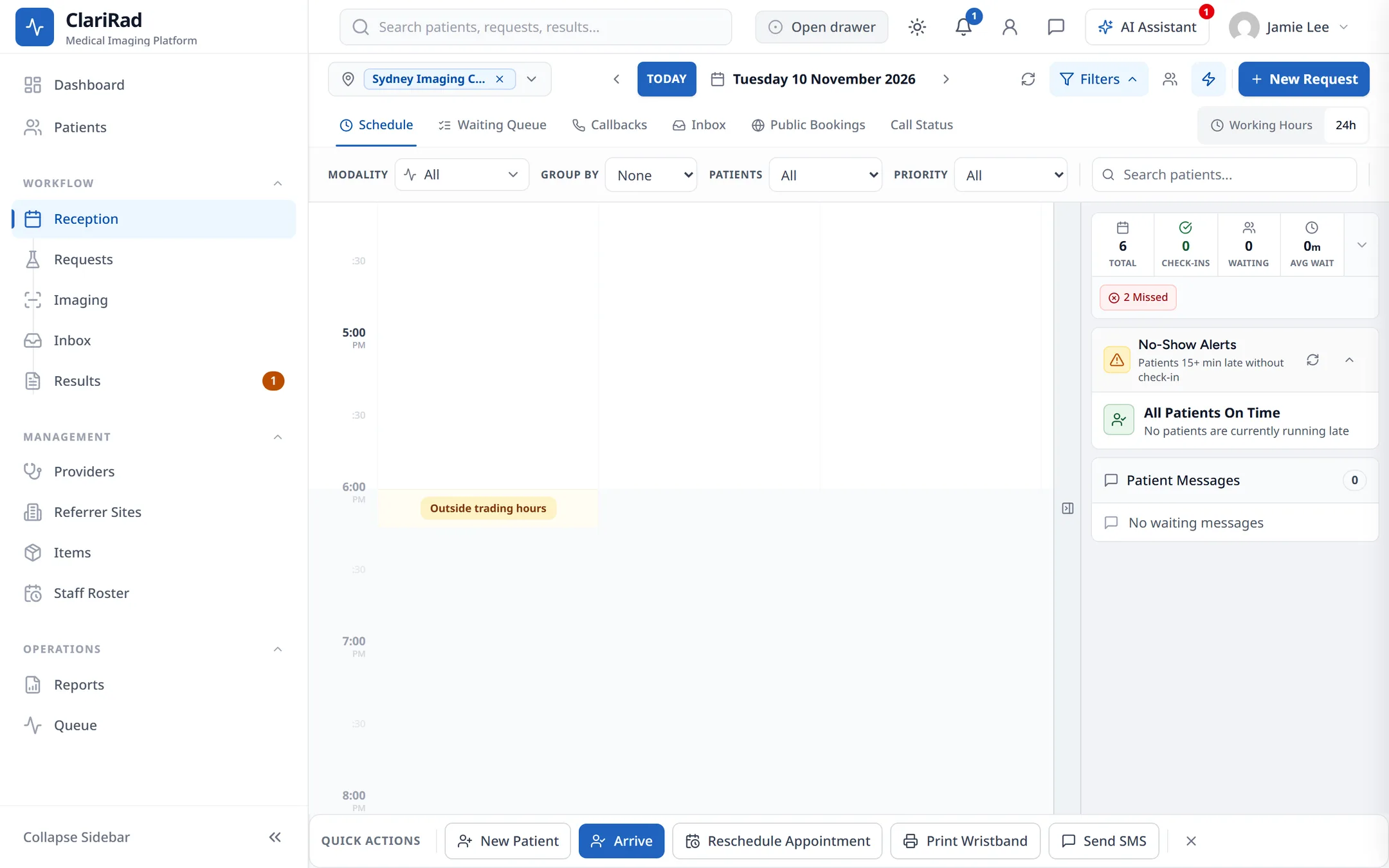
- Book or move an appointment into a time outside the site's hours.
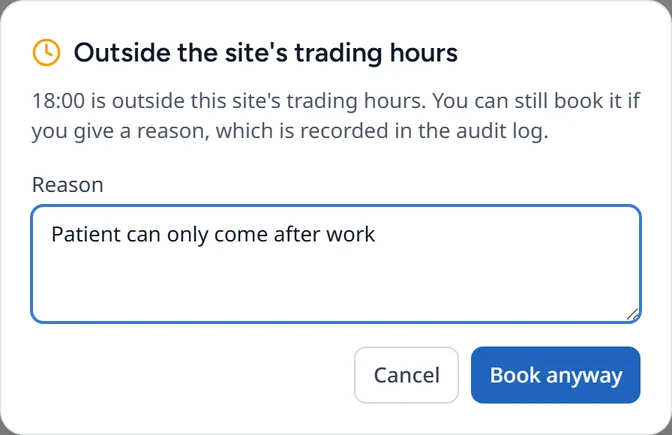
- The 'Outside the site's trading hours' window shows the hours for that day.
- Enter a 'Reason' and choose 'Book anyway'. The reason is recorded in the audit log.
If your role is not allowed to book outside hours, you see 'You cannot book outside trading hours'.
Changing a site's trading hours
A practice manager or administrator sets the hours on the site's page (Settings, then 'Organization', then the site). Under 'Trading hours', choose 'Edit hours', set each day or mark it 'Closed', then 'Save changes'. A site uses the organisation's hours unless you choose 'Override hours'; 'Reset to inherited' goes back to them.
Blocking time in a room
Use a block for breaks, cleaning, maintenance or meetings, so nobody books into that time.
- Right-click the slot and choose 'Block Slot'. The 'Create Room Block' window opens.
- Choose a 'Block Type' (Break, Lunch, Cleaning, Maintenance, Meeting or Other), and give it a 'Title', 'Start Time' and 'End Time'.
- To repeat it, tick 'Make this a recurring block' and choose 'Daily' or 'Weekly', the days and an 'End Date'.
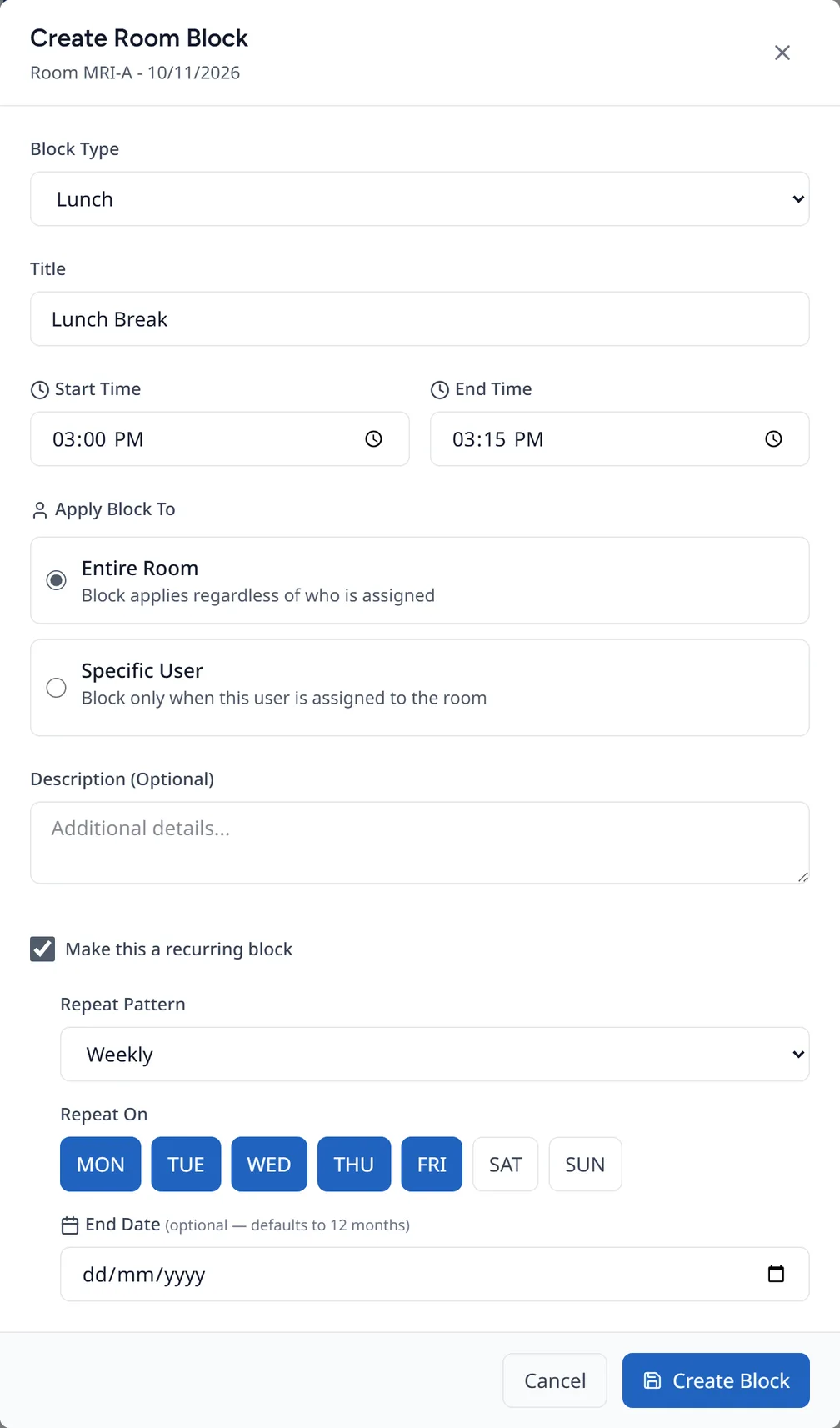
- Under 'Apply Block To', choose 'Entire Room' or a specific staff member, then 'Create Block'.
Blocked time shows as 'Blocked'. Click it to change it or choose 'Delete Block'.