Draft — being checked against the app
Installing the site agent
The small Windows service that prints, serves the modality worklist and relays HL7 on a site's own network.
Some jobs have to happen on a site's own network: sending reports and receipts to the site's printers, answering scanners' worklist queries, and passing HL7 messages to a local PACS or RIS. The Clarirad site agent does these. It is a Windows service, with a tray icon, installed on one always-on computer at the site.
Setting it up
- Ask Clarirad support for the site agent installer and install it on the site computer.
- In Clarirad, open Settings and, under 'Integrations', choose 'Site Agents'.
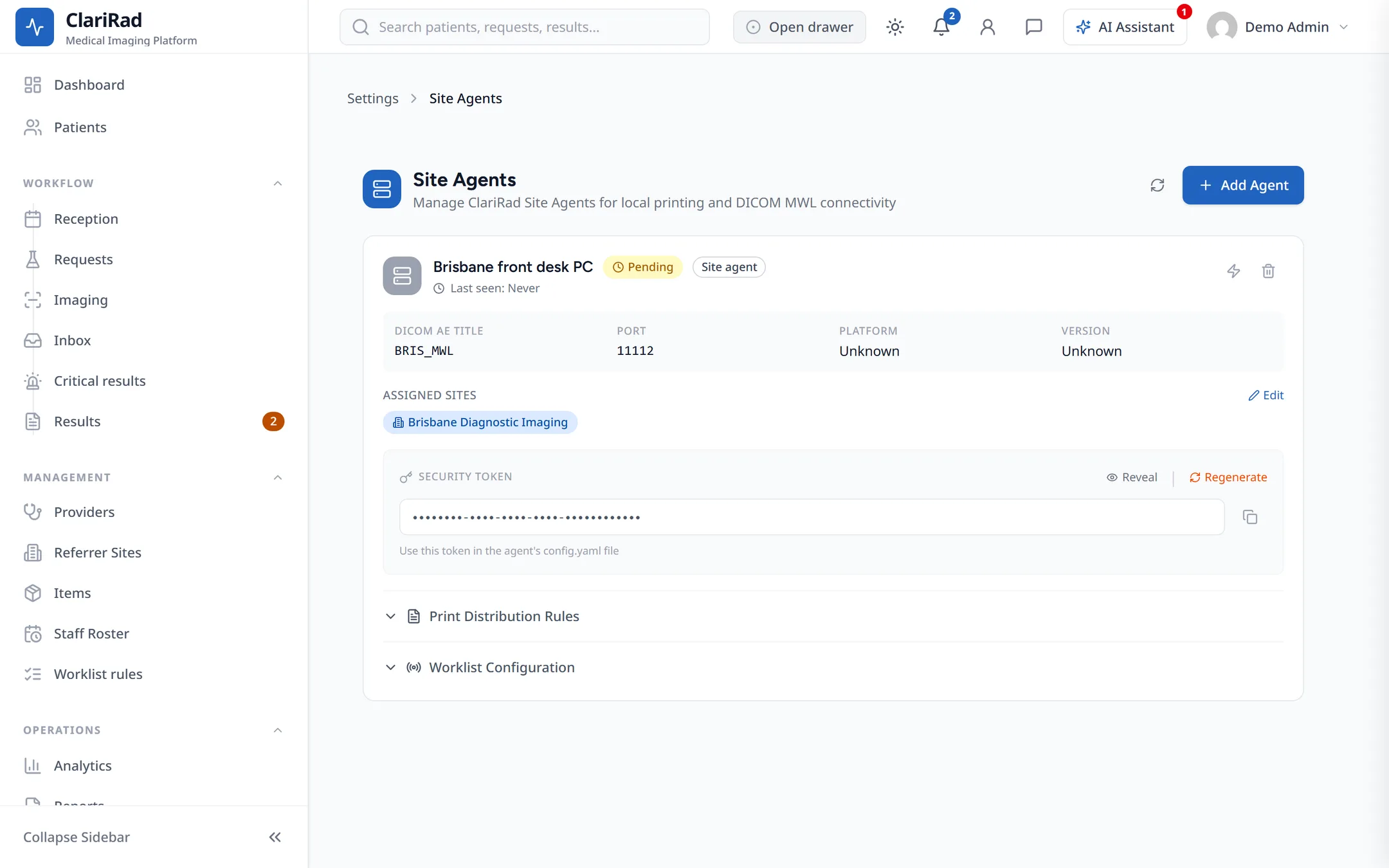
- Choose 'Add Agent'. Under 'Kind of agent', choose 'Site agent (printing, worklist, HL7 folder)'.
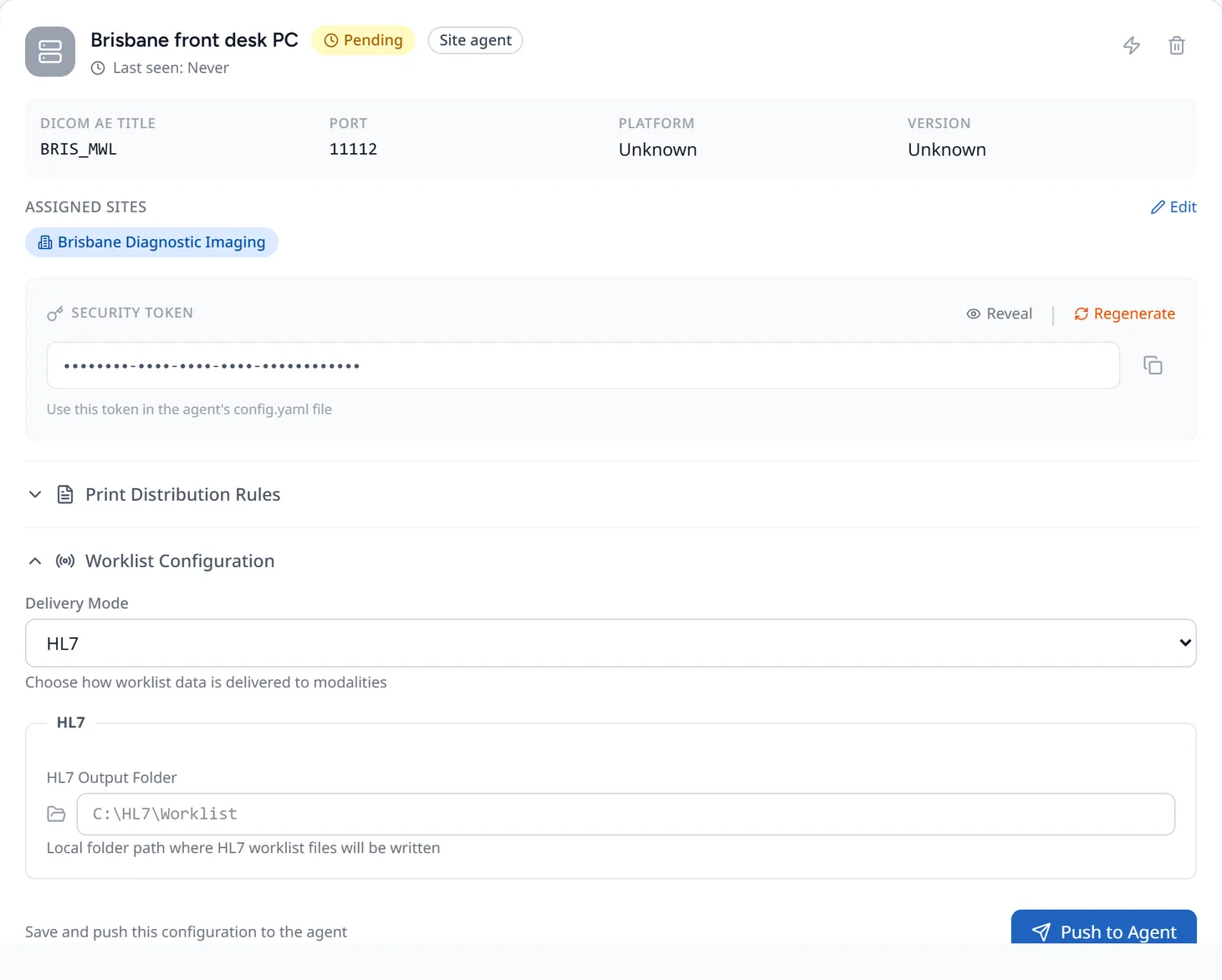
- Enter the 'DICOM AE Title' and 'MWL Port' if the agent will serve a worklist, pick the sites it works for, and choose 'Create Agent'.
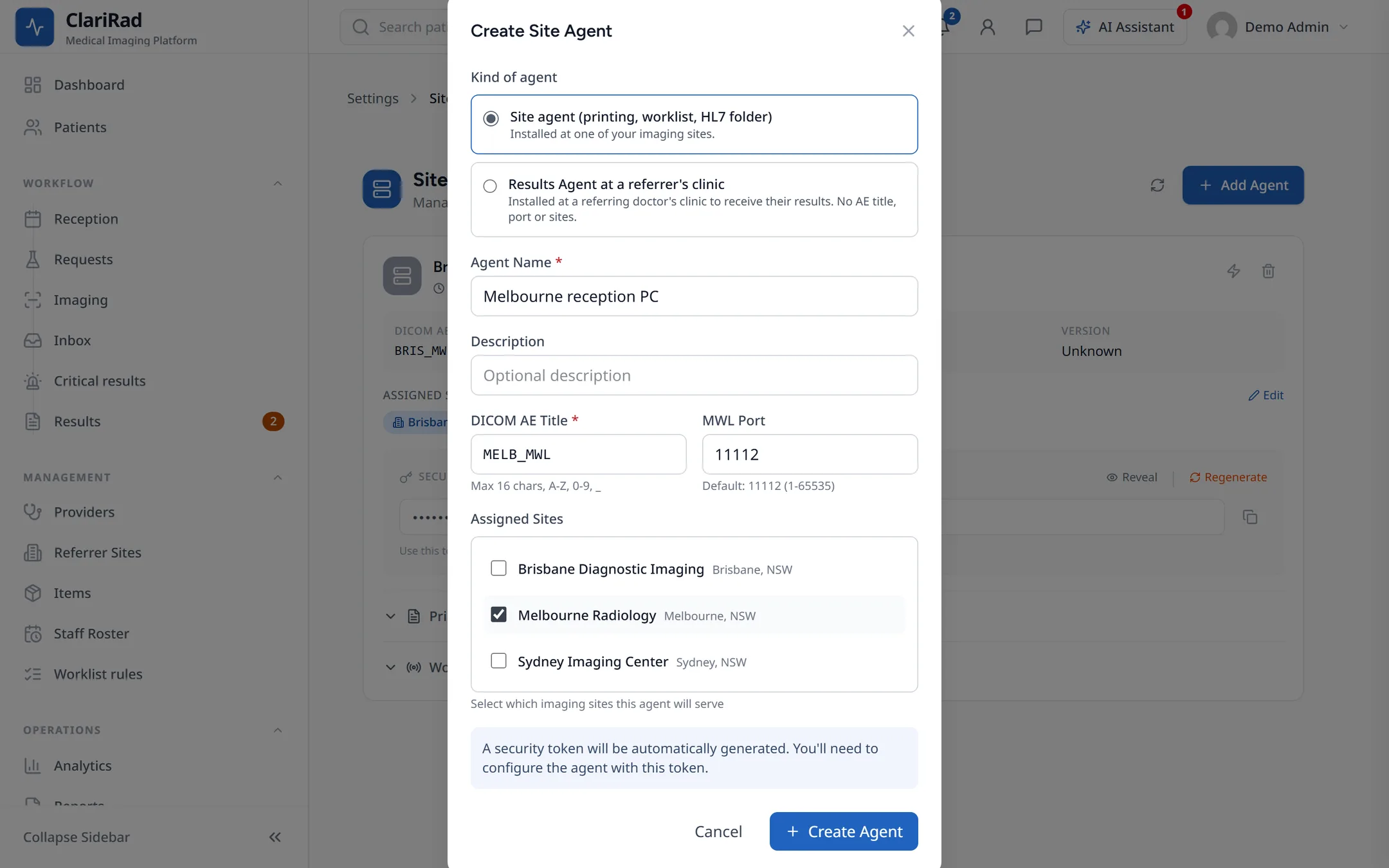
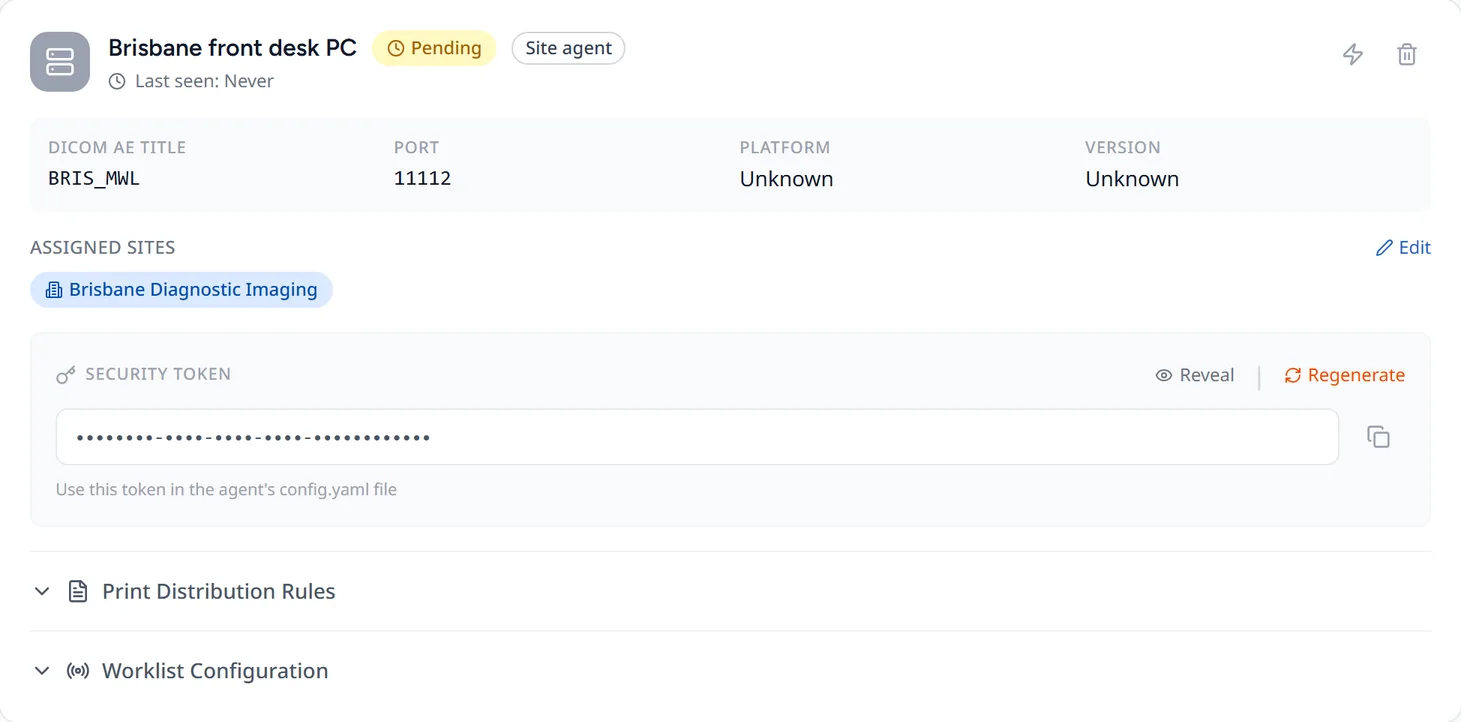
- Under 'Security Token', choose 'Reveal' and then 'Copy token'.
- On the site computer, open the agent's local dashboard and paste the token in. The agent connects to Clarirad.
Back in 'Site Agents', the agent shows 'Pending' until it first connects, then 'Online', with when it was last seen and its version. The test button (the lightning icon) checks it is answering.
Printers
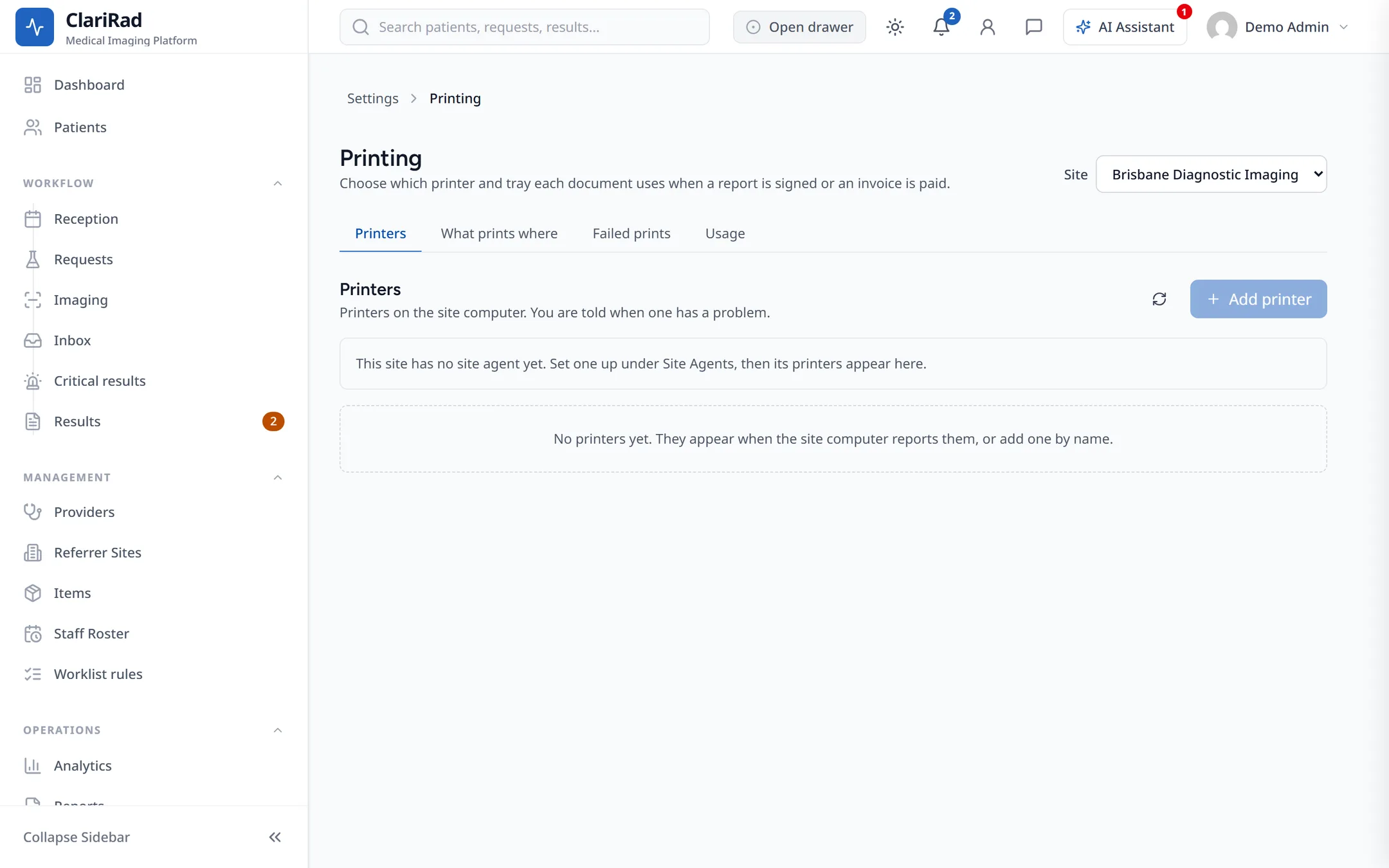
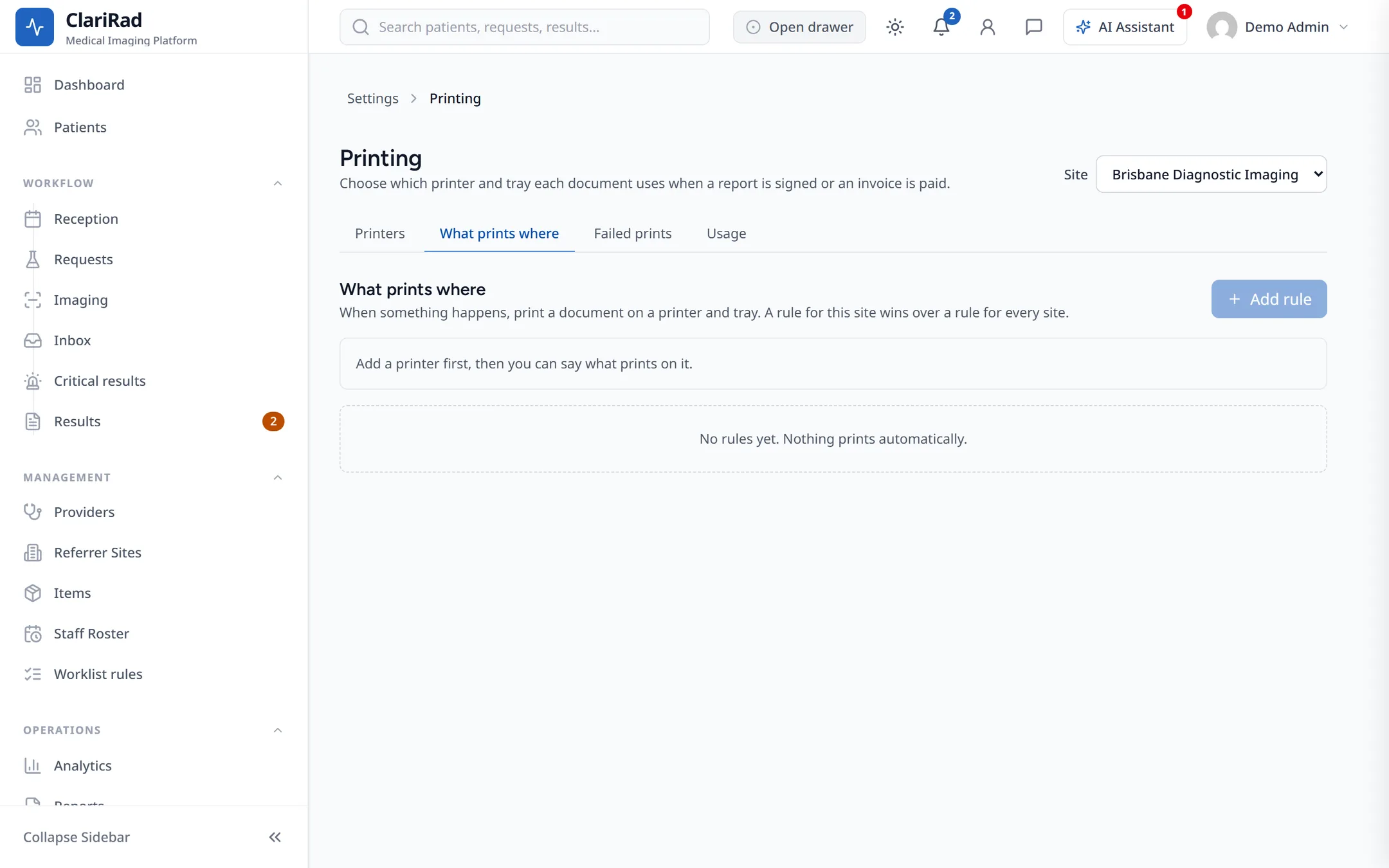
The agent reports the printers it can see under 'Detected Printers'. Then decide what prints where in Settings, under 'Integrations', then 'Printing':
- 'Printers': each printer and its state: 'Ready', 'Problem', 'Offline' or 'Not reported yet'.
- 'What prints where': which document (a signed report, a receipt, an invoice or a referral letter) prints on which printer, and when: when a report is signed, when an invoice is paid, or only when printed by hand.
- 'Failed prints': jobs that did not print. Choose 'Reprint' once the printer is fixed.
- 'Usage': how much each printer has printed.
Worklist and scanners
Under 'Worklist Configuration', choose the 'Delivery Mode' ('DICOM MWL', 'HL7' or both) and which scanner AE titles may ask for the worklist. New scanners appear under 'Scanners'; choose 'Approve' or 'Block' for each.
If the agent goes offline
- Check the site computer is on and connected to the internet.
- Check the agent's tray icon and local dashboard for an error.
- Jobs are queued while it is offline and sent once it reconnects.
Related pages
- Modality worklist and HL7 with your PACSGet booked studies onto your scanners' worklist, send orders and signed reports to your PACS, and take reports back from it.
- Checking integration healthSee at a glance whether your HL7 channels, Medilink, accounting and webhooks are working, and which integrations your practice has.