Draft — being checked against the app
Security settings and API access
Restrict sign-in by IP address, review audit logs, use break-glass access, and issue API keys.
These settings are for admins and are found in Settings.
Login IP restrictions
Settings, Login IP Restrictions limits where people can sign in from, for example only from your sites' networks. You can set it separately for staff, the patient portal, the referrer portal and API keys.
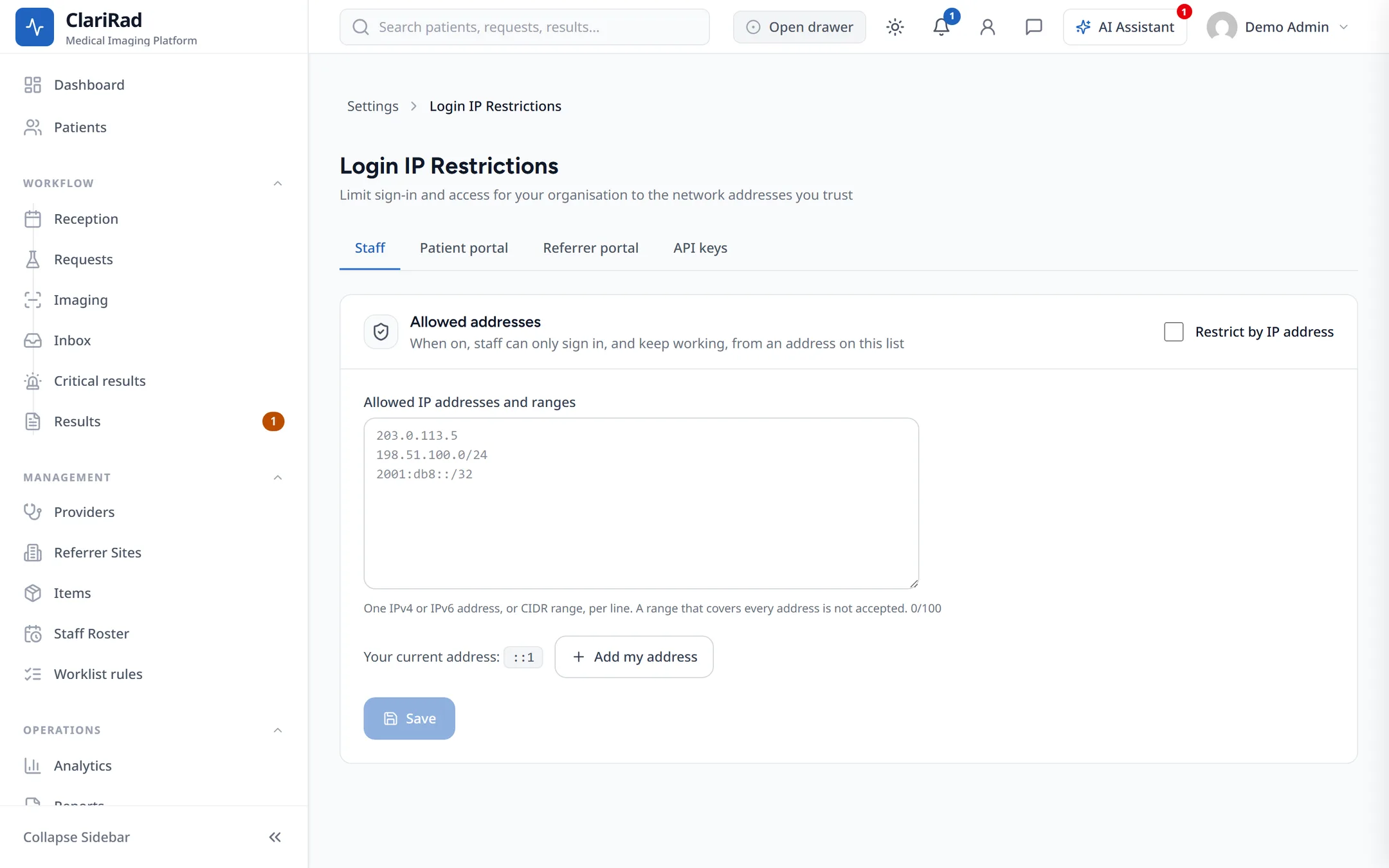
- Tick Restrict by IP address.
- Under Allowed IP addresses and ranges, add each address or range. Add my address adds the one you are using now.
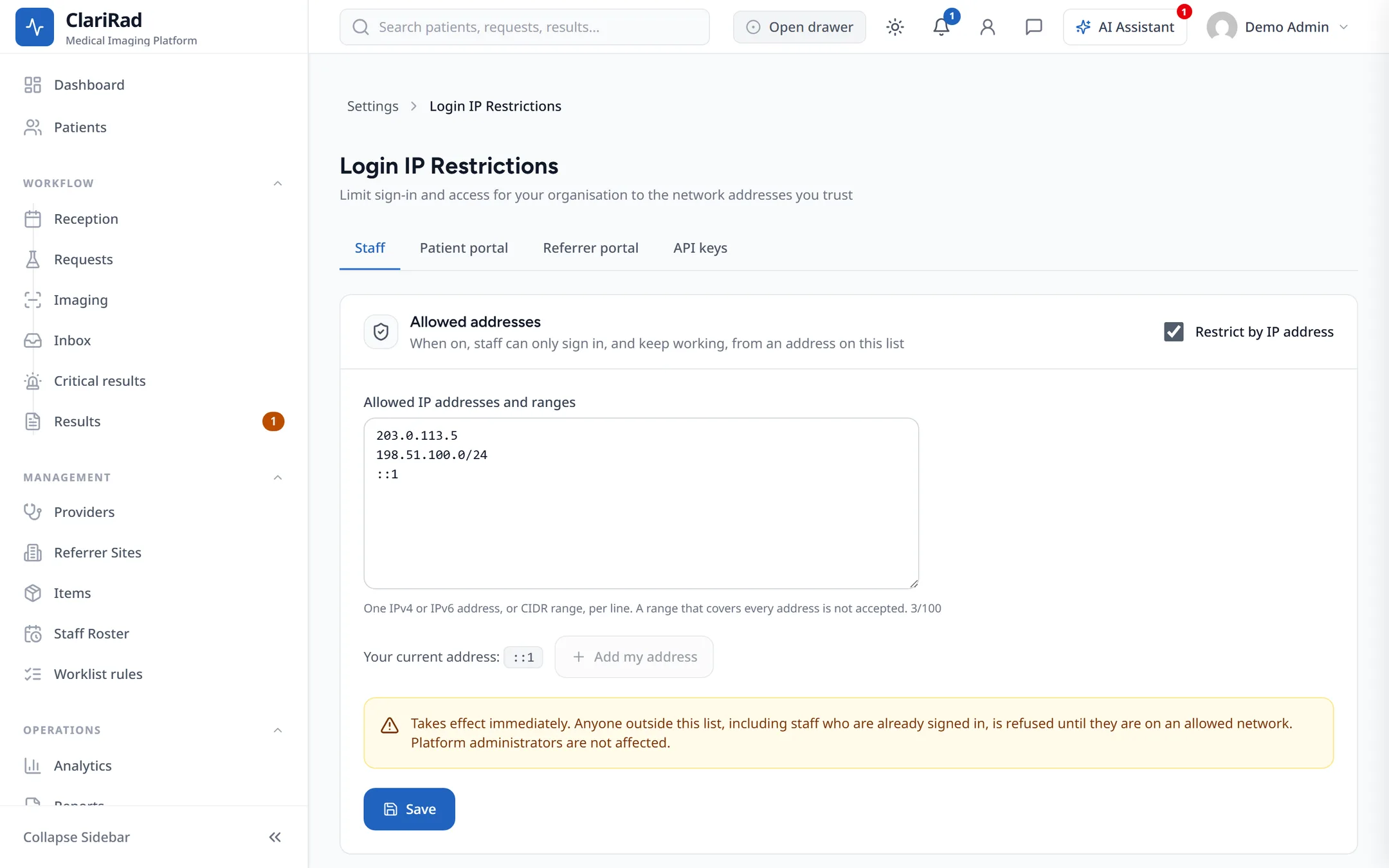
- Press Save.
For API keys, see also IP allowlist and API IP policy.
Two-factor authentication
Referrers must use two-factor authentication in the referrer portal; for patients it is optional. If someone loses their authenticator, an admin can use Reset MFA on their account (see Staff users and roles).
Audit logs
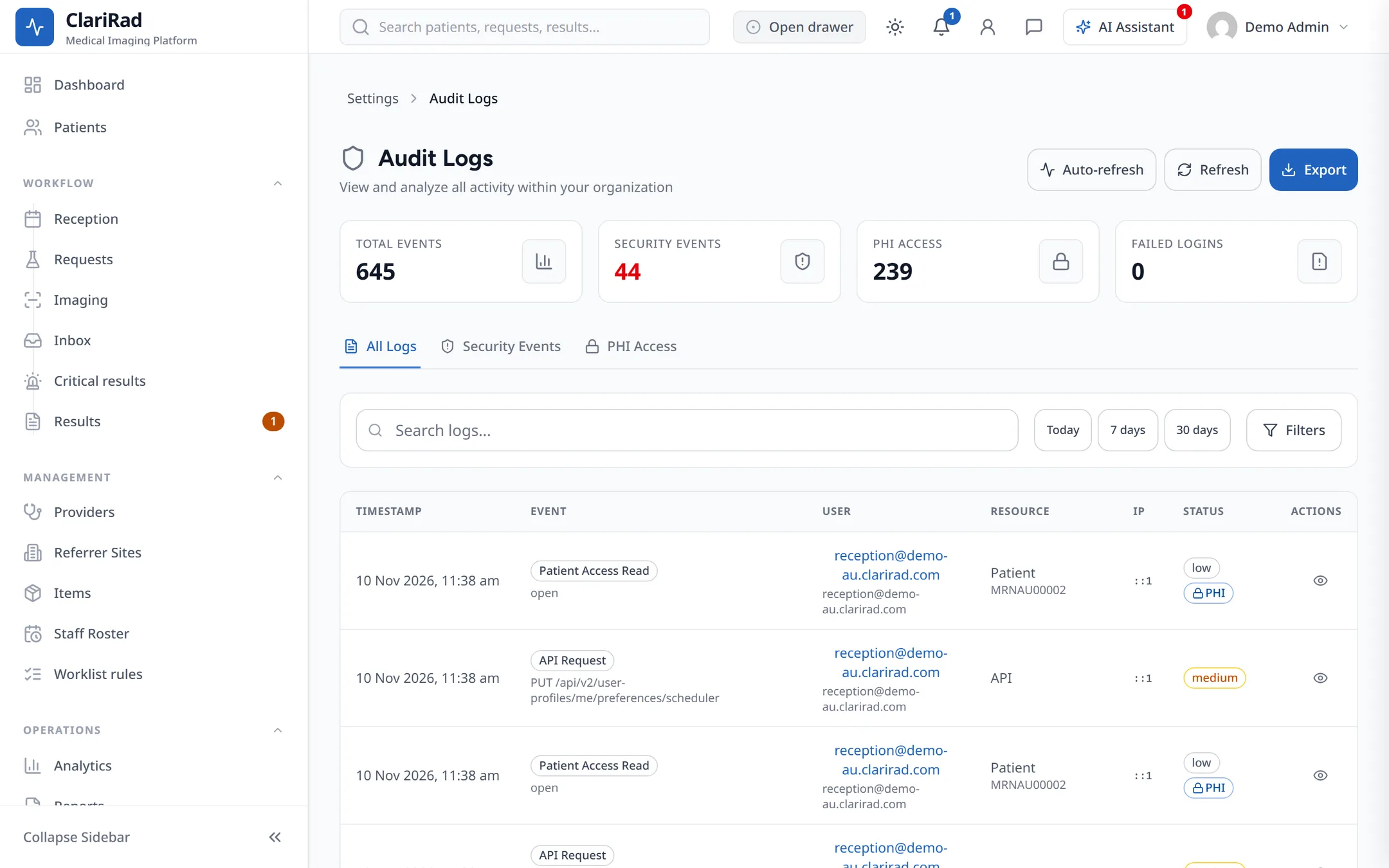
Settings, Audit Logs shows what has been done in Clarirad and by whom. Tabs are All Logs, Security Events and PHI Access (who looked at patient information). Use Filters to narrow it, Export to download it, and Export PHI Report (CSV) for a report of access to patient records.
Break-glass access
If a patient's records belong to another organisation, clinical and admin staff can ask for emergency access. In the patient search, tick Also search other organisations (break-glass) and press Request Access.
- Explain why you need access (at least 10 characters).
- An SMS code is sent to the patient's mobile. The patient reads it to you.
- Enter the 6-digit code from the SMS.
Every break-glass request is recorded.
Signing out when idle
Clarirad warns you and then signs you out after a period without activity.
API keys
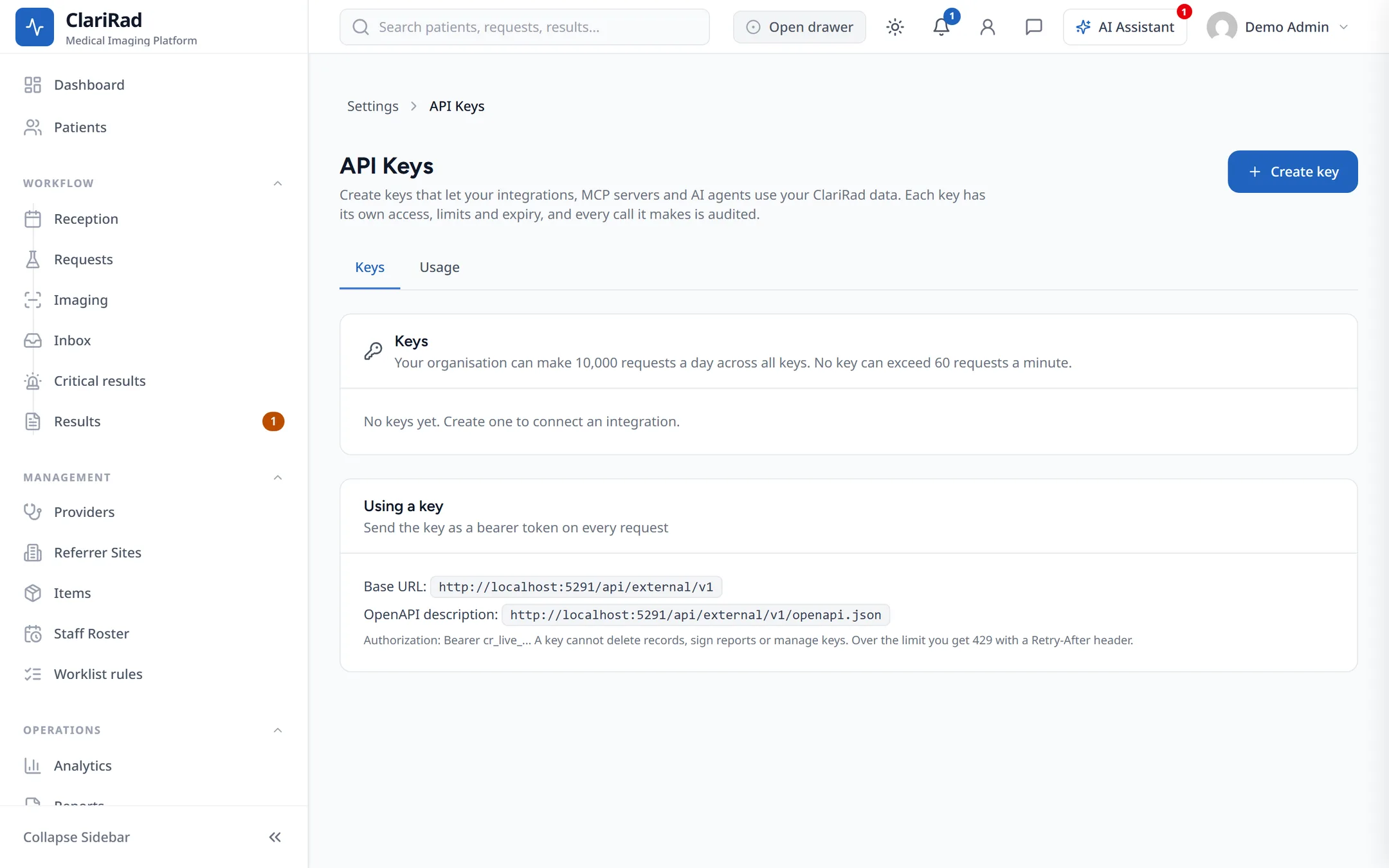
API keys let other systems, and AI assistants such as Claude or OpenAI, work with your practice's data through the tenant API. Keys are issued in Settings, API Keys.
API access must be part of your subscription. Until it is, the page says API access is not switched on for your organisation. The first time, an admin reads Before you create a key and presses Accept and enable API keys.