Draft — being checked against the app
Registering a new patient
Create a patient record with demographics, identifiers, contact details and address.
ReceptionLast updated
Creating the record
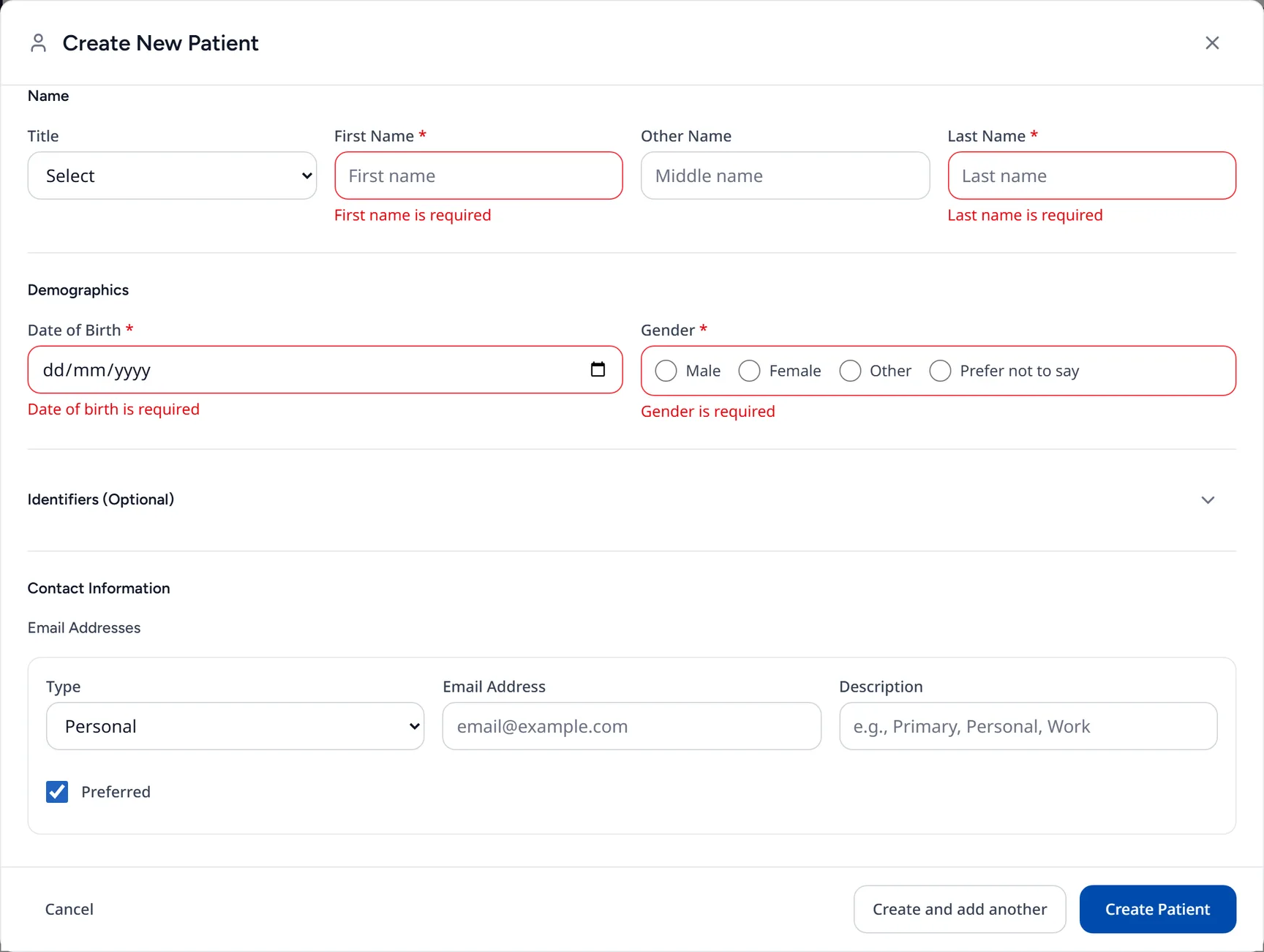
- Choose 'Patients' in the sidebar, then 'Add Patient'. (On the Reception screen you can use 'New Patient' instead.) The 'Create New Patient' panel opens.
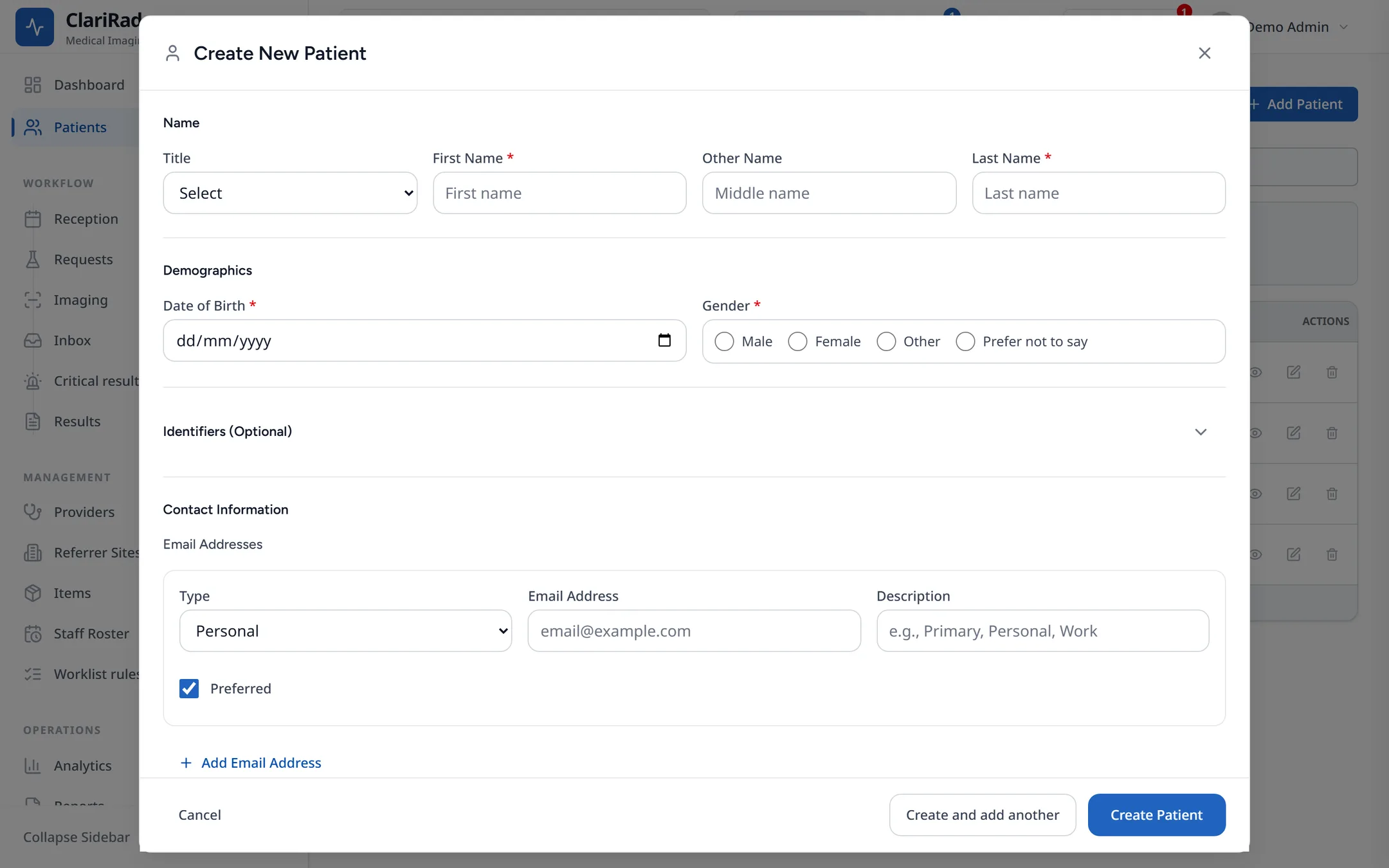
- Under 'Demographics', enter 'First name', 'Last name', 'Date of birth' and 'Gender'. These are required.
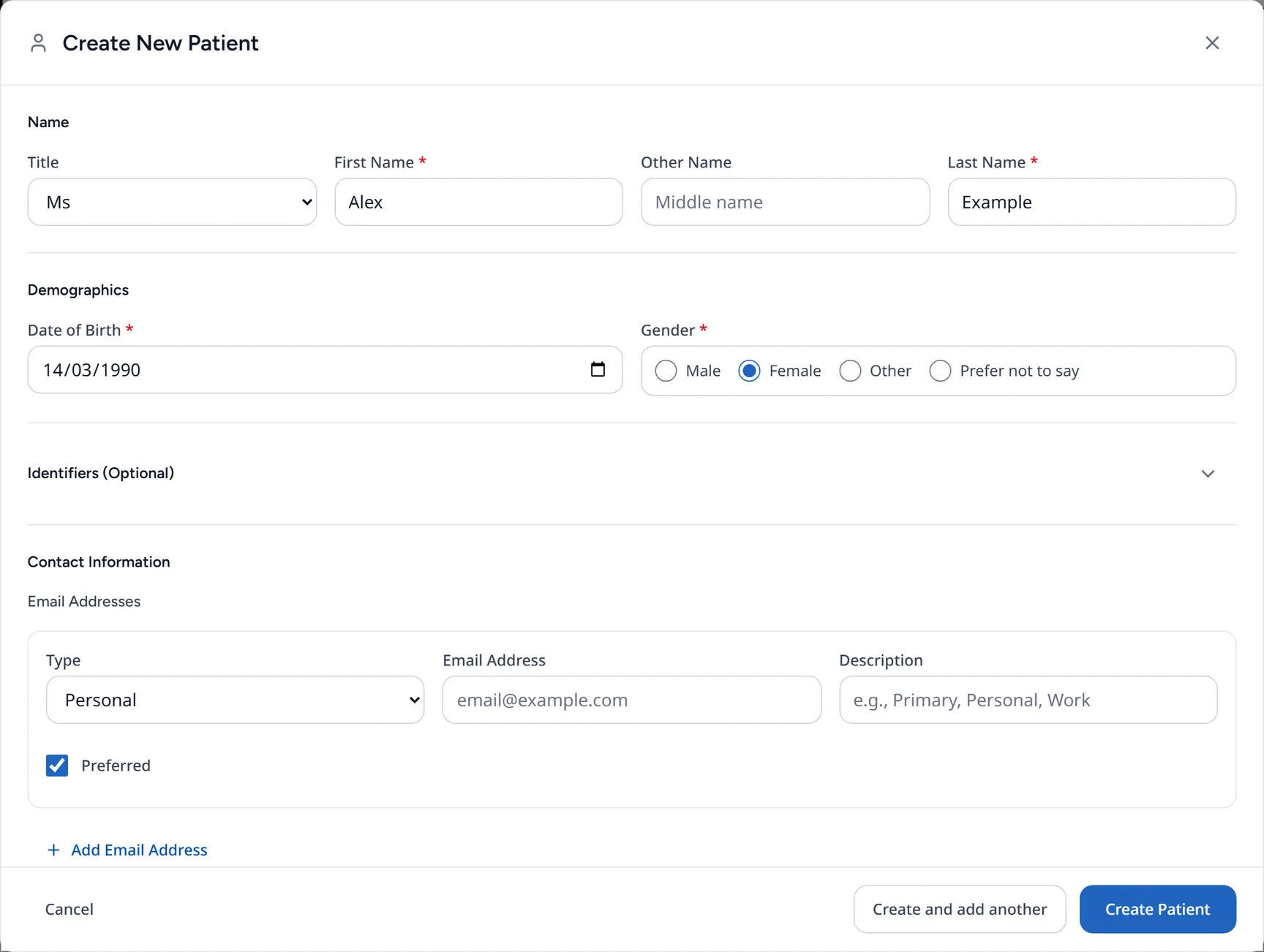
- Open 'Identifiers (Optional)'. The first identifier row is added for you; choose 'Add Identifier' for each further card or number the patient has.
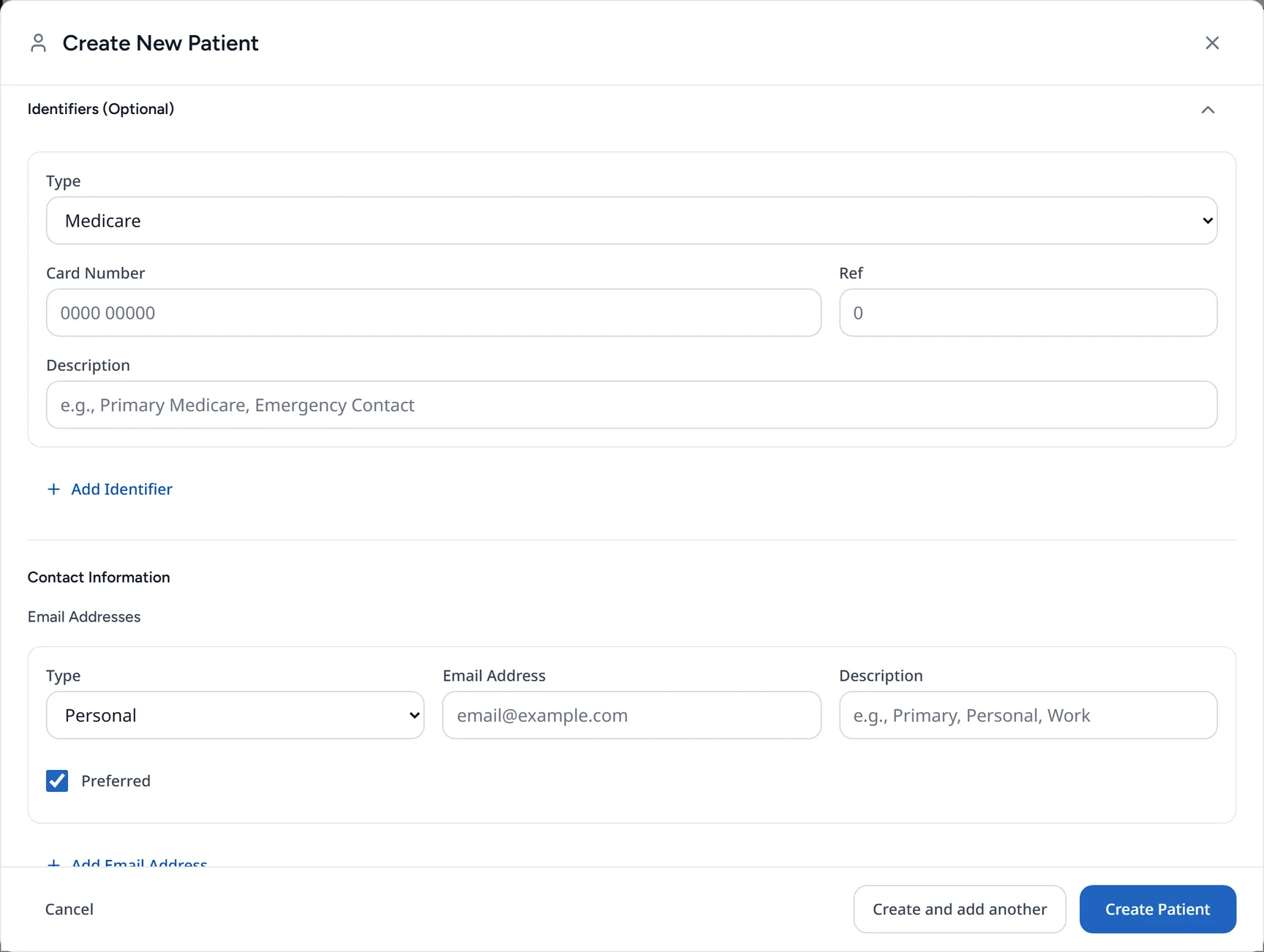
- Under 'Contact Information', use 'Add Phone Number' and 'Add Email Address'. Tick 'Receive SMS Messages' if the patient agrees to texts.
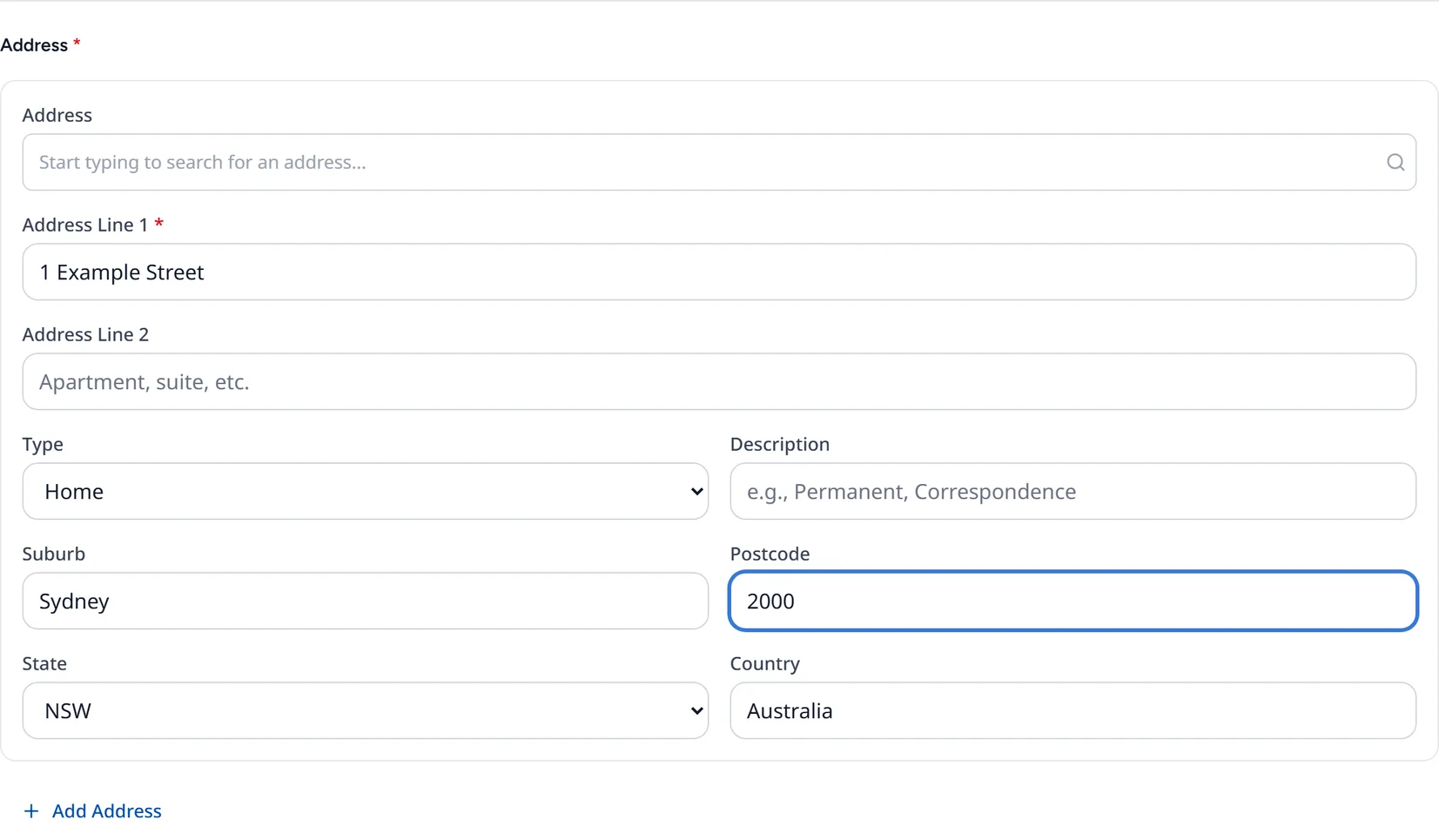
- Add at least one address with 'Add Address'. Check the country, which starts as Australia.
- Choose 'Create Patient', or 'Create and add another' to register the next person straight away.

Identifiers
Which set you see depends on the country of your practice's site. Every patient also gets an MRN from Clarirad automatically.
What happens next
The patient's record opens, and you can start a request or book an appointment for them. You can add or correct details later from the record itself.
Common problems
- The 'Create Patient' button does nothing: look for a field marked in red, usually a missing required field or address line.
- Medicare number refused: check the 10 digits against the card.
- You have just created a duplicate: don't delete anything. Ask an administrator to merge the two records. See Merging duplicate patients.
Related pages
- Finding a patientSearch for a patient by name, MRN, Medicare number or RUT, date of birth, phone or email.
- Patient identifiers and Medicare card checksKeep a patient's cards and numbers up to date, and check a Medicare card with Medicare.
- Merging duplicate patientsCombine two records for the same person, with a second administrator confirming, and roll back within 7 days.