Draft — being checked against the app
Staff users and roles
Add staff to your practice, give them roles, fine-tune what each role can open, and remove access.
Each person who uses Clarirad has a role, such as receptionist, radiographer, radiologist, typist, finance or practice manager. The role decides which screens they can open and what they can change.
Adding a staff member
- Open Settings, User Management, and press Invite User.
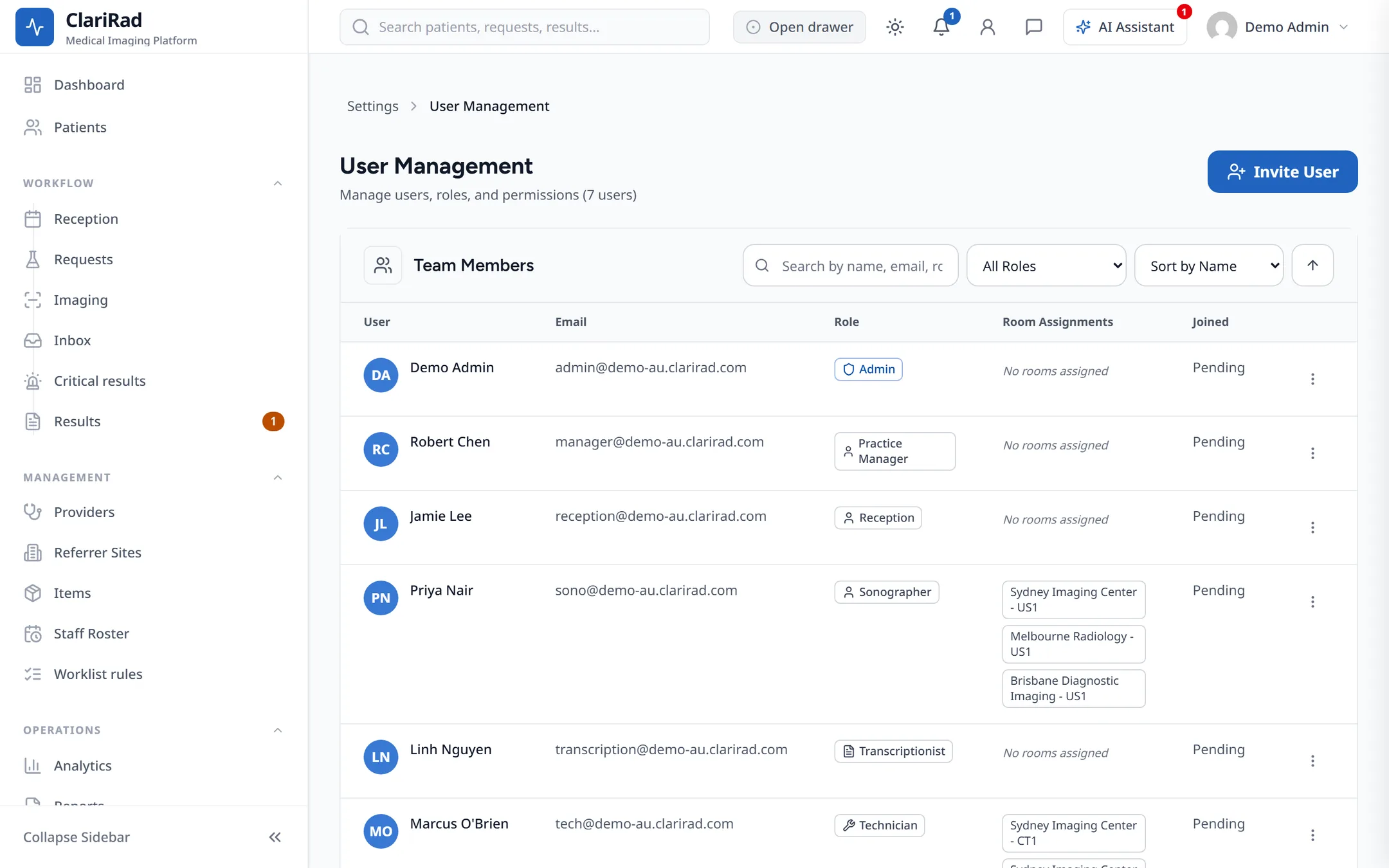
- Enter their email address and choose their role.
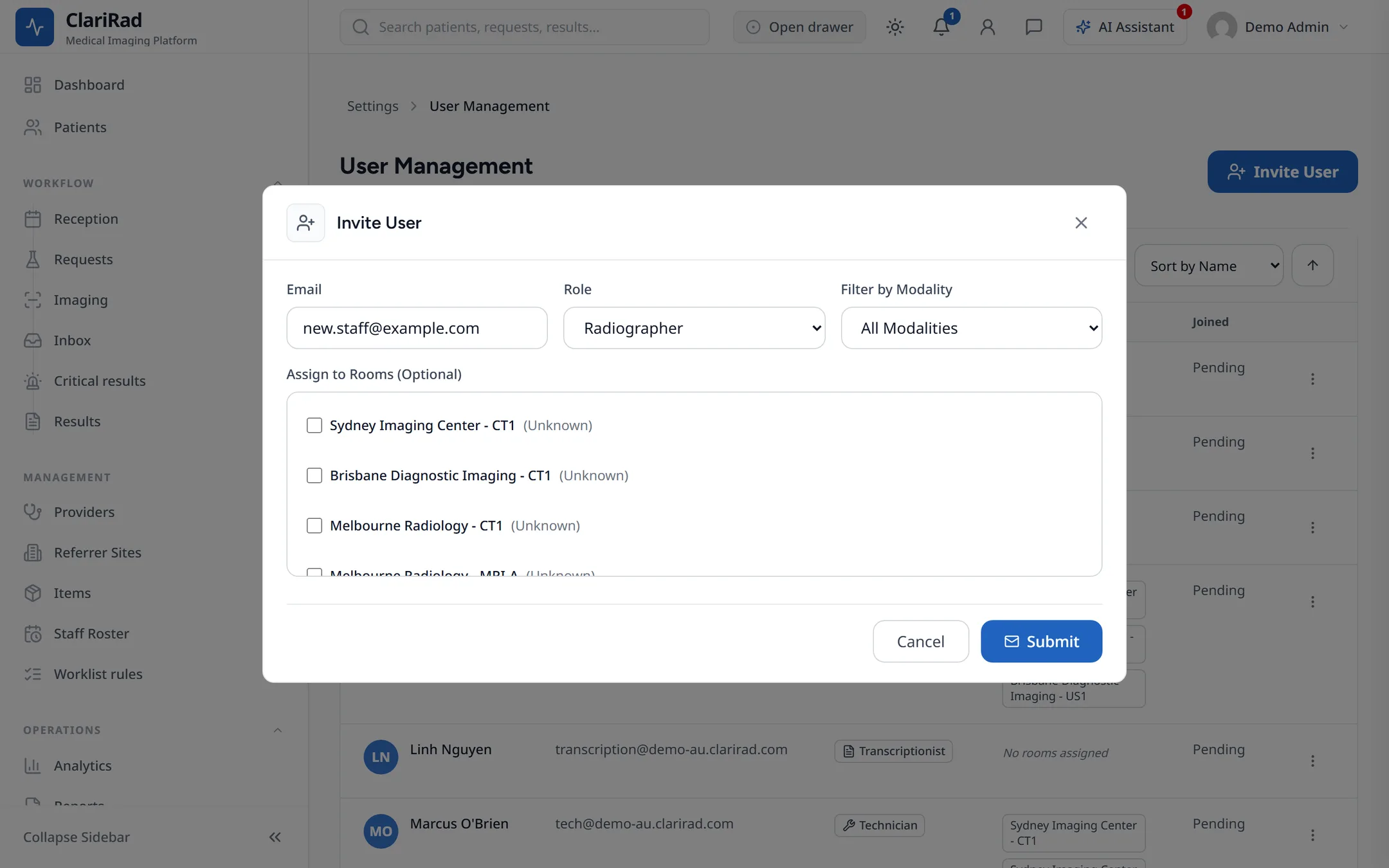
- If they work in particular rooms, filter by modality and pick the rooms under Assign to Rooms (Optional).
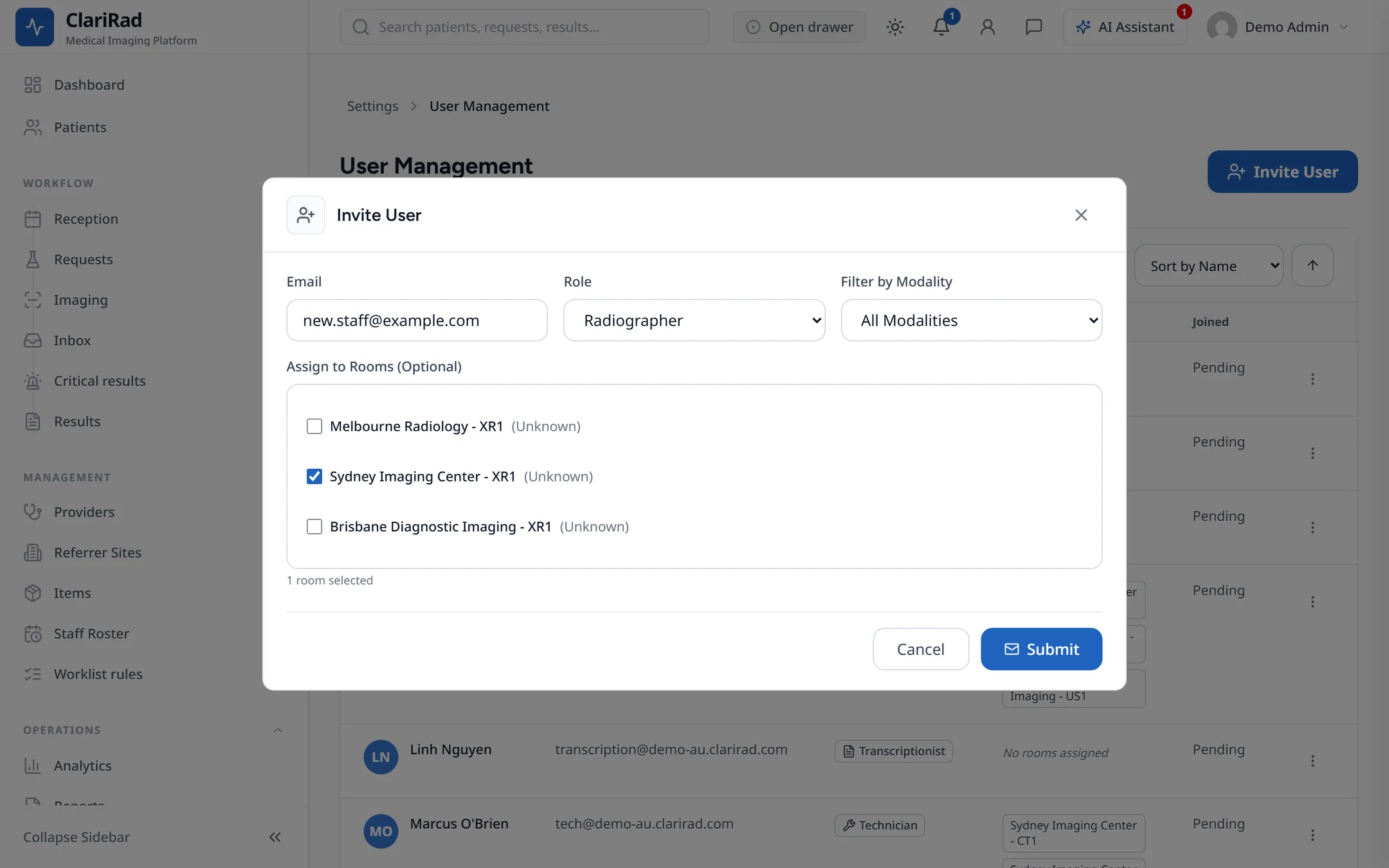
- Press Submit.
Team Members lists everyone in your practice with their role, room assignments and when they joined.
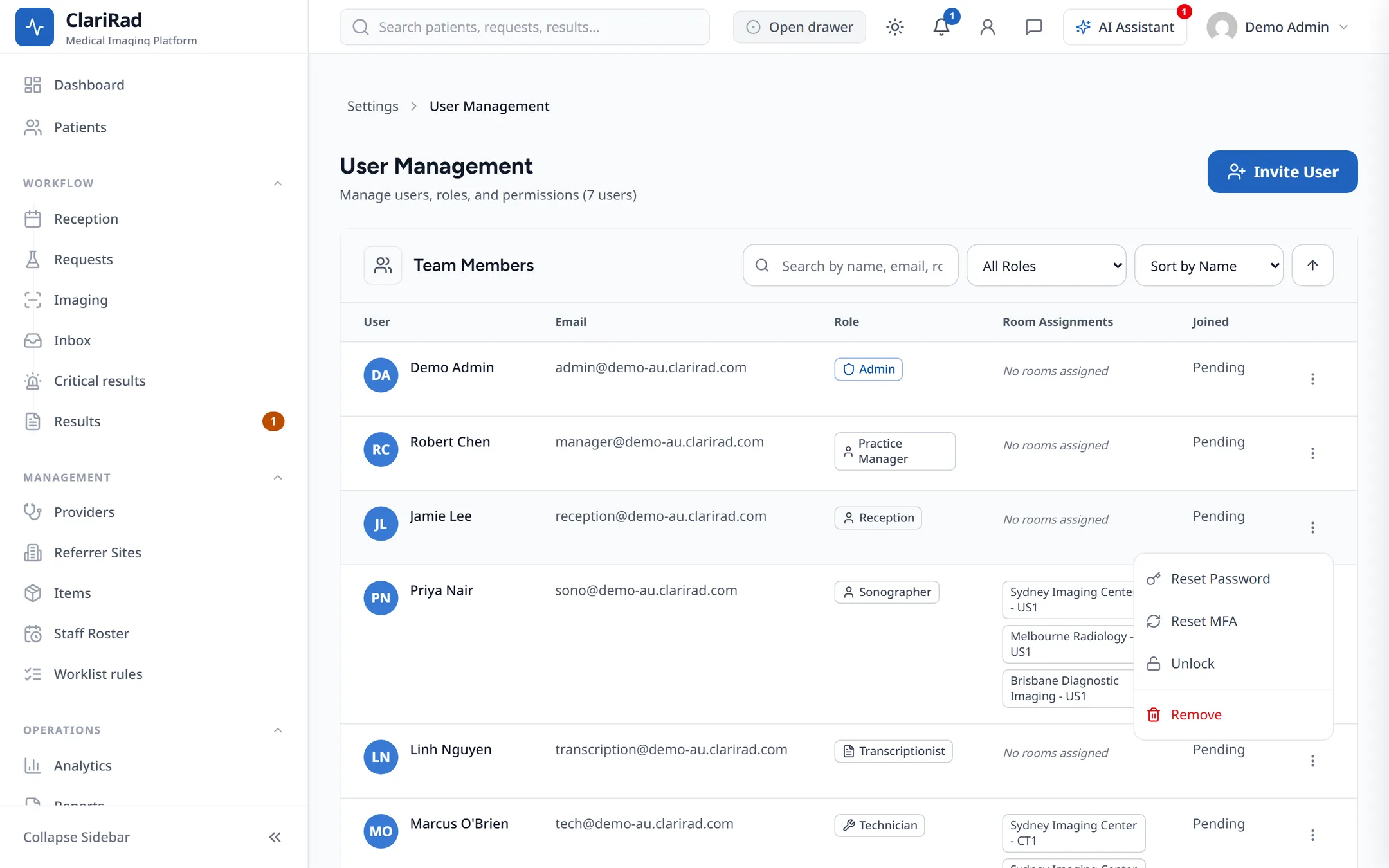
Helping a staff member
- Reset Password emails them a reset link.
- Reset MFA clears their two-factor authentication so they can set it up again.
- Unlock frees an account locked after too many wrong passwords.
- Remove takes away their access to your practice and signs them out.
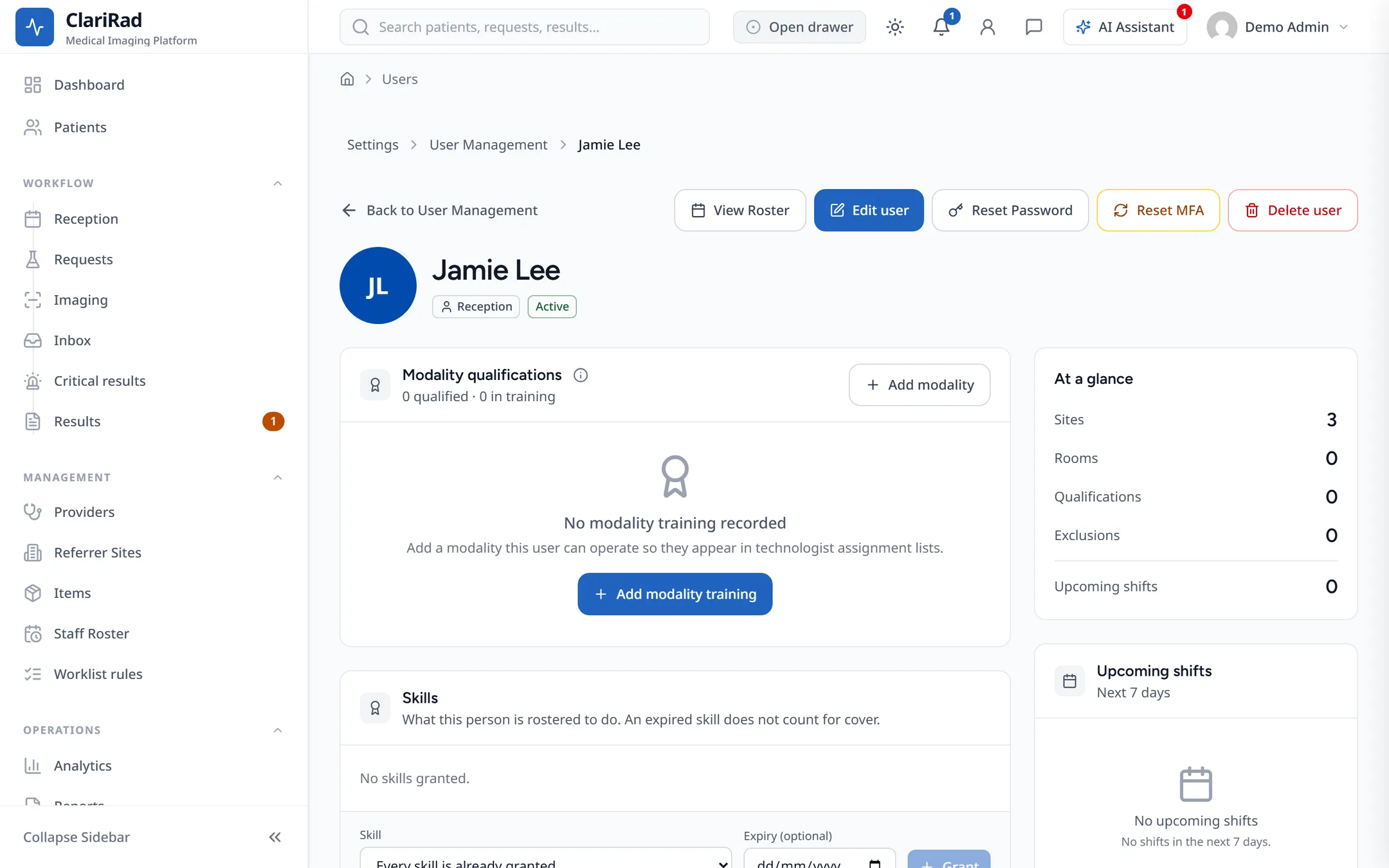
A staff member's details
Open a person to see:
- Roles: the roles they hold.
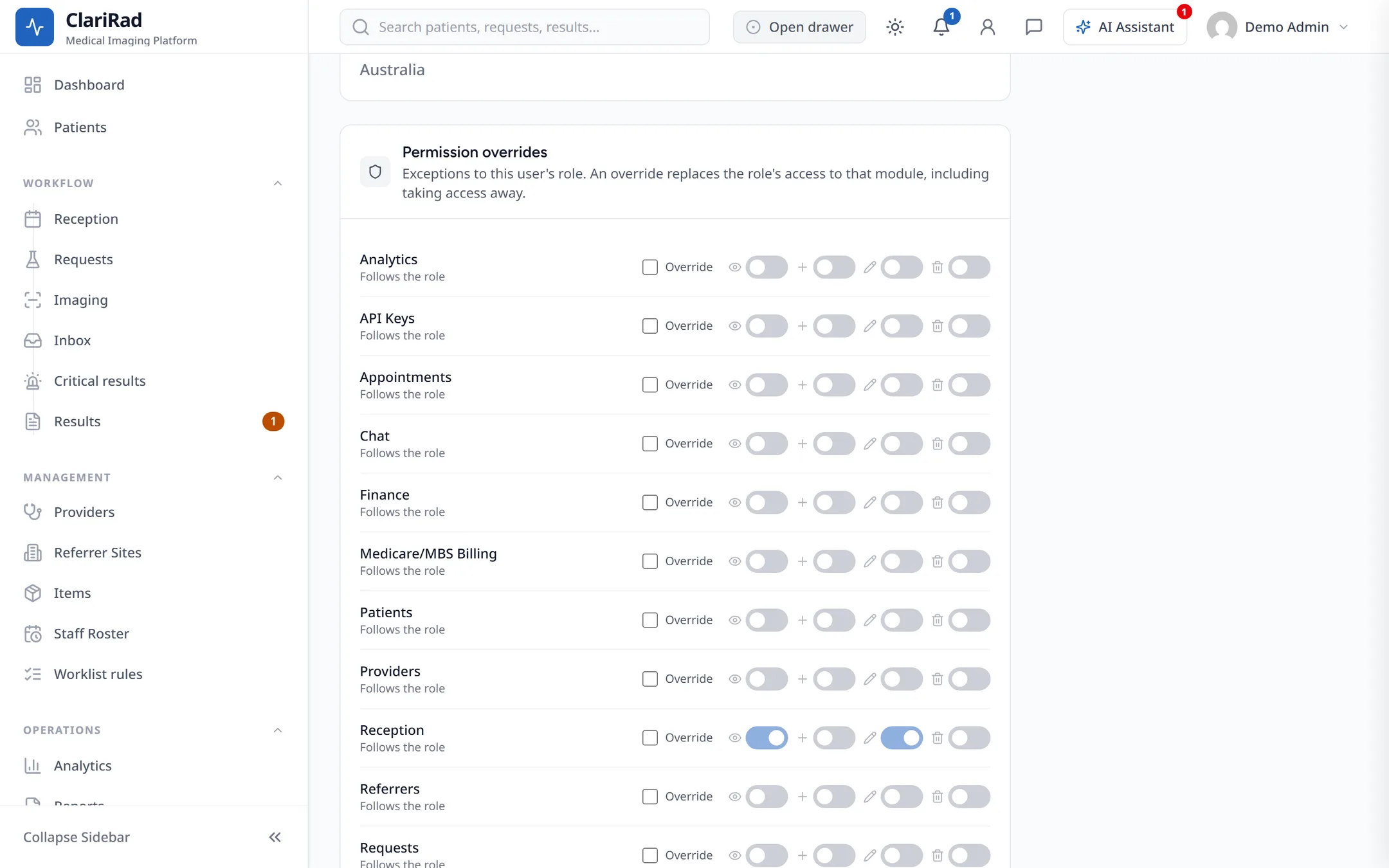
- Permission overrides: changes for this one person. Each screen shows Override or Follows the role.
- Their site and room assignments, and services they don't perform.
Role permissions
Settings, Role Permissions opens Module Access Control. For each role and each area of the app, turn View, Create, Edit and Delete on or off, then press Save Changes. Grant all and Revoke all set every switch for a role at once.
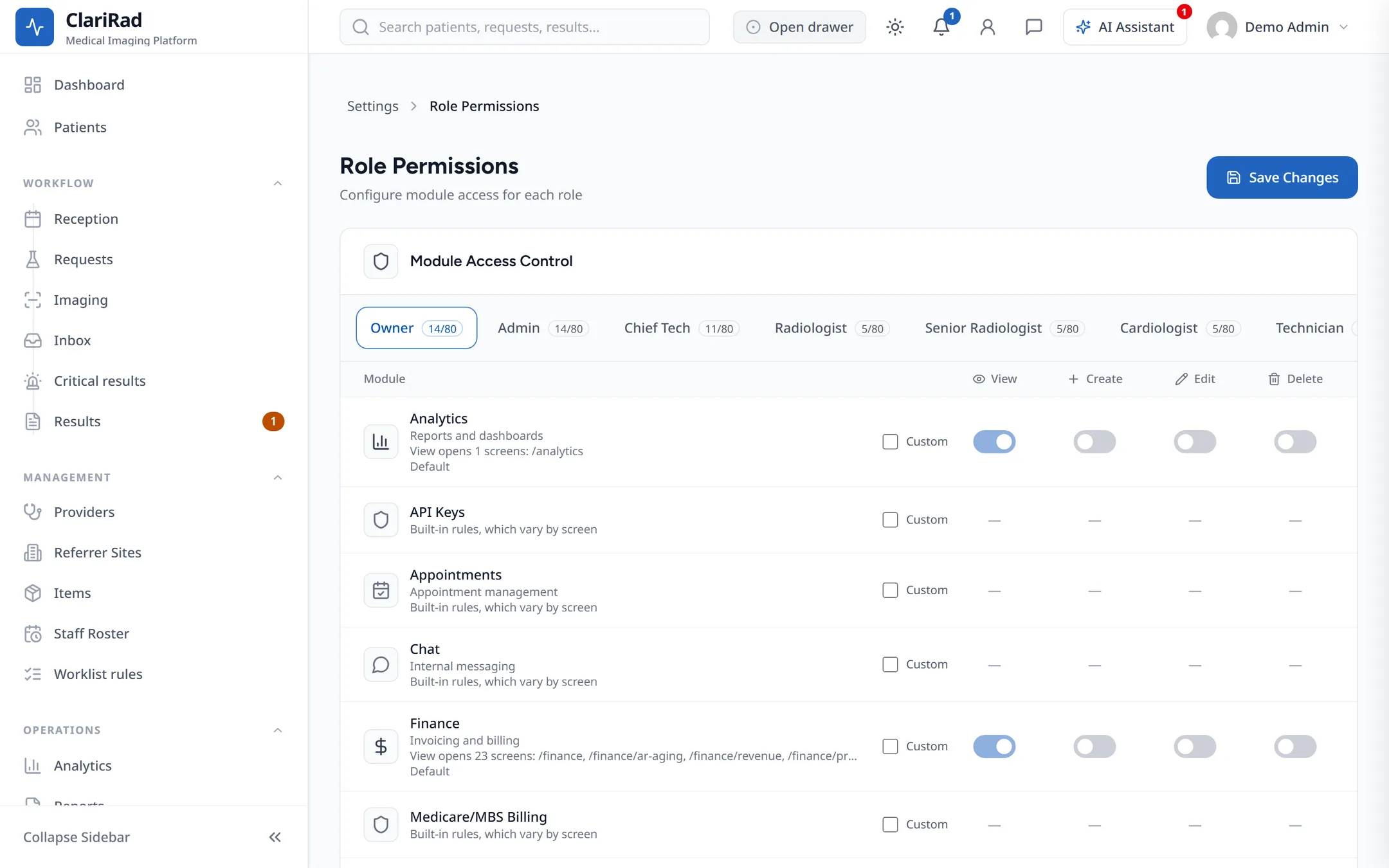
Each area shows which screens its View permission opens. A badge shows whether the role uses the Default, is Custom for this role, or follows built-in rules.
Screens that depend on the role
Some screens are tied to the role itself and can't be granted through permissions:
- Reporting and the Approval Queue are for radiologists and senior radiologists.
- The Transcription queue is for typists.
- Worklist assignment is for admins, practice managers, managers and supervisors.