Draft — being checked against the app
Imaging sites, rooms and trading hours
Add an imaging centre, set up its departments and hours, and make it active.
Clarirad has two kinds of sites. Imaging sites are your own centres, where patients are booked and scanned. Referrer sites are the GP practices and clinics that send you patients; they are listed under Referrer Sites in the side menu.
This page is about imaging sites. They are managed in Settings, Organization. An imaging site can be an imaging centre or a mobile unit; both can be booked.
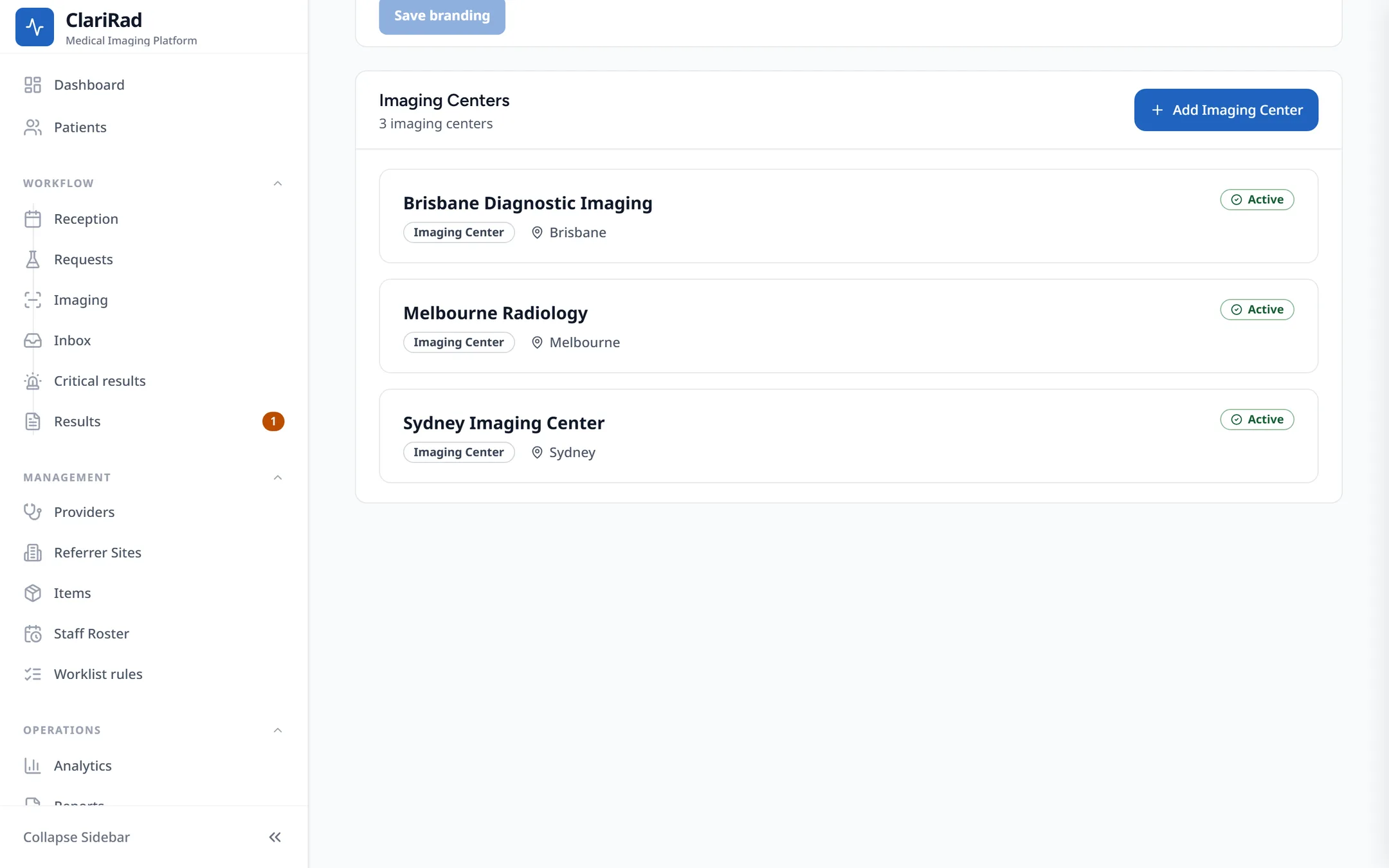
Adding an imaging centre
- Open Settings, Organization, and press Add Imaging Center.
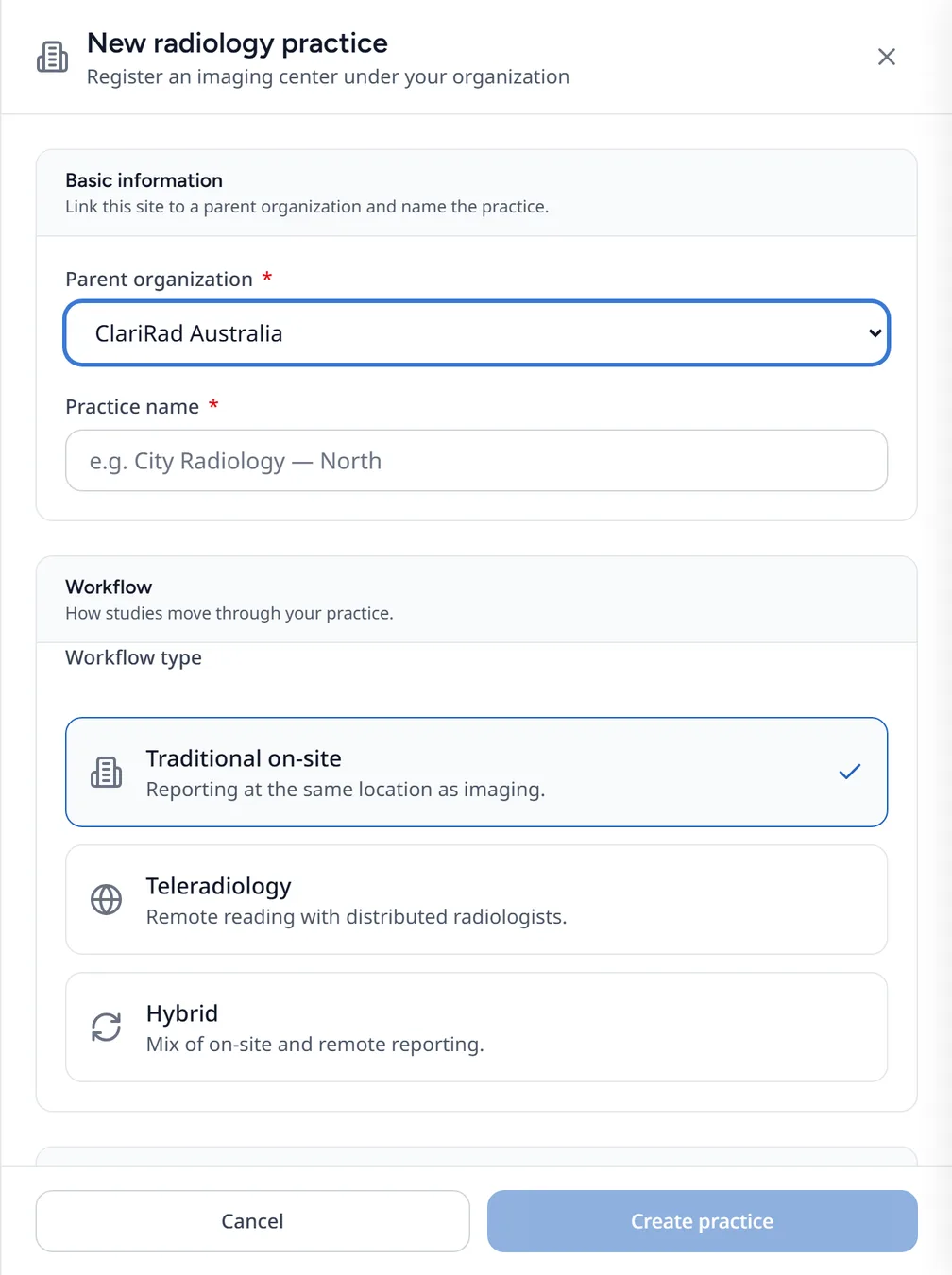
- Under Basic information, choose the parent organisation and name the centre.
- Under Region & billing, check the country, timezone and tax. They come from your practice and are shown, not chosen.
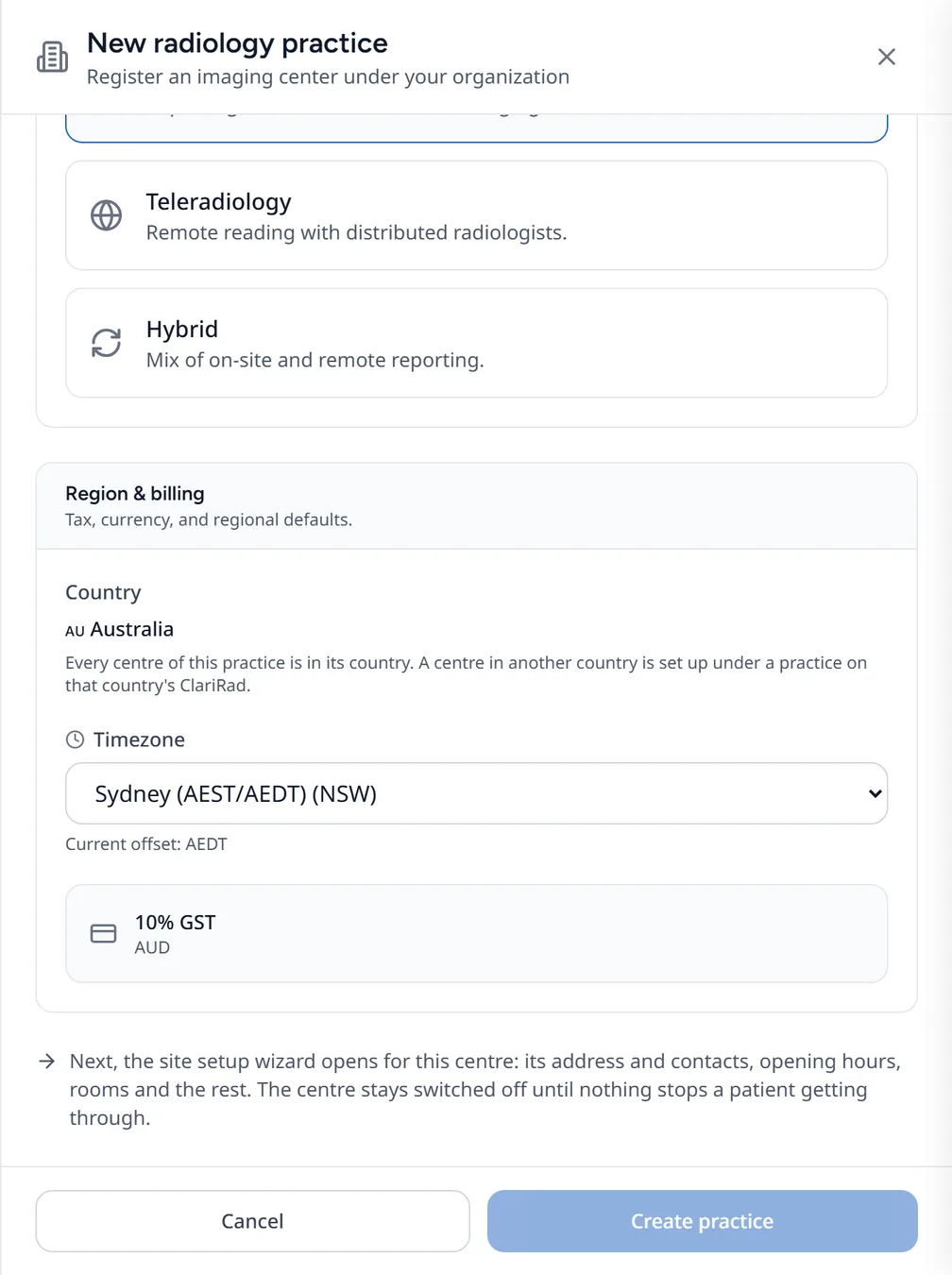
- Choose the Workflow type.
- Press Create practice. The centre is created switched off, and its site setup wizard opens at the first step, Site details.
Setting up the site
Open the site to finish setting it up:
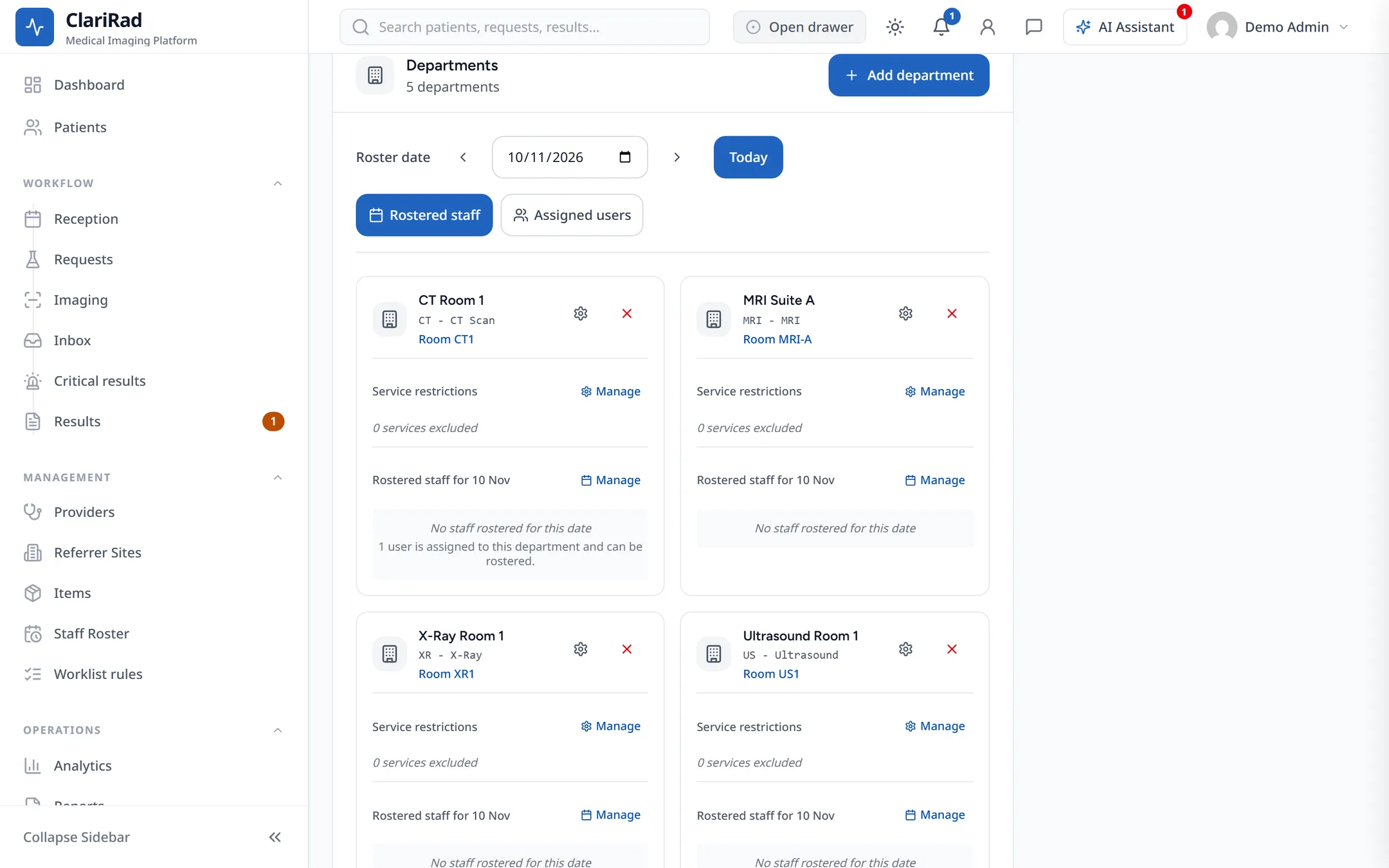
- Departments: press Add department for each room.
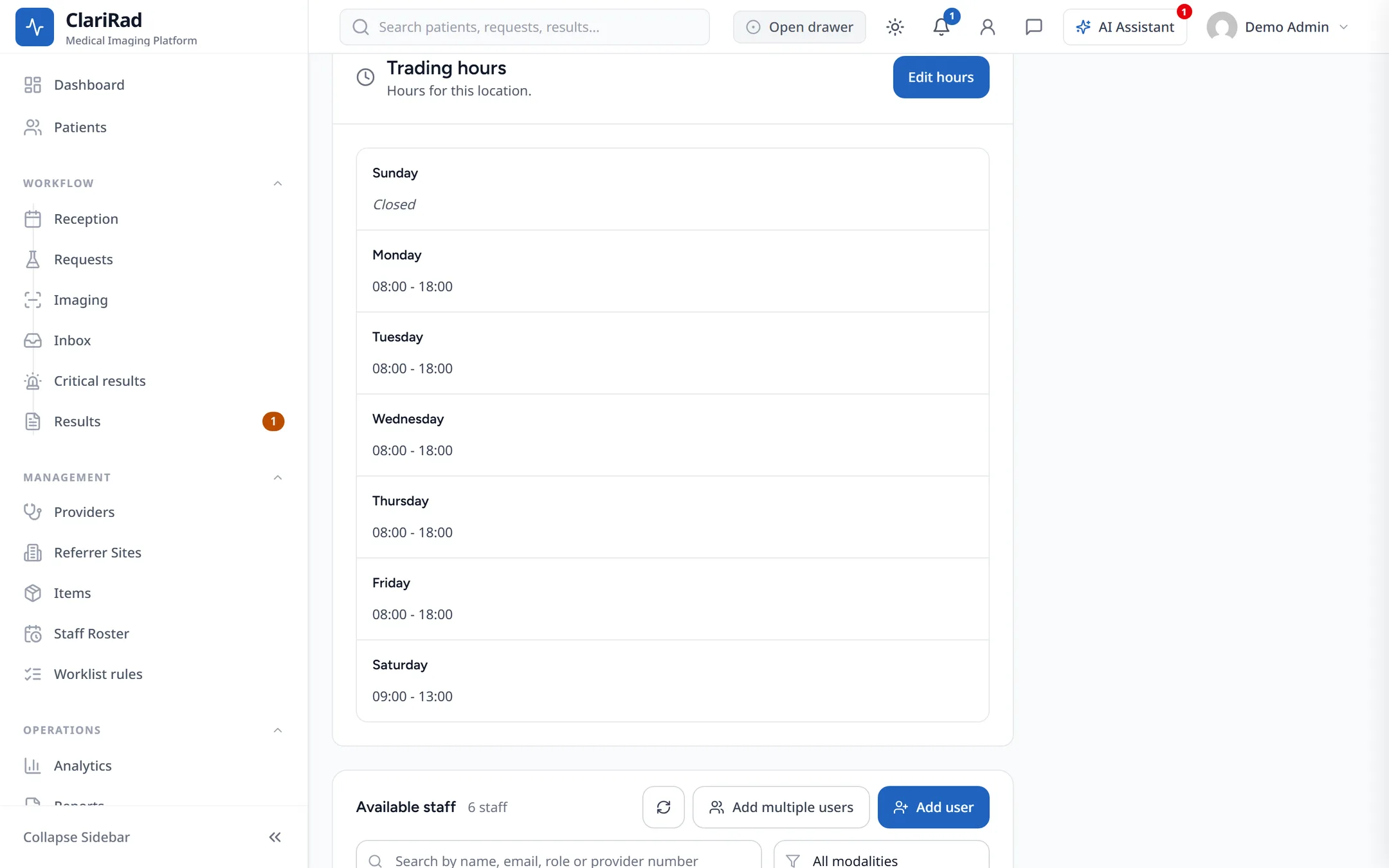
- Trading hours: when the site is open for bookings.
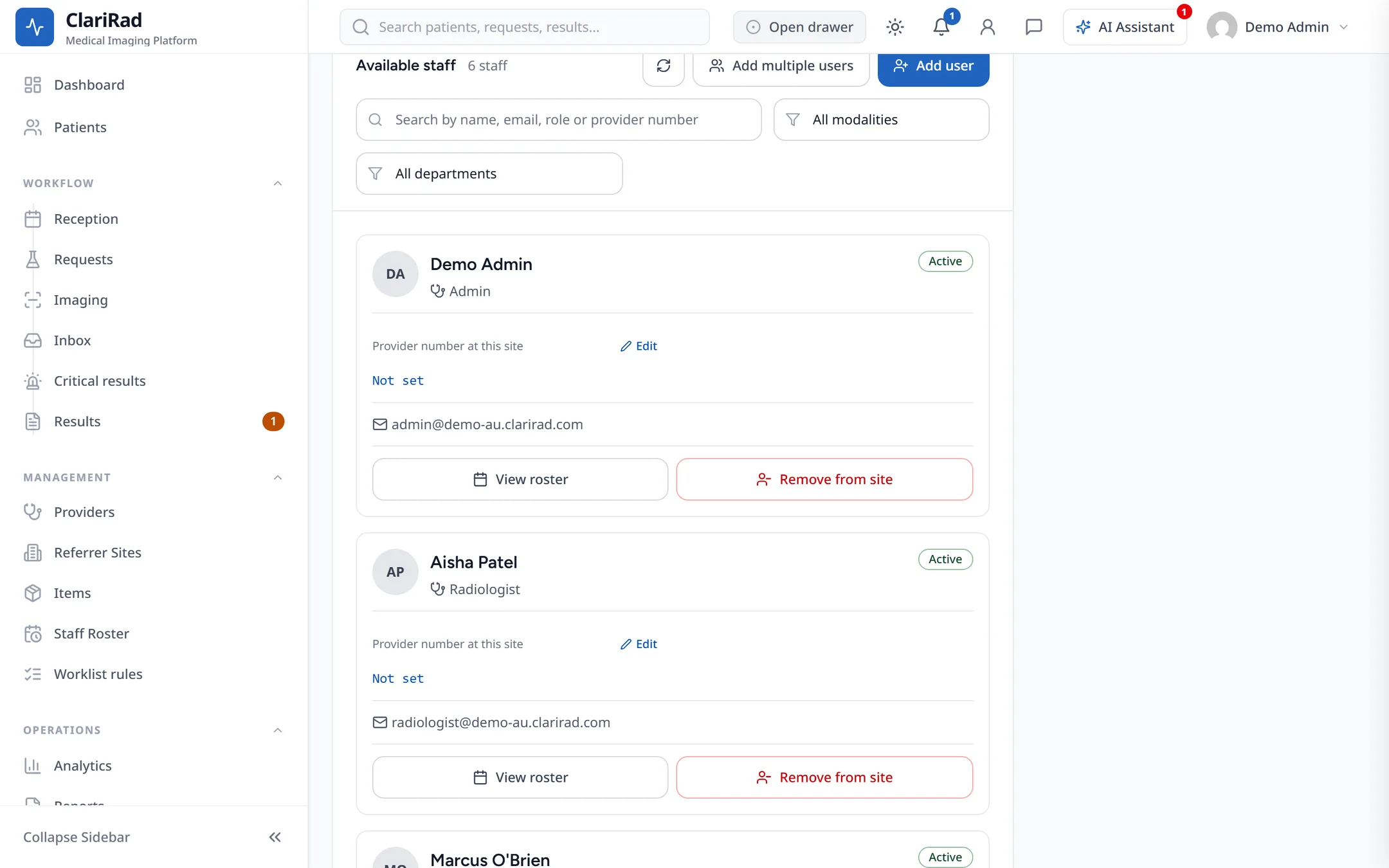
- Staff: Available staff lists who works there, with Edit, View roster and Remove from site. The Rostered staff and Assigned users tabs are in the Departments section.
- PACS viewer and RIS: how the site's images and reports connect to your other systems.
- Phone integration and Report outsourcing, if your practice uses them.
Making a site active
A new site starts switched off. On the site's page, Set up this site step by step opens its setup wizard, and What this site still needs lists anything that stops it being turned Active. The wizard's steps are:
- Site details: address, contacts, the Medicare minor ID in Australia, and opening hours
- Rooms, then Services and prices
- People: who works at the site, and in which rooms
- Modality worklist, PACS and reporting, Orders and EDI, Result delivery, Billing, Payments, Printers, Templates and Patient-facing settings, then a Ready check
Until nothing is missing, you see This site cannot be activated until setup is complete.
Default trading hours
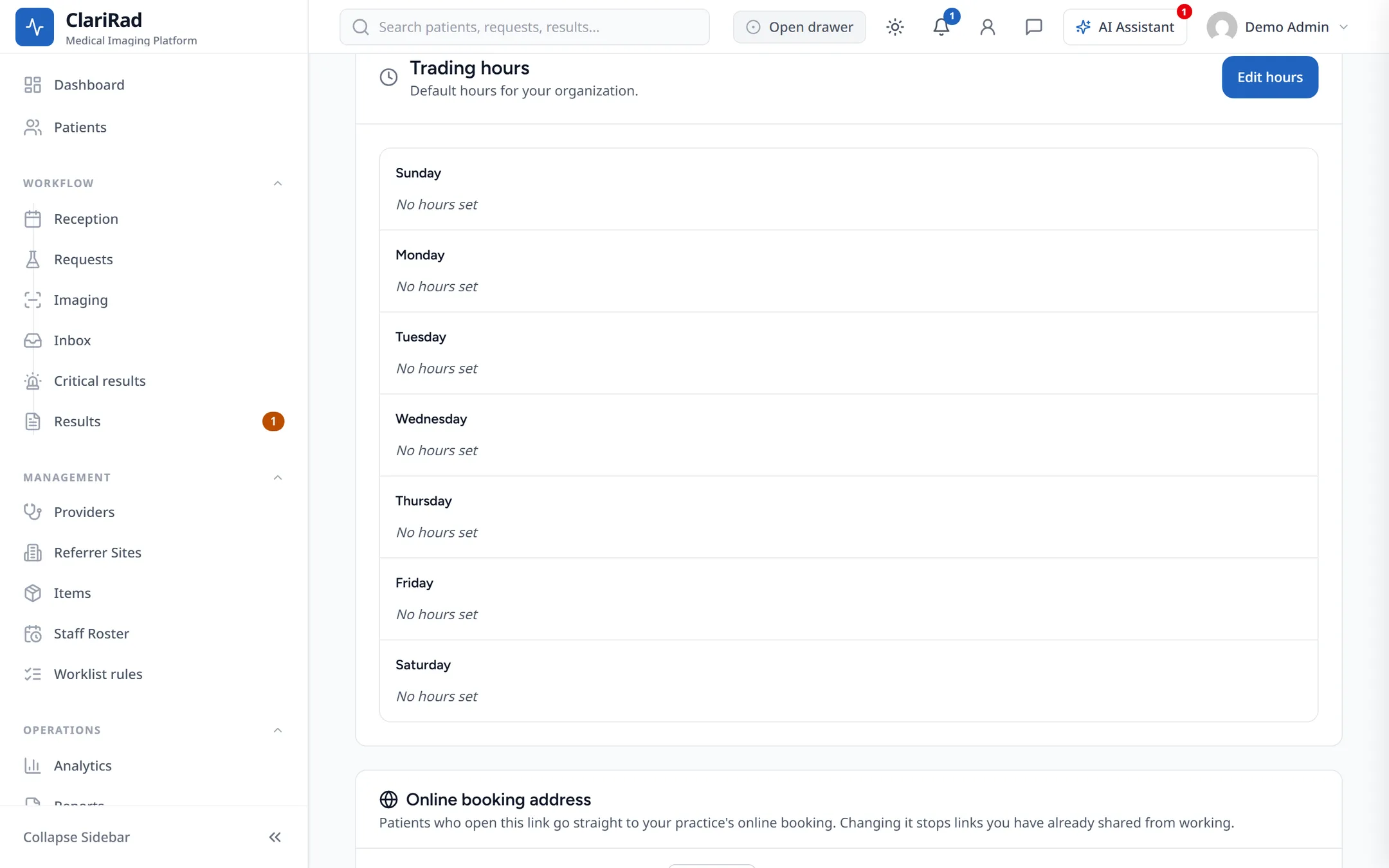
Your organisation's default trading hours are set in Settings, Organization. Each site's own trading hours decide when it can be booked.
Related pages
- The practice setup wizardThe steps the setup wizard walks a new practice through, and how to come back to it.
- Staff users and rolesAdd staff to your practice, give them roles, fine-tune what each role can open, and remove access.
- Labels and printingDesign patient and service labels, print them on arrival, and choose what prints where.